




using System;
using System.Collections.Generic;
using System.Linq;
using System.Text;
using System.Threading.Tasks;
using Windows.Devices.Bluetooth;
using Windows.Devices.Bluetooth.GenericAttributeProfile;
using Windows.Devices.Enumeration;
using Windows.Foundation;
using Windows.Networking;
using Windows.Networking.Proximity;
using Windows.Networking.Sockets;
using Windows.Security.Cryptography;
using Windows.Storage.Streams;

namespace BleSolution
{
    public class BleCore
    {
        private Boolean asyncLock = false;

        /// <summary>
        /// 搜索蓝牙设备对象
        /// </summary>
        private DeviceWatcher deviceWatcher;

        /// <summary>
        /// 当前连接的服务
        /// </summary>
        public GattDeviceService CurrentService { get; set; }

        /// <summary>
        /// 当前连接的蓝牙设备
        /// </summary>
        public BluetoothLEDevice CurrentDevice { get; set; }

        /// <summary>
        /// 写特征对象
        /// </summary>
        public GattCharacteristic CurrentWriteCharacteristic { get; set; }

        /// <summary>
        /// 通知特征对象
        /// </summary>
        public GattCharacteristic CurrentNotifyCharacteristic { get; set; }

        /// <summary>
        /// 特性通知类型通知启用
        /// </summary>
        private const GattClientCharacteristicConfigurationDescriptorValue CHARACTERISTIC_NOTIFICATION_TYPE = GattClientCharacteristicConfigurationDescriptorValue.Notify;

        /// <summary>
        /// 存储检测到的设备
        /// </summary>
        private List<BluetoothLEDevice> DeviceList = new List<BluetoothLEDevice>();

        /// <summary>
        /// 定义搜索蓝牙设备委托
        /// </summary>
        public delegate void DeviceWatcherChangedEvent(MsgType type, BluetoothLEDevice bluetoothLEDevice);

        /// <summary>
        /// 搜索蓝牙事件
        /// </summary>
        public event DeviceWatcherChangedEvent DeviceWatcherChanged;

        /// <summary>
        /// 获取服务委托
        /// </summary>
        public delegate void GattDeviceServiceAddedEvent(GattDeviceService gattDeviceService);

        /// <summary>
        /// 获取服务事件
        /// </summary>
        public event GattDeviceServiceAddedEvent GattDeviceServiceAdded;

        /// <summary>
        /// 获取特征委托
        /// </summary>
        public delegate void CharacteristicAddedEvent(GattCharacteristic gattCharacteristic);

        /// <summary>
        /// 获取特征事件
        /// </summary>
        public event CharacteristicAddedEvent CharacteristicAdded;

        /// <summary>
        /// 提示信息委托
        /// </summary>
        public delegate void MessAgeChangedEvent(MsgType type, string message, byte[] data = null);

        /// <summary>
        /// 提示信息事件
        /// </summary>
        public event MessAgeChangedEvent MessAgeChanged;

        /// <summary>
        /// 当前连接的蓝牙Mac
        /// </summary>
        private string CurrentDeviceMAC { get; set; }

        public BleCore()
        {

        }

        /// <summary>
        /// 搜索蓝牙设备
        /// </summary>
        public void StartBleDeviceWatcher()
        {
            string[] requestedProperties = { "System.Devices.Aep.DeviceAddress", "System.Devices.Aep.IsConnected", "System.Devices.Aep.Bluetooth.Le.IsConnectable" };
            string aqsAllBluetoothLEDevices = "(System.Devices.Aep.ProtocolId:=\"{bb7bb05e-5972-42b5-94fc-76eaa7084d49}\")";

            this.deviceWatcher =
                    DeviceInformation.CreateWatcher(
                        aqsAllBluetoothLEDevices,
                        requestedProperties,
                        DeviceInformationKind.AssociationEndpoint);

            // Register event handlers before starting the watcher.
            this.deviceWatcher.Added += this.DeviceWatcher_Added;
            this.deviceWatcher.Stopped += this.DeviceWatcher_Stopped;
            this.deviceWatcher.Start();
            string msg = "自动发现设备中..";

            this.MessAgeChanged(MsgType.NotifyTxt, msg);
        }

        /// <summary>
        /// 停止搜索蓝牙
        /// </summary>
        public void StopBleDeviceWatcher()
        {
            this.deviceWatcher.Stop();
        }

        /// <summary>
        /// 获取发现的蓝牙设备
        /// </summary>
        /// <param name="sender"></param>
        /// <param name="args"></param>
        private void DeviceWatcher_Added(DeviceWatcher sender, DeviceInformation args)
        {
            this.MessAgeChanged(MsgType.NotifyTxt, "发现设备:" + args.Id);
            this.Matching(args.Id);
        }

        /// <summary>
        /// 停止搜索蓝牙设备
        /// </summary>
        /// <param name="sender"></param>
        /// <param name="args"></param>
        private void DeviceWatcher_Stopped(DeviceWatcher sender, object args)
        {
            string msg = "自动发现设备停止";
            this.MessAgeChanged(MsgType.NotifyTxt, msg);
        }

        /// <summary>
        /// 匹配
        /// </summary>
        /// <param name="Device"></param>
        public void StartMatching(BluetoothLEDevice Device)
        {
            this.CurrentDevice = Device;
        }

        /// <summary>
        /// 获取蓝牙服务
        /// </summary>
        public async void FindService()
        {
            var GattServices = this.CurrentDevice.GattServices;
            foreach (GattDeviceService ser in GattServices)
            {
                this.GattDeviceServiceAdded(ser);
            }
        }

        /// <summary>
        /// 获取特性
        /// </summary>
        public async void FindCharacteristic(GattDeviceService gattDeviceService)
        {
            this.CurrentService = gattDeviceService;
            foreach (var c in gattDeviceService.GetAllCharacteristics())
            {
                this.CharacteristicAdded(c);
            }
        }

        /// <summary>
        /// 获取操作
        /// </summary>
        /// <returns></returns>
        public async Task SetOpteron(GattCharacteristic gattCharacteristic)
        {
            if (gattCharacteristic.CharacteristicProperties == GattCharacteristicProperties.Write)
            {
                this.CurrentWriteCharacteristic = gattCharacteristic;
            }
            if (gattCharacteristic.CharacteristicProperties == GattCharacteristicProperties.Notify)
            {
                this.CurrentNotifyCharacteristic = gattCharacteristic;
            }
            if ((uint)gattCharacteristic.CharacteristicProperties == 26)
            { }

            if (gattCharacteristic.CharacteristicProperties == (GattCharacteristicProperties.Notify | GattCharacteristicProperties.Read | GattCharacteristicProperties.Write))
            {
                this.CurrentWriteCharacteristic = gattCharacteristic;

                this.CurrentNotifyCharacteristic = gattCharacteristic;
                this.CurrentNotifyCharacteristic.ProtectionLevel = GattProtectionLevel.Plain;
                this.CurrentNotifyCharacteristic.ValueChanged += Characteristic_ValueChanged;
                await this.EnableNotifications(CurrentNotifyCharacteristic);
            }

            this.Connect();
        }

        /// <summary>
        /// 连接蓝牙
        /// </summary>
        /// <returns></returns>
        private async Task Connect()
        {
            byte[] _Bytes1 = BitConverter.GetBytes(this.CurrentDevice.BluetoothAddress);
            Array.Reverse(_Bytes1);
            this.CurrentDeviceMAC = BitConverter.ToString(_Bytes1, 2, 6).Replace('-', ':').ToLower();

            string msg = "正在连接设备<" + this.CurrentDeviceMAC + ">..";
            this.MessAgeChanged(MsgType.NotifyTxt, msg);
            this.CurrentDevice.ConnectionStatusChanged += this.CurrentDevice_ConnectionStatusChanged;
        }

        /// <summary>
        /// 搜索到的蓝牙设备
        /// </summary>
        /// <returns></returns>
        private async Task Matching(string Id)
        {
            try
            {
                BluetoothLEDevice.FromIdAsync(Id).Completed = async (asyncInfo, asyncStatus) =>
                {
                    if (asyncStatus == AsyncStatus.Completed)
                    {
                        BluetoothLEDevice bleDevice = asyncInfo.GetResults();
                        this.DeviceList.Add(bleDevice);
                        this.DeviceWatcherChanged(MsgType.BleDevice, bleDevice);
                    }
                };
            }
            catch (Exception e)
            {
                string msg = "没有发现设备" + e.ToString();
                this.MessAgeChanged(MsgType.NotifyTxt, msg);
                this.StartBleDeviceWatcher();
            }
        }

        /// <summary>
        /// 主动断开连接
        /// </summary>
        /// <returns></returns>
        public void Dispose()
        {

            CurrentDeviceMAC = null;
            CurrentService?.Dispose();
            CurrentDevice?.Dispose();
            CurrentDevice = null;
            CurrentService = null;
            CurrentWriteCharacteristic = null;
            CurrentNotifyCharacteristic = null;
            MessAgeChanged(MsgType.NotifyTxt, "主动断开连接");
        }

        private void CurrentDevice_ConnectionStatusChanged(BluetoothLEDevice sender, object args)
        {
            if (sender.ConnectionStatus == BluetoothConnectionStatus.Disconnected && CurrentDeviceMAC != null)
            {
                string msg = "设备已断开,自动重连";
                MessAgeChanged(MsgType.NotifyTxt, msg);
                if (!asyncLock)
                {
                    asyncLock = true;
                    this.CurrentDevice.Dispose();
                    this.CurrentDevice = null;
                    CurrentService = null;
                    CurrentWriteCharacteristic = null;
                    CurrentNotifyCharacteristic = null;
                    SelectDeviceFromIdAsync(CurrentDeviceMAC);
                }
            }
            else
            {
                string msg = "设备已连接";
                MessAgeChanged(MsgType.NotifyTxt, msg);
            }
        }

        /// <summary>
        /// 按MAC地址直接组装设备ID查找设备
        /// </summary>
        public async Task SelectDeviceFromIdAsync(string MAC)
        {
            CurrentDeviceMAC = MAC;
            CurrentDevice = null;
            BluetoothAdapter.GetDefaultAsync().Completed = async (asyncInfo, asyncStatus) =>
            {
                if (asyncStatus == AsyncStatus.Completed)
                {
                    BluetoothAdapter mBluetoothAdapter = asyncInfo.GetResults();
                    byte[] _Bytes1 = BitConverter.GetBytes(mBluetoothAdapter.BluetoothAddress);//ulong转换为byte数组
                    Array.Reverse(_Bytes1);
                    string macAddress = BitConverter.ToString(_Bytes1, 2, 6).Replace('-', ':').ToLower();
                    string Id = "BluetoothLE#BluetoothLE" + macAddress + "-" + MAC;
                    await Matching(Id);
                }
            };
        }

        /// <summary>
        /// 设置特征对象为接收通知对象
        /// </summary>
        /// <param name="characteristic"></param>
        /// <returns></returns>
        public async Task EnableNotifications(GattCharacteristic characteristic)
        {
            string msg = "收通知对象=" + CurrentDevice.ConnectionStatus;
            this.MessAgeChanged(MsgType.NotifyTxt, msg);

            characteristic.WriteClientCharacteristicConfigurationDescriptorAsync(CHARACTERISTIC_NOTIFICATION_TYPE).Completed = async (asyncInfo, asyncStatus) =>
            {
                if (asyncStatus == AsyncStatus.Completed)
                {
                    GattCommunicationStatus status = asyncInfo.GetResults();
                    if (status == GattCommunicationStatus.Unreachable)
                    {
                        msg = "设备不可用";
                        this.MessAgeChanged(MsgType.NotifyTxt, msg);
                        if (CurrentNotifyCharacteristic != null && !asyncLock)
                        {
                            await this.EnableNotifications(CurrentNotifyCharacteristic);
                        }
                    }
                    asyncLock = false;
                    msg = "设备连接状态" + status;
                    this.MessAgeChanged(MsgType.NotifyTxt, msg);
                }
            };
        }

        /// <summary>
        /// 接受到蓝牙数据
        /// </summary>
        private void Characteristic_ValueChanged(GattCharacteristic sender, GattValueChangedEventArgs args)
        {
            byte[] data;
            CryptographicBuffer.CopyToByteArray(args.CharacteristicValue, out data);
            string str = BitConverter.ToString(data);
            this.MessAgeChanged(MsgType.BleData, str, data);
        }

        /// <summary>
        /// 发送数据接口
        /// </summary>
        /// <returns></returns>
        public async Task Write(byte[] data)
        {
            if (CurrentWriteCharacteristic != null)
            {
                CurrentWriteCharacteristic.WriteValueAsync(CryptographicBuffer.CreateFromByteArray(data), GattWriteOption.WriteWithResponse);
                string str = "发送数据:" + BitConverter.ToString(data);
                this.MessAgeChanged(MsgType.BleData, str, data);
            }

        }
    }
}
using System;
using System.Collections.Generic;
using System.ComponentModel;
using System.Data;
using System.Drawing;
using System.Linq;
using System.Text;
using System.Threading.Tasks;
using System.Windows.Forms;

namespace BleSolution
{
    public partial class Form1 : Form
    {
        public Form1()
        {
            InitializeComponent();
            CheckForIllegalCrossThreadCalls = false;
            this.bleCore.MessAgeChanged += BleCore_MessAgeChanged;
            this.bleCore.DeviceWatcherChanged += BleCore_DeviceWatcherChanged;
            this.bleCore.GattDeviceServiceAdded += BleCore_GattDeviceServiceAdded;
            this.bleCore.CharacteristicAdded += BleCore_CharacteristicAdded;
            this.Init();
        }

        // 异步线程
        public static void RunAsync(Action action)
        {
            ((Action)(delegate ()
            {
                action.Invoke();
            })).BeginInvoke(null, null);
        }

        BleCore bleCore = new BleCore();
        /// <summary>
        /// 存储检测到的设备
        /// </summary>
        List<Windows.Devices.Bluetooth.BluetoothLEDevice> DeviceList = new List<Windows.Devices.Bluetooth.BluetoothLEDevice>();

        /// <summary>
        /// 当前蓝牙服务列表
        /// </summary>
        List<Windows.Devices.Bluetooth.GenericAttributeProfile.GattDeviceService> GattDeviceServices = new List<Windows.Devices.Bluetooth.GenericAttributeProfile.GattDeviceService>();

        /// <summary>
        /// 当前蓝牙服务特征列表
        /// </summary>
        List<Windows.Devices.Bluetooth.GenericAttributeProfile.GattCharacteristic> GattCharacteristics = new List<Windows.Devices.Bluetooth.GenericAttributeProfile.GattCharacteristic>();

        private void btnSearch_Click(object sender, EventArgs e)
        {
            if (this.btnSearch.Text == "搜索")
            {
                this.listboxMessage.Items.Clear();
                this.listboxBleDevice.Items.Clear();
                this.bleCore.StartBleDeviceWatcher();
                this.btnSearch.Text = "停止";
            }
            else
            {
                this.bleCore.StopBleDeviceWatcher();
                this.btnSearch.Text = "搜索";
            }
        }

        private void btnConnect_Click(object sender, EventArgs e)
        {
            if (this.listboxBleDevice.SelectedItem != null)
            {
                string DeviceName = this.listboxBleDevice.SelectedItem.ToString();
                Windows.Devices.Bluetooth.BluetoothLEDevice bluetoothLEDevice = this.DeviceList.Where(u => u.Name == DeviceName).FirstOrDefault();
                if (bluetoothLEDevice != null)
                {
                    bleCore.StartMatching(bluetoothLEDevice);
                    this.btnServer.Enabled = true;
                }
                else
                {
                    MessageBox.Show("没有发现此蓝牙,请重新搜索.");
                    this.btnServer.Enabled = false;
                }
            }
            else
            {
                MessageBox.Show("请选择连接的蓝牙.");
                this.btnServer.Enabled = false;
            }
        }

        private void btnServer_Click(object sender, EventArgs e)
        {
            this.cmbServer.Items.Clear();
            this.bleCore.FindService();
        }

        private void btnFeatures_Click(object sender, EventArgs e)
        {
            this.cmbFeatures.Items.Clear();
            if (this.cmbServer.SelectedItem != null)
            {
                var item = this.GattDeviceServices.Where(u => u.Uuid == new Guid(this.cmbServer.SelectedItem.ToString())).FirstOrDefault();
                this.bleCore.FindCharacteristic(item);
            }
            else
            {
                MessageBox.Show("选择蓝牙服务.");
            }
        }

        private void btnOpteron_Click(object sender, EventArgs e)
        {
            if (this.cmbFeatures.SelectedItem != null)
            {
                var item = this.GattCharacteristics.Where(u => u.Uuid == new Guid(this.cmbFeatures.SelectedItem.ToString())).FirstOrDefault();
                this.bleCore.SetOpteron(item);
                if (item.CharacteristicProperties == (Windows.Devices.Bluetooth.GenericAttributeProfile.GattCharacteristicProperties.Notify | Windows.Devices.Bluetooth.GenericAttributeProfile.GattCharacteristicProperties.Read | Windows.Devices.Bluetooth.GenericAttributeProfile.GattCharacteristicProperties.Write))
                {
                    this.btnReader.Enabled = true;
                    this.btnSend.Enabled = true;
                }
            }
            else
            {
                MessageBox.Show("选择蓝牙服务.");
            }
        }

        private void btnReader_Click(object sender, EventArgs e)
        {

        }

        private void btnSend_Click(object sender, EventArgs e)
        {
            byte[] dataBytes = new byte[6];

            dataBytes[0] = 0x23;
            dataBytes[1] = 0x00;
            dataBytes[2] = 0x02;
            dataBytes[3] = 0x01;
            dataBytes[4] = (byte)(dataBytes[1] + dataBytes[2] + dataBytes[3]);
            dataBytes[5] = 0x2A;

            this.bleCore.Write(dataBytes);
        }

        /// <summary>
        /// 提示消息
        /// </summary>
        private void BleCore_MessAgeChanged(MsgType type, string message, byte[] data)
        {
            RunAsync(() =>
            {
                this.listboxMessage.Items.Add(message);
            });
        }

        /// <summary>
        /// 搜索蓝牙设备列表
        /// </summary>
        private void BleCore_DeviceWatcherChanged(MsgType type, Windows.Devices.Bluetooth.BluetoothLEDevice bluetoothLEDevice)
        {
            RunAsync(() =>
            {
                this.listboxBleDevice.Items.Add(bluetoothLEDevice.Name);
                this.DeviceList.Add(bluetoothLEDevice);
                this.btnConnect.Enabled = true;
            });
        }

        /// <summary>
        /// 获取蓝牙服务列表
        /// </summary>
        private void BleCore_GattDeviceServiceAdded(Windows.Devices.Bluetooth.GenericAttributeProfile.GattDeviceService gattDeviceService)
        {
            RunAsync(() =>
            {
                this.cmbServer.Items.Add(gattDeviceService.Uuid.ToString());
                this.GattDeviceServices.Add(gattDeviceService);
                this.btnFeatures.Enabled = true;
            });
        }

        /// <summary>
        /// 获取特征列表
        /// </summary>
        private void BleCore_CharacteristicAdded(Windows.Devices.Bluetooth.GenericAttributeProfile.GattCharacteristic gattCharacteristic)
        {
            RunAsync(() =>
            {
                this.cmbFeatures.Items.Add(gattCharacteristic.Uuid);
                this.GattCharacteristics.Add(gattCharacteristic);
                this.btnOpteron.Enabled = true;
            });
        }

        private void Init()
        {
            this.btnConnect.Enabled = false;
            this.btnServer.Enabled = false;
            this.btnFeatures.Enabled = false;
            this.btnOpteron.Enabled = false;
            this.btnReader.Enabled = false;
            this.btnSend.Enabled = false;
        }

        private void Form1_FormClosed(object sender, FormClosedEventArgs e)
        {
            this.bleCore.Dispose();
        }
    }
}
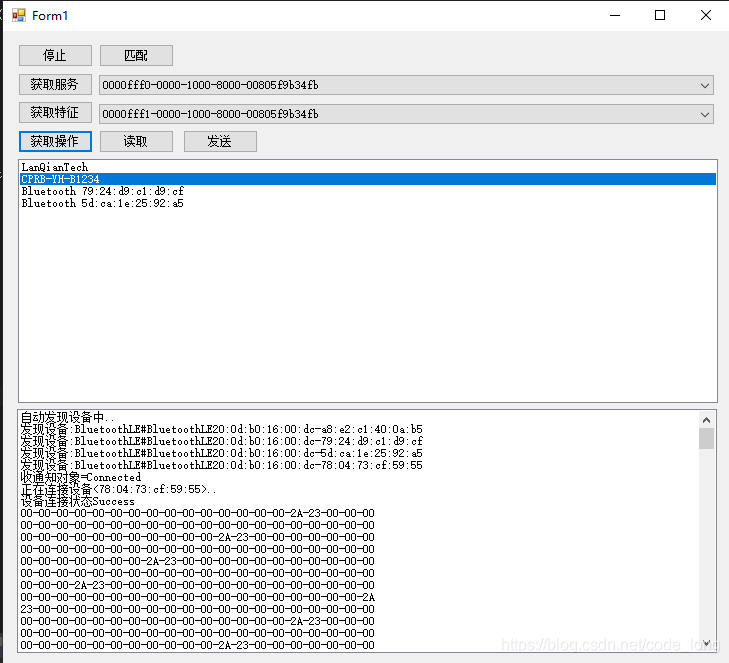
关于服务和特性:蓝牙的服务和特性包含了多种,对于开发来说无非就是通知、读、写,所以只需要过滤uuid的头就可以了
关于蓝牙服务:其实可以直接过滤uuid使用标准协议uuid的前缀:0000ffff0
关于蓝牙特征:也是可以直接过滤uuid使用标准协议uuid的前缀:0000ffff1
跳过选选择服务和特性,这两个uuid的权限比较足,给了通知、读、写的功能,对于开发来说已经足够了。
美中不足的:在搜索蓝牙设备非常花时间,大概10~20s左右才能搜索出来
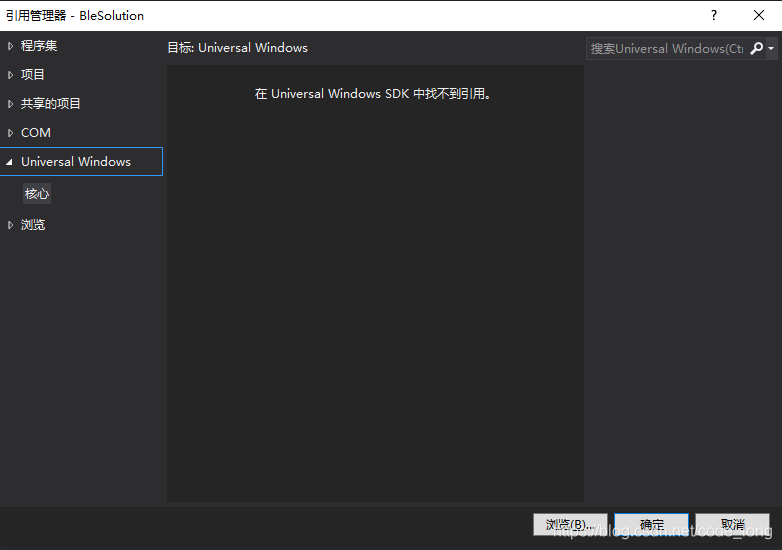
关于,在universal windows sdk 找不到引用:一直没发现是什么问题,很多博主都说重装windows SDK和windows form模块可以解决,但我重试了很多次还是无法解决。
我的解决办法是:直接浏览引用:可直接使用windows sdk 的组件内容。
C:\Program Files (x86)\Reference Assemblies\Microsoft\Framework\.NETCore\v4.5\System.Runtime.WindowsRuntime.dll
C:\Program Files (x86)\Windows Kits\10\UnionMetadata\10.0.18362.0\Windows.winmd
非常感谢 鞪林 博主的的文章,在其上做了一些改动
https://www.cnblogs.com/webtojs/p/9675956.html
解决蓝牙搜索慢的问题:
搜索对象改用未:Windows.Devices.Bluetooth.Advertisement.BluetoothLEAdvertisementWatcher deviceWatcher;
感谢https://blog.youkuaiyun.com/shengfakun1234/article/details/110928783 https://blog.youkuaiyun.com/shengfakun1234 解决搜索慢的问题
            this.deviceWatcher = new Windows.Devices.Bluetooth.Advertisement.BluetoothLEAdvertisementWatcher();
            this.deviceWatcher.ScanningMode = Windows.Devices.Bluetooth.Advertisement.BluetoothLEScanningMode.Active;
            this.deviceWatcher.SignalStrengthFilter.InRangeThresholdInDBm = -80;
            this.deviceWatcher.SignalStrengthFilter.OutOfRangeThresholdInDBm = -90;
            this.deviceWatcher.SignalStrengthFilter.OutOfRangeTimeout = TimeSpan.FromMilliseconds(5000);
            this.deviceWatcher.SignalStrengthFilter.SamplingInterval = TimeSpan.FromMilliseconds(2000);

            this.deviceWatcher.Received += DeviceWatcher_Received;

        private void DeviceWatcher_Received(Windows.Devices.Bluetooth.Advertisement.BluetoothLEAdvertisementWatcher sender, Windows.Devices.Bluetooth.Advertisement.BluetoothLEAdvertisementReceivedEventArgs args)
        {
            BluetoothLEDevice.FromBluetoothAddressAsync(args.BluetoothAddress).Completed = async (asyncInfo, asyncStatus) =>
            {
                if (asyncStatus == AsyncStatus.Completed)
                {
                    if (asyncInfo.GetResults() != null)
                    {
                        BluetoothLEDevice currentDevice = asyncInfo.GetResults();

                        Boolean contain = false;
                        foreach (BluetoothLEDevice device in DeviceList)//过滤重复的设备
                        {
                            if (device.DeviceId == currentDevice.DeviceId)
                            {
                                contain = true;
                            }
                        }
                        if (!contain)
                        {
                            this.DeviceList.Add(currentDevice);
                            this.DeviceWatcherChanged(currentDevice);
                        }
                    }
                }
            };

        }
关于蓝牙连接不上去,大伙可能有很多疑意,下面更新连接的两种方式
这里的MAC就是DeviceId,像:BluetoothLE#BluetoothLE20:0d:b0:16:00:ce-50:51:a9:7d:07:73
连接的时候使用的是id,通过前缀和mac拼接的一个ID,用这个ID去连接
1:按MAC地址查找系统中配对设备
当前设备PC已经已经连接或者配对成功的列表,从PC中寻找这个MAC配对,如果PC未配对则无法找到设备
        /// <summary>
        /// 按MAC地址查找系统中配对设备
        /// </summary>
        /// <param name="MAC"></param>
        public async Task SelectDevice(string MAC)
        {
            CurrentDeviceMAC = MAC;
            CurrentDevice = null;
            DeviceInformation.FindAllAsync(BluetoothLEDevice.GetDeviceSelector()).Completed = async (asyncInfo, asyncStatus) =>
            {
                if (asyncStatus == AsyncStatus.Completed)
                {
                    DeviceInformationCollection deviceInformation = asyncInfo.GetResults();
                    foreach (DeviceInformation di in deviceInformation)
                    {
                        await Matching(di.Id);
                    }
                    if (CurrentDevice == null)
                    {
                        string msg = "没有发现设备";
                        StartBleDeviceWatcher();
                    }
                }
            };
        }
2:按MAC地址直接组装设备ID查找设备
在系统之外寻找并且配对,就是说当前PC未连接配对的设备,添加新的蓝牙、打印机设备并且连接
        /// <summary>
        /// 按MAC地址直接组装设备ID查找设备
        /// </summary>
        /// <param name="MAC"></param>
        /// <returns></returns>
        public async Task SelectDeviceFromIdAsync(string MAC)
        {
            CurrentDeviceMAC = MAC;
            CurrentDevice = null;
            BluetoothAdapter.GetDefaultAsync().Completed = async (asyncInfo, asyncStatus) =>
            {
                if (asyncStatus == AsyncStatus.Completed)
                {
                    BluetoothAdapter mBluetoothAdapter = asyncInfo.GetResults();
                    if (mBluetoothAdapter != null)
                    {
                        await Matching(MAC);
                    }
                    else
                    {
                        string msg = "查找连接蓝牙设备异常.";
                    }
                }

            };
        }
代码地址:https://download.youkuaiyun.com/download/code_long/13686504
 415


 扫一扫


 被折叠的 条评论
为什么被折叠?
 到【灌水乐园】发言


