


导文
unaipp自带的标签页和ui设计相差太大,直接修改组件比手写一个还麻烦,下面手写一个。
样式
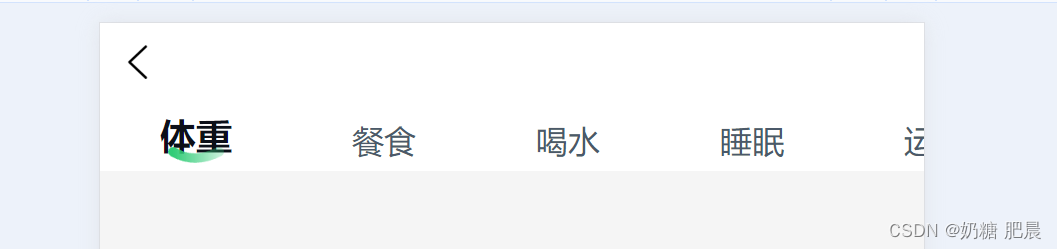
先用scroll-view做一个滑动,不然多的话滑动不了。
<scroll-view class="scroll-view_H" scroll-x="true" @scroll="scroll" scroll-left="120">
				<span class="checkDetails-nav-item action">
					体重
				</span>
				<span class="checkDetails-nav-item">
					餐食
				</span>
				<span class="checkDetails-nav-item">
					喝水
				</span>
				<span class="checkDetails-nav-item">
					睡眠
				</span>
				<span class="checkDetails-nav-item">
					运动
				</span>
			</scroll-view>
- 1.
- 2.
- 3.
- 4.
- 5.
- 6.
- 7.
- 8.
- 9.
- 10.
- 11.
- 12.
- 13.
- 14.
- 15.
- 16.
- 17.
然后实现默认样式,和标签页点击样式。
.scroll-view_H {
			white-space: nowrap;
			width: 100%;
			background: #fff;
		}

		.scroll-view-item {
			height: 300rpx;
			line-height: 300rpx;
			text-align: center;
			font-size: 36rpx;
		}

		.scroll-view-item_H {
			display: inline-block;
			width: 100%;
			height: 300rpx;
			line-height: 300rpx;
			text-align: center;
			font-size: 36rpx;
		}

		.checkDetails-nav-item {
			font-size: 16px;
			font-weight: 500;
			letter-spacing: 0px;
			line-height: 30px;
			color: rgba(75, 89, 105, 1);
			text-align: left;
			vertical-align: top;
			background: #fff;
			padding: 0px 30px;

		}

		.action {
			font-size: 18px;
			font-weight: 700;
			letter-spacing: 0px;
			line-height: 25.2px;
			color: rgba(12, 16, 25, 1);
			position: relative;
		}

		.action::after {
			content: '';
			position: absolute;
			background-image: url(../../static/checkDetails/action.png);
			background-size: 100%;
			background-repeat: no-repeat;
			width: 28px;
			height: 10px;
			top: 18px;
			left: 34px;
		}
- 1.
- 2.
- 3.
- 4.
- 5.
- 6.
- 7.
- 8.
- 9.
- 10.
- 11.
- 12.
- 13.
- 14.
- 15.
- 16.
- 17.
- 18.
- 19.
- 20.
- 21.
- 22.
- 23.
- 24.
- 25.
- 26.
- 27.
- 28.
- 29.
- 30.
- 31.
- 32.
- 33.
- 34.
- 35.
- 36.
- 37.
- 38.
- 39.
- 40.
- 41.
- 42.
- 43.
- 44.
- 45.
- 46.
- 47.
- 48.
- 49.
- 50.
- 51.
- 52.
- 53.
- 54.
- 55.
改成动态列表
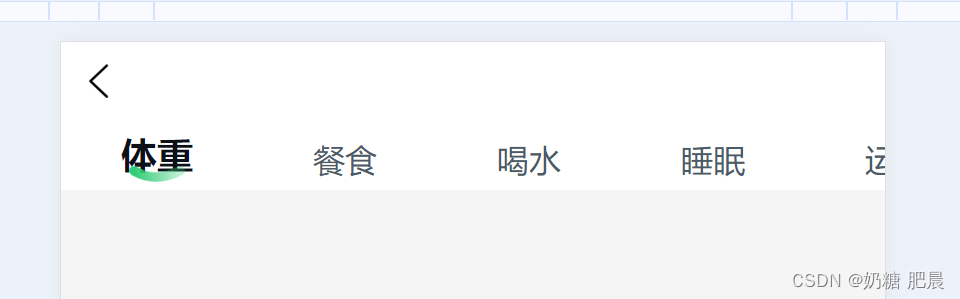
循环自定义的teb组件就好
在data中定义列表,和当前展示的页面值
加上切换页面效果。
切换点击效果
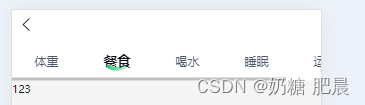
加上一个handleSwitch点击事件
切换navCurrent 值就好
加上点击自动滑动scroll-view
先把scroll-left改成动态的,在handleSwitch方法中添加index索引值传过去
使用index索引值,判断滑动位置
加上切换组件效果

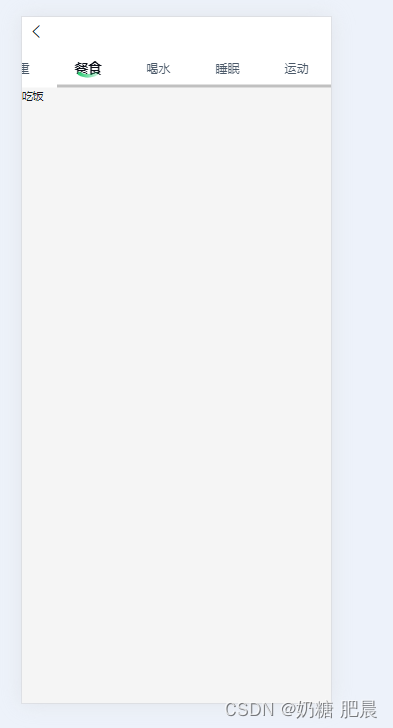
先创建好组件,一般放在components里面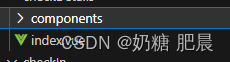
在父页面中引入组件,在template里面写组件
<view class="checkDetails">
<view class="checkDetails-nav">
<scroll-view class="scroll-view_H" scroll-x="true" :scroll-left="scrollValue">
				<span v-for="(item, index) in navList" :key="index" class="checkDetails-nav-item"
					:class="{ 'action': navCurrent == item.value }" @click="handleSwitch(item, index)">
					{{ item.text }}
				</span>
			</scroll-view>
</view>
<drinkPage v-if="navCurrent == 'drink'"></drinkPage>
<foodPage v-if="navCurrent == 'food'"></foodPage>
<sleepPage v-if="navCurrent == 'sleep'"></sleepPage>
<sportPage v-if="navCurrent == 'sport'"></sportPage>
<weightPage v-if="navCurrent == 'weight'"></weightPage>
</view>
</template>
<script>
- 1.
- 2.
- 3.
- 4.
- 5.
- 6.
- 7.
- 8.
- 9.
- 10.
- 11.
- 12.
- 13.
- 14.
- 15.
- 16.
- 17.
- 18.
- 19.
- 20.
别忘了用import 引入和components注册组件名哦
import drinkPage from './components/drinkPage/index.vue'
import foodPage from './components/foodPage/index.vue'
import sleepPage from './components/sleepPage/index.vue'
import sportPage from './components/sportPage/index.vue'
import weightPage from './components/weightPage/index.vue'

export default {
	components: {
		drinkPage,
		foodPage,
		sleepPage,
		sportPage,
		weightPage
	},
- 1.
- 2.
- 3.
- 4.
- 5.
- 6.
- 7.
- 8.
- 9.
- 10.
- 11.
- 12.
- 13.
- 14.
您好,我是肥晨。
欢迎关注我获取前端学习资源,日常分享技术变革,生存法则;行业内幕,洞察先机。
 696


 扫一扫


 被折叠的 条评论
为什么被折叠?
 到【灌水乐园】发言


