


 本文介绍了Vim自带的文件浏览器Netrw插件的功能与使用技巧,包括如何改变目录视图、调整文件打开方式等,并提供了配置建议。
Table of contents
-
- netrw - the unloved directory browser
- Changing the directory view in netrw
- Changing how files are opened
- Set the width of the directory explorer
- You may not need netrw
netrw - the unloved directory browser
The netrw plugin normally ships with vim and is the default filebrowser. It gets a bad rap and ships with all kinds of features likes remote editing over SSH and FTP, and anecdotally has many bugs . Most developers just jump straight for the NERDtree plugin but in my opinion the default netrw plugin does most of what people use NERDtree for. Moreover, for opening files and traversing codebases there are other native vim options available.
Invoking netrw
Invoking netrw can be achieved in three ways
:Explore- opensnetrwin the current window:Sexplore- opensnetrwin a horizontal split:Vexplore- opensnetrwin a horizontal split
You can also snigger by typing :Sex to invoke a horizontal split.
Changing the directory view in netrw
The directory listing view can be modified to show more or less information on files and directories, change the sorting order and hiding certain files.
With the directory browser open hit i to cycle through the view types. There are four different view types: thin, long, wide and tree. A preferred view type can be made permanent by setting it in a .vimrc file.
let g:netrw_liststyle = 3
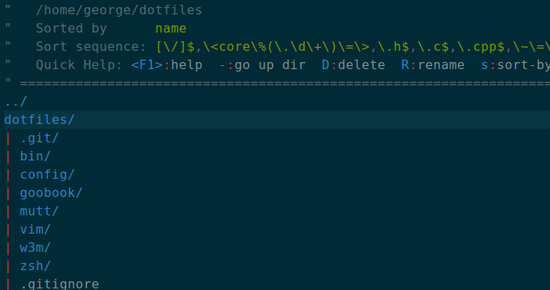
The tree list view in netrw.
Removing the banner
The directory banner is mostly useless. To remove it temporarily press I . To remove it permanently add the following to your .vimrc .
let g:netrw_banner = 0
Changing how files are opened
By default files will be opened in the same window as the netrw directory browser. To change this behaviour the netrw_browse_split option may be set. The options are as follows
1- open files in a new horizontal split2- open files in a new vertical split3- open files in a new tab
To make the selection permanent add the following to your .vimrc .
let g:netrw_browse_split = 1
Set the width of the directory explorer
The width of the directory explorer can be fixed with the netrw_browse_split option. The following sets the width to 25% of the page.
let g:netrw_winsize = 25
NERDtree like setup
If NERDtree is your thing netrw can give you a similar experience with the following settings
let g:netrw_banner = 0
let g:netrw_liststyle = 3
let g:netrw_browse_split = 4
let g:netrw_altv = 1
let g:netrw_winsize = 25
let g:netrw_banner = 0
augroup ProjectDrawer
  autocmd!
  autocmd VimEnter * :Vexplore
augroup END
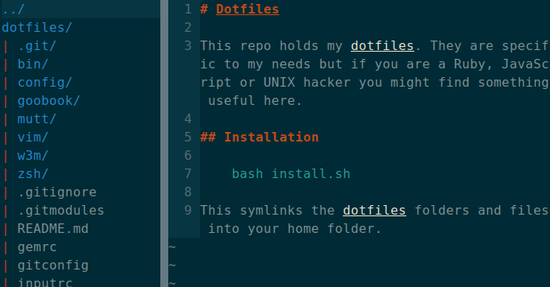
A nerdtree like setup with netrw.
My settings
I keep things minimal and am happy with most of the defaults. In fact for now I just remove the banner. I told you I like minimal :-).
let g:netrw_banner = 0
vim-vinegar
It is worth mentioning vim-vinegar , a plugin that looks to enhance netrw and is popular with users looking to avoid installing NERDtree.
Well, vinegar.vim enhances netrw, partially in an attempt to mitigate the need for more disruptive “project drawer” style plugins.
In trying to use less vim plugins so I’m not a user but horses for courses etc.
You may not need netrw
Vim also supports arbitrary commands to be run following ! . For a quick directory listing the following works.
:! ls -lF
For a more complex command other commands like ack , grep or find can be used.
There are a number of ways to open files in vim and if that is what you use netrw for. Using file within vim can open files and supports tab completion.
:file path/to/file.txt
To open a file in a vertical split use the following. This also supports tab completion.
:vs path/to/file.txt
To open a file in a horizontal split use the following. This also supports tab completion.
:sp path/to/file.txt
To open a file in a new tab use the following. This also supports tab completion.
:tabnew path/to/file.txt
For exploring codebases I also findusing ctags is a better than grepping or trying to guess where methods are defined. First you need to generate a tags file using the ctags command.
ctags -R .
Once this file is created vim can take you to a function or method definition automatically with CTRL-[ . It is like magic and much more intelligent than random file browsing.
Conclusion
The directory browser that ships with vim is not particularly intuitive and ships with a wealth of features I will most likely never use. I get the sense that many developers just blindly install a shiny plugin without understanding what netrw can do. Sure, netrw is not perfect but less dependencies in my life and striving for simplicity is a good thing.
Further reading
- Why does NERDtree exist? What’s wrong with netrw?
- netrw documentation
- vim-vinegar
- nerdtree
- Vim and ctags
- Make netrw really behave like Nerdtree
Have an update or suggestion for this article? You can edit it here and send me a pull request.






 扫一扫
扫一扫


 2719
2719

 被折叠的 条评论
为什么被折叠?
被折叠的 条评论
为什么被折叠?
 到【灌水乐园】发言





