


摘要
在Web开发中,表单处理是一个非常重要的环节,特别是当需要用户输入具有特定范围的数值时,比如价格区间、时间范围等。Jeesite作为一款强大的企业级快速开发平台,提供了丰富的表单组件来帮助开发者快速构建高质量的Web应用。本文将介绍如何在Jeesite的BasicForm表单中使用InputGroup组件来实现区间数值输入控件,例如输入一个数值范围10-100。

一、引言
Jeesite的BasicForm组件提供了强大的表单处理功能,结合InputGroup组件,我们可以灵活地创建各种复杂的表单输入项。InputGroup组件允许我们将多个输入项组合在一起,形成一个逻辑上的整体,非常适合用来实现区间数值输入控件。
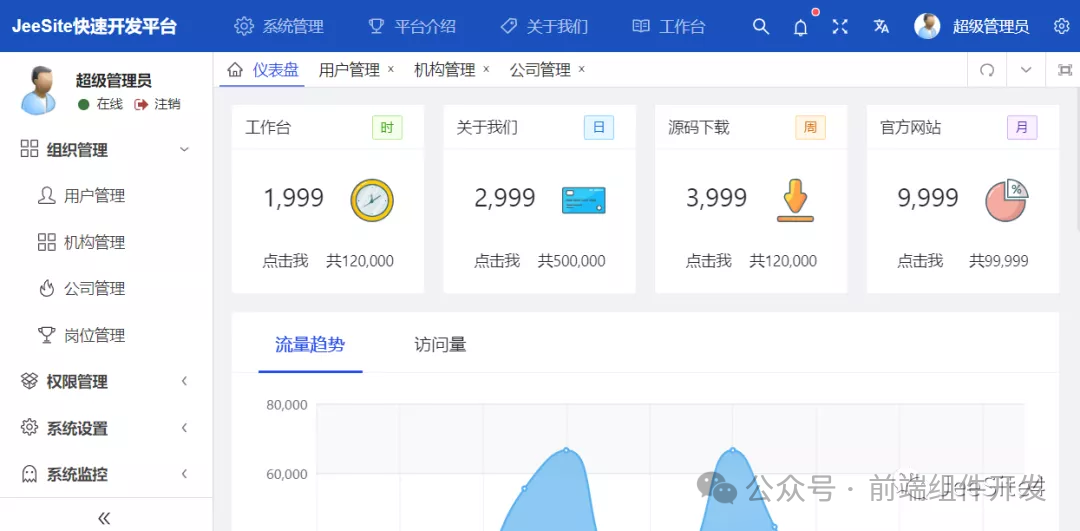
二、InputGroup组件基本使用
在Jeesite中,InputGroup组件主要用于将多个输入框(Input)或其他输入控件组合在一起,形成一个视觉和逻辑上的整体。通过InputGroup,我们可以轻松地将两个Input组件组合起来,分别用于输入数值范围的最小值和最大值。
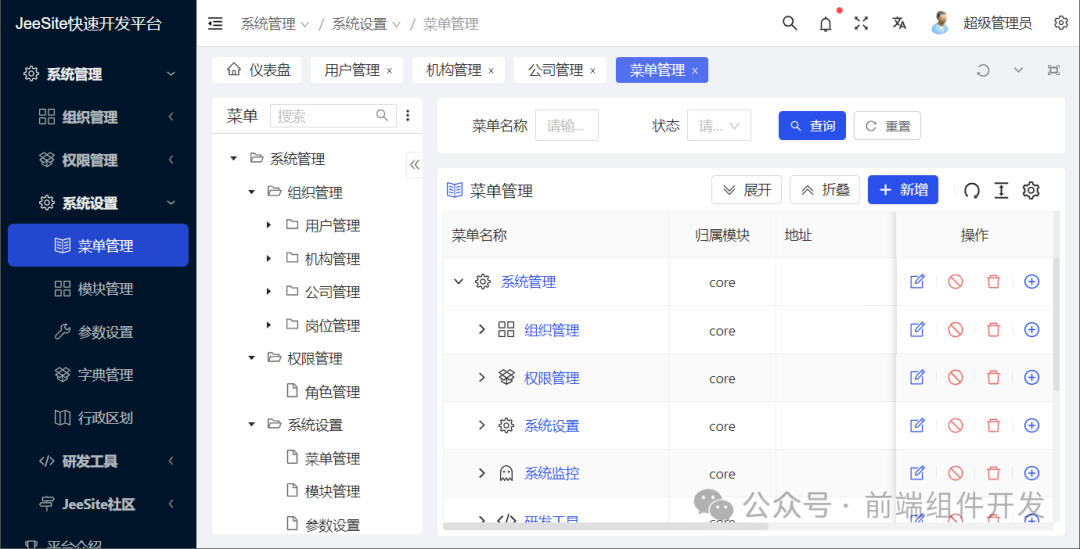
示例代码
假设我们需要在Jeesite的表单中实现一个区间数值输入控件,让用户输入一个介于10到100之间的数值范围。我们可以参考Vue-Vben-Admin中的示例代码,但需要根据Jeesite的组件和API进行相应的调整。
例子:
https://gitee.com/thinkgem/vue-vben-admin/blob/main/src/views/demo/page/form/step/data.tsx
https://gitee.com/thinkgem/vue-vben-admin/blob/main/src/views/demo/page/form/step/Step1.vue
以下是基于Vue-Vben-Admin示例改编的代码,用于展示在Jeesite中如何使用InputGroup组件实现区间数值输入:
form组件
import { FormSchema } from '/@/components/Form';export const step1Schemas: FormSchema[] = [{field: 'account',component: 'Select',label: '付款账户',required: true,defaultValue: '1',componentProps: {options: [{label: 'anncwb@126.com',value: '1',},],},},{field: 'fac',component: 'InputGroup',label: '收款账户',required: true,defaultValue: 'test@example.com',slot: 'fac',},{field: 'pay',component: 'Input',label: '',defaultValue: 'zfb',show: false,},{field: 'payeeName',component: 'Input',label: '收款人姓名',defaultValue: 'Vben',required: true,},{field: 'money',component: 'Input',label: '转账金额',defaultValue: '500',required: true,renderComponentContent: () => {return {prefix: () => '¥',};},},];export const step2Schemas: FormSchema[] = [{field: 'pwd',component: 'InputPassword',label: '支付密码',required: true,defaultValue: '123456',},];
step.vue页面
<template><div class="step1"><div class="step1-form"><BasicForm @register="register"><template #fac="{ model, field }"><a-input-group compact><a-select v-model:value="model['pay']" class="pay-select"><a-select-option value="zfb"> 支付宝 </a-select-option><a-select-option value="yl"> 银联 </a-select-option></a-select><a-input class="pay-input" v-model:value="model[field]" /></a-input-group></template></BasicForm></div><a-divider /><h3>说明</h3><h4>转账到支付宝账户</h4><p>如果需要,这里可以放一些关于产品的常见问题说明。如果需要,这里可以放一些关于产品的常见问题说明。如果需要,这里可以放一些关于产品的常见问题说明。</p><h4>转账到银行卡</h4><p>如果需要,这里可以放一些关于产品的常见问题说明。如果需要,这里可以放一些关于产品的常见问题说明。如果需要,这里可以放一些关于产品的常见问题说明。</p></div></template><script lang="ts">import { defineComponent } from 'vue';import { BasicForm, useForm } from '/@/components/Form';import { step1Schemas } from './data';import { Select, Input, Divider } from 'ant-design-vue';export default defineComponent({components: {BasicForm,[Select.name]: Select,ASelectOption: Select.Option,[Input.name]: Input,[Input.Group.name]: Input.Group,[Divider.name]: Divider,},emits: ['next'],setup(_, { emit }) {const [register, { validate }] = useForm({labelWidth: 100,schemas: step1Schemas,actionColOptions: {span: 14,},showResetButton: false,submitButtonOptions: {text: '下一步',},submitFunc: customSubmitFunc,});async function customSubmitFunc() {try {const values = await validate();emit('next', values);} catch (error) {}}return { register };},});</script><style lang="less" scoped>.step1 {&-form {width: 450px;margin: 0 auto;}h3 {margin: 0 0 12px;font-size: 16px;line-height: 32px;color: @text-color;}h4 {margin: 0 0 4px;font-size: 14px;line-height: 22px;color: @text-color;}p {color: @text-color;}}.pay-select {width: 20%;}.pay-input {width: 70%;}</style>
注意:上述代码是基于Vue和Jeesite可能的集成方式编写的代码,具体实现时需要根据Jeesite的实际组件和API进行调整。
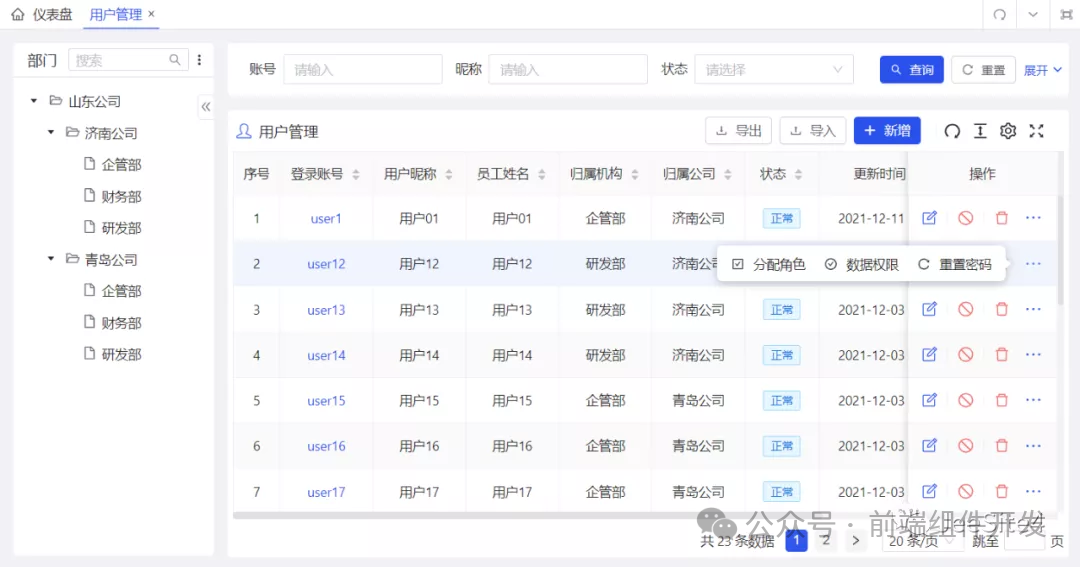
三、高级使用技巧
1. 实时验证
通过Vue的watch属性或表单验证库(如VeeValidate、Element Plus的Form表单验证等),我们可以实现输入值的实时验证,确保用户输入的数值在指定的范围内,并且最大值不小于最小值。
2. 样式自定义
利用CSS或Less,我们可以对InputGroup及其子组件进行样式自定义,使其更符合应用的整体风格。例如,可以调整输入框的宽度、高度、字体大小等属性,以及分隔符的样式。
3. 组件封装
如果区间数值输入控件是项目中常用的表单项,我们可以考虑将其封装成一个独立的Vue组件,以便在多个页面或组件中复用。封装时,可以将验证逻辑、样式自定义等一并封装进去,提高开发效率。
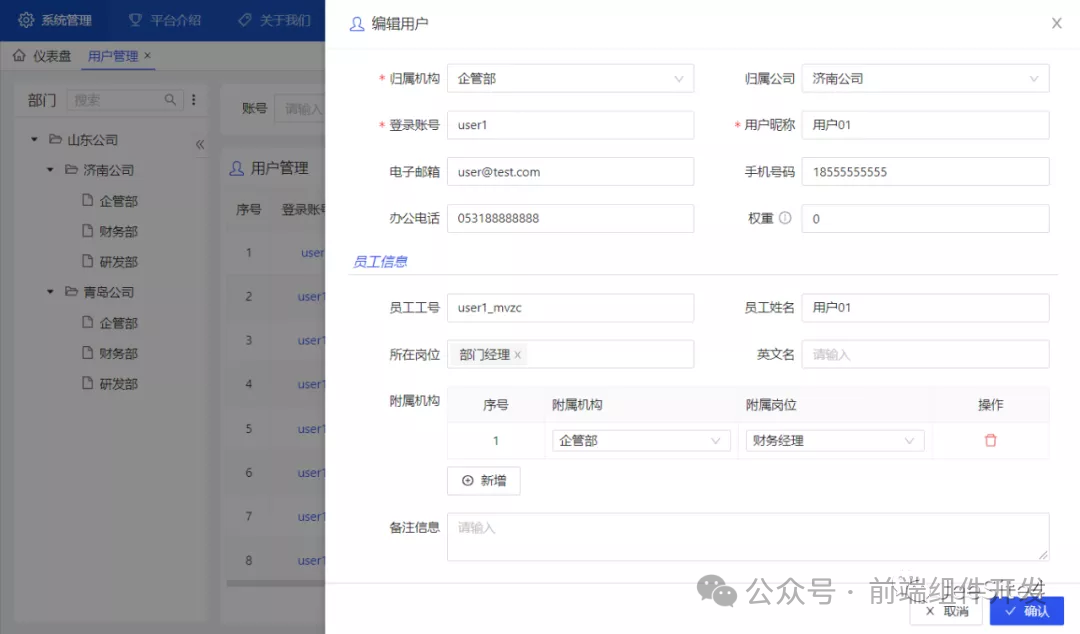
四、总结
通过InputGroup组件,我们可以在Jeesite的BasicForm表单中灵活地实现区间数值输入控件。结合实时验证、样式自定义和组件封装等高级使用技巧,我们可以进一步提升应用的用户体验和开发效率。希望本文能对你有所帮助,如果你在实际开发中遇到任何问题,欢迎留言讨论。
码云地址
https://gitee.com/thinkgem/jeesite5
官方网站
https://www.jeesite.com/






 扫一扫
扫一扫


 被折叠的 条评论
为什么被折叠?
被折叠的 条评论
为什么被折叠?
 到【灌水乐园】发言





