print!/println!宏详解

控制台命令行程序适合很多场景,如记录事件日志、配置应用程序、接收用户输入、访问开发者工具等等。它是GUI的一种可替代方案。

Rust提供了多种与控制台进行交互的读写操作,我们从最常用的println!和print!宏开始。

输出

  • println!和print!宏用于在控制台显示信息。这两个宏将格式化的字符串插入输出流(stdout)中。 区别是println!()会在格式化输出的结尾加上一个换行符\n
  • println!和print!宏是可变参数的,意味着可以有多个数量的参数。
  • 每个宏的第一个参数是一个格式化字符串也是一个字符串字面量。格式化字符串可以包含占位符({}),宏的其余参数必须依次替换占位符所对应的位置。
  • print!宏至少必须有一个参数; 而println!可以没有,仅仅表示打印换行。

格式化字符串

占位符({})保留给实现了Display trait的公共类型。标准库中很多原生类型(整数、浮点数),都被视为公共类型,它们实现了Display这个trait.比如自定义的结构体(struct),可能并未实现Display trait,无法直接使用占位符({})进行格式化。

fn main() {
    let a = 10;
    let b = 20;
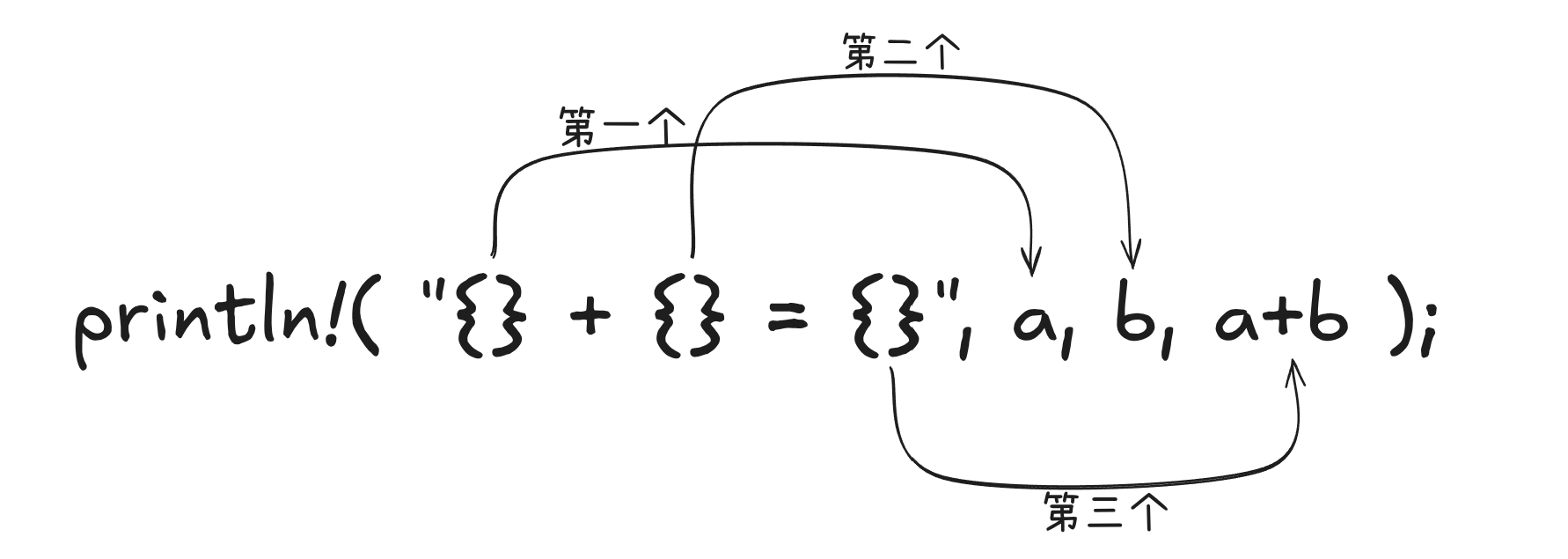
    println!("{} + {} = {}",a, b, a+b);
}

格式字符串"{} + {} = {}"中的占位符"{}"将会被后面的结果替换
在这里插入图片描述


位置参数

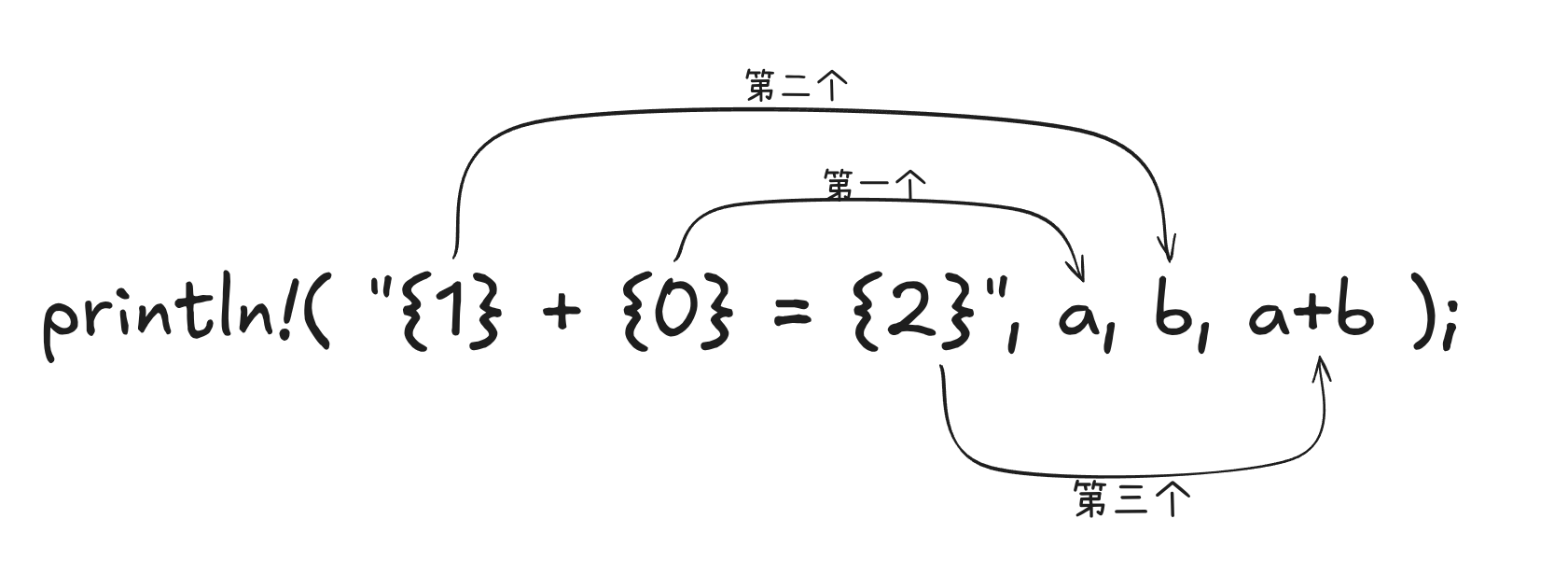
你也可以使用索引来指示占位符"{}"中的位置参数,如"{index}"。index是从0开始的,且是一个usize类型

fn main() {
    let a = 15;
    let b = 20;
    println!("{1}+{0}={2}",a, b,a+b);
}

如图
请添加图片描述

当然,你也可以混用非位置型"{}"和位置型"{index}"的占位符。但是,非位置型参数占位符"{}"会被优先求值

fn main() {
    let (first, second, third, tourth) = (1, 2, 3, 4);
    let result = first+second+third+tourth;
    println!("{} + {} + {3} + {} = {4}",first, second, third, tourth, result);
}

变量参数

格式字符串中的占位符也可以引用变量。变量参数是一种位置参数,引用的变量必须在作用于内,并且是可见的。

fn main() {
    let (first, second, third, tourth) = (1, 2, 3, 4);
    let result = first+second+third+tourth;
    println!("{first} + {second} + {third} + {tourth} = {result}");
}
命名参数

print!/println!宏内也可以使用命名参数。语法是name=value。这个参数可以在格式化字符串中的占位符中使用。

fn main() {
    let (first, second, third, tourth) = (1, 2, 3, 4);
    println!("{first} + {second} + {third} + {tourth} = {result}",result = first+second+third+tourth);
}

填充、对齐和精度

在格式化字符串中,你可以控制占位符的填充、对齐方式和数字精度。只需要在占位符后的冒号处添加格式规范即可调整对应的属性,比如{:format}

你可以使用{:width}来设置占位符的填充和列宽。
在列中的对齐方式:

  • 数字值默认是右对齐
  • 字符串默认是左对齐
    你可以使用以下特殊字符重写这些默认的对齐方式:
  • >: 右对齐
  • <: 左对齐
  • ^: 居中对齐
fn main() {
    let numbers = [("one", 10), ("two", 2000), ("three", 400)];
    println!("{:7}{:10}","Text", "Value");
    println!("{:7}{:10}","====", "====");
    for (k, v) in numbers {
        println!("{:7}{:<10}",k, v);
    }
}

对于浮点数,你可以在占位符{}中添加精度,用以控制小数点后显示的位数(并非四舍五入)。语法是padding.precision。如果没有填充宽度设置,直接使用.precision即可。需要注意的是,对于整型,precision参数会被忽略。

fn main() {
    let (float1,float2) = (3.14159,1.2);
    println!("Result: {:<10.3}{:<10.2}", float1,float2);
}

你可以使用$字符参数化精度或宽度。

基本写法

fn main() {
    let int = 43;
    let float = 3.14159;
    println!("{:5}",int);
    println!("{:.3}",float);
}

这里5和3是写死的。

参数化宽度/精度(用$)

fn main() {
    let width = 10;
    let precision = 5;
    let float = 3.1415926;
    println!("Result: {:width$.precision$}",float);
}

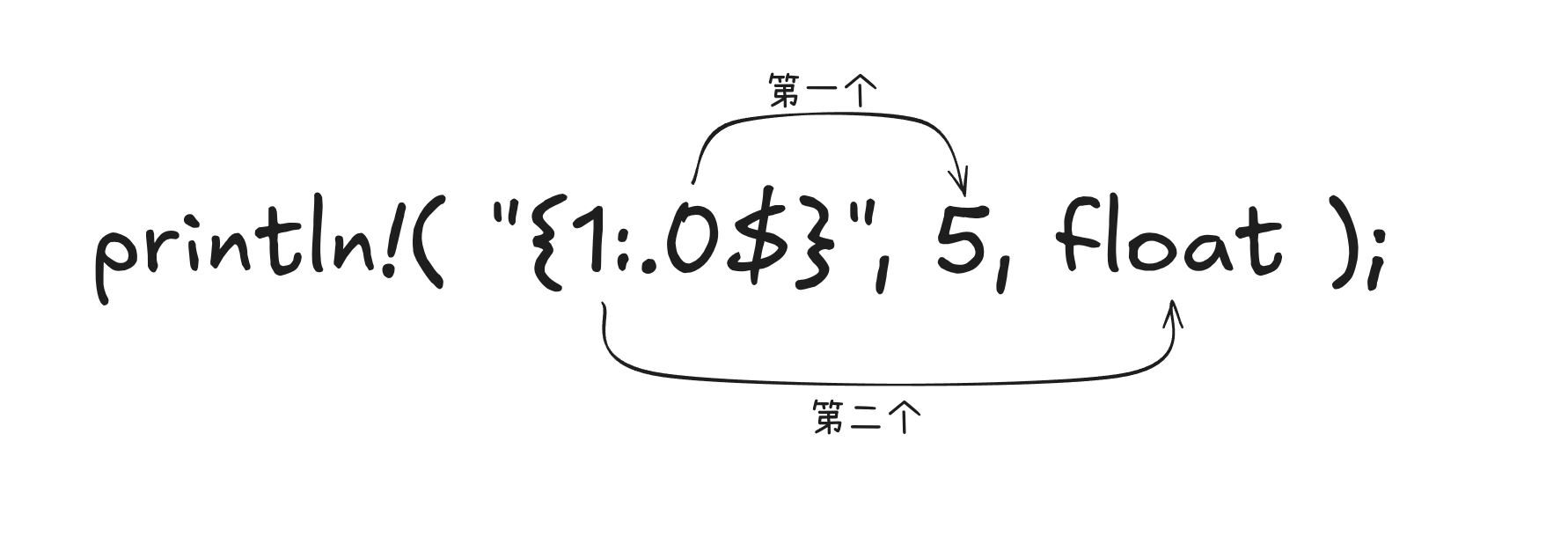
也可以和位置参数配合使用

fn main() {
    let float = 3.1415926;
    println!("{1:.0$}", 5,float);
}

如图
在这里插入图片描述

相应的,填充也可以参数化,这里不做过多演示。


进制

在print!/println!宏中,数值默认是以10进制表示的,如果你想使用其他进制,可以使用相关的字母标识符。

fn main() {
    println!("{:b}",42); //二进制
    println!("{:o}", 42); //八进制
    println!("{}", 42); //十进制(默认)
    println!("{:x}", 42); //十六进制(小写)
    println!("{:X}", 42); // 十六进制(大写)
}

开发者友好

在使用println!/print!宏时,

  • 对于已经实现了Display trait的类型,用{}占位符
  • 对于已经实现了Debug trait的类型,用{:?}占位符

这种区分是站在用户友好性的角度考虑,{:?}格式通常注重开发者视角。

  • 对于标准库中的原生类型同时实现了Display和Debug这两个trait
  • 但对于某些复杂类型,如数组和向量,只实现了Debug这个trait
fn main() {
    let vec = vec![1,2,3,4,5];
    println!("{:?}",vec);
}
  • 而用户自定义的类型通常不会自动实现Display或Debug这两个trait,不过可以使用派生(derive)属性为自定义类型添加Debug的默认实现,之后在println!/print!宏调用时,可以使用{:?}占位符来输出
#[derive(Debug)]
struct Person<'a> {
    name: &'a str,
    age: i32,
}

fn main() {
    let person = Person {name: "张三", age: 43};
    println!("{:?}",person);
}

Rust还提供了{:#?}占位符,可以实现更优雅地输出。

#[derive(Debug)]
struct Person<'a> {
    name: &'a str,
    age: i32,
}

fn main() {
    let person = Person {name: "张三", age: 43};
    println!("{:#?}",person);
}
// Example testing sketch for various DHT humidity/temperature sensors // Written by ladyada, public domain // REQUIRES the following Arduino libraries: // - DHT Sensor Library: https://github.com/adafruit/DHT-sensor-library // - Adafruit Unified Sensor Lib: https://github.com/adafruit/Adafruit_Sensor #include "DHT.h" #define DHTPIN 2 // Digital pin connected to the DHT sensor // Feather HUZZAH ESP8266 note: use pins 3, 4, 5, 12, 13 or 14 -- // Pin 15 can work but DHT must be disconnected during program upload. // Uncomment whatever type you're using! //#define DHTTYPE DHT11 // DHT 11 #define DHTTYPE DHT11 // DHT 22 (AM2302), AM2321 //#define DHTTYPE DHT21 // DHT 21 (AM2301) // Connect pin 1 (on the left) of the sensor to +5V // NOTE: If using a board with 3.3V logic like an Arduino Due connect pin 1 // to 3.3V instead of 5V! // Connect pin 2 of the sensor to whatever your DHTPIN is // Connect pin 3 (on the right) of the sensor to GROUND (if your sensor has 3 pins) // Connect pin 4 (on the right) of the sensor to GROUND and leave the pin 3 EMPTY (if your sensor has 4 pins) // Connect a 10K resistor from pin 2 (data) to pin 1 (power) of the sensor // Initialize DHT sensor. // Note that older versions of this library took an optional third parameter to // tweak the timings for faster processors. This parameter is no longer needed // as the current DHT reading algorithm adjusts itself to work on faster procs. DHT dht(DHTPIN, DHTTYPE); void setup() { Serial.begin(9600); Serial.println(F("DHTxx test!")); dht.begin(); } void loop() { // Wait a few seconds between measurements. delay(2000); // Reading temperature or humidity takes about 250 milliseconds! // Sensor readings may also be up to 2 seconds 'old' (its a very slow sensor) float h = dht.readHumidity(); // Read temperature as Celsius (the default) float t = dht.readTemperature(); // Read temperature as Fahrenheit (isFahrenheit = true) float f = dht.readTemperature(true); // Check if any reads failed and exit early (to try again). if (isnan(h) || isnan(t) || isnan(f)) { Serial.println(F("Failed to read from DHT sensor!")); return; } // Compute heat index in Fahrenheit (the default) float hif = dht.computeHeatIndex(f, h); // Compute heat index in Celsius (isFahreheit = false) float hic = dht.computeHeatIndex(t, h, false); Serial.print(F("Humidity: ")); Serial.print(h); Serial.print(F("% Temperature: ")); Serial.print(t); Serial.print(F("°C ")); Serial.print(f); Serial.print(F("°F Heat index: ")); Serial.print(hic); Serial.print(F("°C ")); Serial.print(hif); Serial.println(F("°F")); }这是在DHTtest中的结果 /* Example of BH1750 library usage. This example initialises the BH1750 object using the default high resolution continuous mode and then makes a light level reading every second. Connections - VCC to 3V3 or 5V - GND to GND - SCL to SCL (A5 on Arduino Uno, Leonardo, etc or 21 on Mega and Due, on esp8266 free selectable) - SDA to SDA (A4 on Arduino Uno, Leonardo, etc or 20 on Mega and Due, on esp8266 free selectable) - ADD to (not connected) or GND ADD pin is used to set sensor I2C address. If it has voltage greater or equal to 0.7VCC voltage (e.g. you've connected it to VCC) the sensor address will be 0x5C. In other case (if ADD voltage less than 0.7 * VCC) the sensor address will be 0x23 (by default). */ #include <BH1750.h> #include <Wire.h> BH1750 lightMeter; void setup() { Serial.begin(9600); // Initialize the I2C bus (BH1750 library doesn't do this automatically) Wire.begin(); // On esp8266 you can select SCL and SDA pins using Wire.begin(D4, D3); // For Wemos / Lolin D1 Mini Pro and the Ambient Light shield use // Wire.begin(D2, D1); lightMeter.begin(); Serial.println(F("BH1750 Test begin")); } void loop() { float lux = lightMeter.readLightLevel(); Serial.print("Light: "); Serial.print(lux); Serial.println(" lx"); delay(1000); }这是在BH1750test中的结果 读取这两个传感器的数据
06-16
评论
添加红包

请填写红包祝福语或标题

红包个数最小为10个

红包金额最低5元

当前余额3.43前往充值 >
需支付:10.00
成就一亿技术人!
领取后你会自动成为博主和红包主的粉丝 规则
hope_wisdom
发出的红包
实付
使用余额支付
点击重新获取
扫码支付
钱包余额 0

抵扣说明:

1.余额是钱包充值的虚拟货币,按照1:1的比例进行支付金额的抵扣。
2.余额无法直接购买下载,可以购买VIP、付费专栏及课程。

余额充值


