


How to Configure Surface Pro 3 UEFI/BIOS Settings
This article will show you how to enter the Surface Pro 3 UEFI/BIOS and configure boot order, manage device security, and more.
BY Evan Forrest Last updated Jan 18, 2024
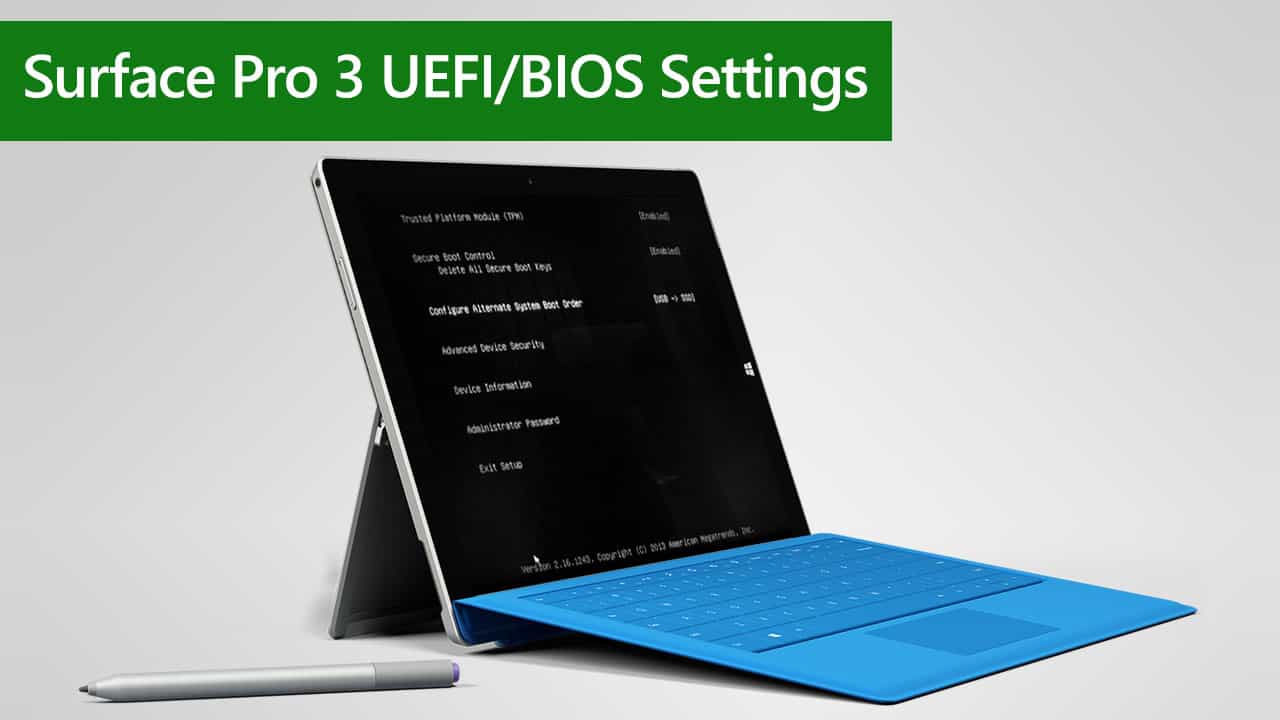
Microsoft uses standard BIOS firmware on some of its early devices, including Surface 3, Surface Pro 1st gen, Surface Pro 2, and Surface Pro 3. The BIOS was optimized to support Surface hardware features, security, and touch as input. The company, however, later use UEFI as a firmware on newer Surface devices starting with Surface Pro 4 launching in 2015.
This article will walk you through how to enter the Surface Pro 3 BIOS settings. You will also learn how to configure the BIOS settings to check device identity information, improve device security, and more.
Table of Contents
- How do you access Surface Pro 3 BIOS settings?
- What is a Trusted Platform Module (TPM)?
- What is Secure Boot Control?
- How do you check your Surface Pro 3 device information via BIOS settings?
- How do you change the system boot order on Surface Pro 3?
- How do you manage device security on Surface Pro 3 BIOS settings?
- How do you protect BIOS settings on Surface Pro 3 with a password?
- Other Surface BIOS/UEFI Settings
How do you access Surface Pro 3 BIOS settings?
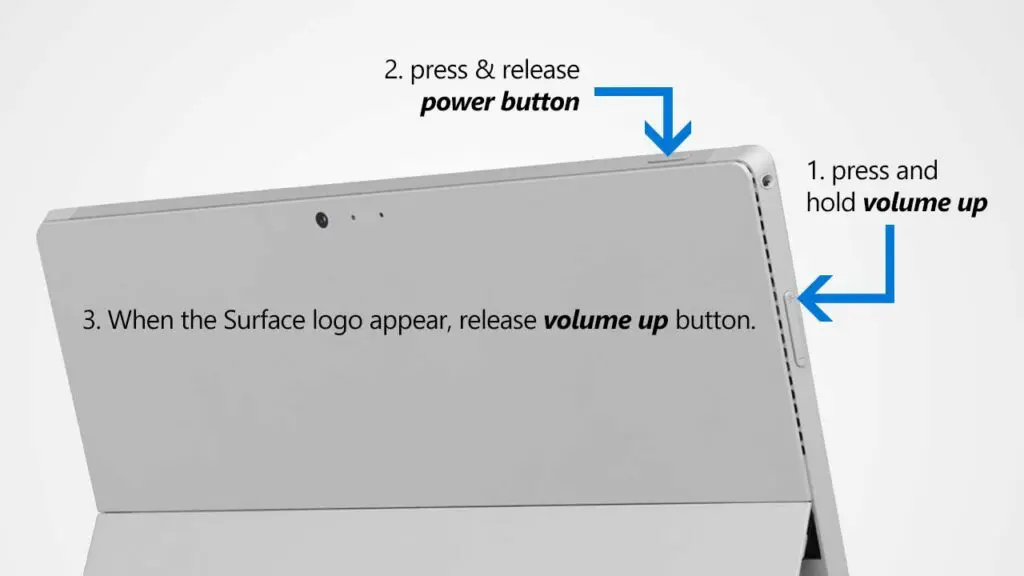
You can only enter the Surface Pro BIOS setup screen while your device is starting. Here is how you do that:
- Shut down your Surface.
- Press and hold the Volume Up button on your Surface, then press and release the Power button.
- When you see the Surface logo screen appear, release the Volume Up button. The BIOS settings menu will appear in a few seconds.
After you have made any changes to the BIOS settings, you can save or delete those changes by:
- In the BIOS settings menu, choose Exit Setup, and you will see the following screen:
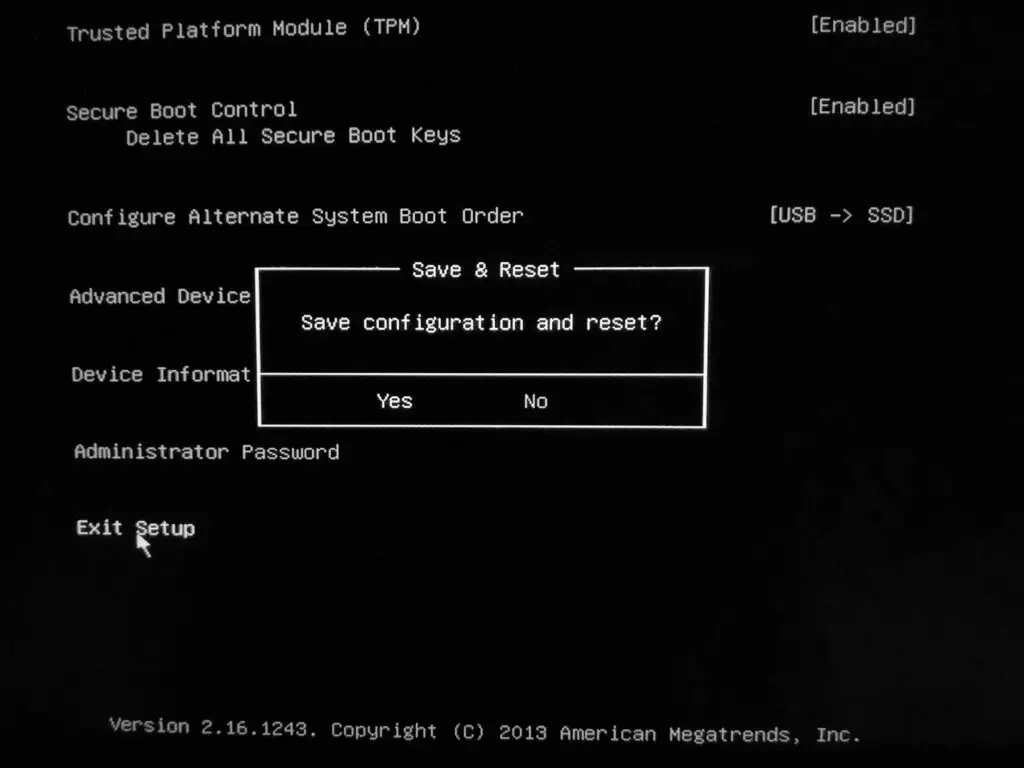
- Now you have two options:
- Yes – it will save your changes and restart your Surface.
- No – it will delete your changes and restart your Surface.
What is a Trusted Platform Module (TPM)?
The Trusted Platform Module (TPM) technology significantly advances BIOS in hardware-based security features. It is a specialized chip that stores RSA encryption keys specific to each Surface device for hardware authentication.
The TPM technology is a requirement of BitLocker disk encryption. The TPM helps you encrypt/decrypt the entire disks without requiring complex long passphrases. It means the encryption and decryption keys are stored within the TPM chip. So, your encrypted disks can’t be accessed on other devices.
What is Secure Boot Control?
The Secure Boot is a technology that blocks the loading of uncertified bootloaders and drives. It helps to prevent your Surface from being loaded with unauthorized operating systems and malicious software applications.
If you desire to install other operating systems like Ubuntu or other Linux distributions, you may need to turn off this feature in the BIOS settings above.
How do you check your Surface Pro 3 device information via BIOS settings?
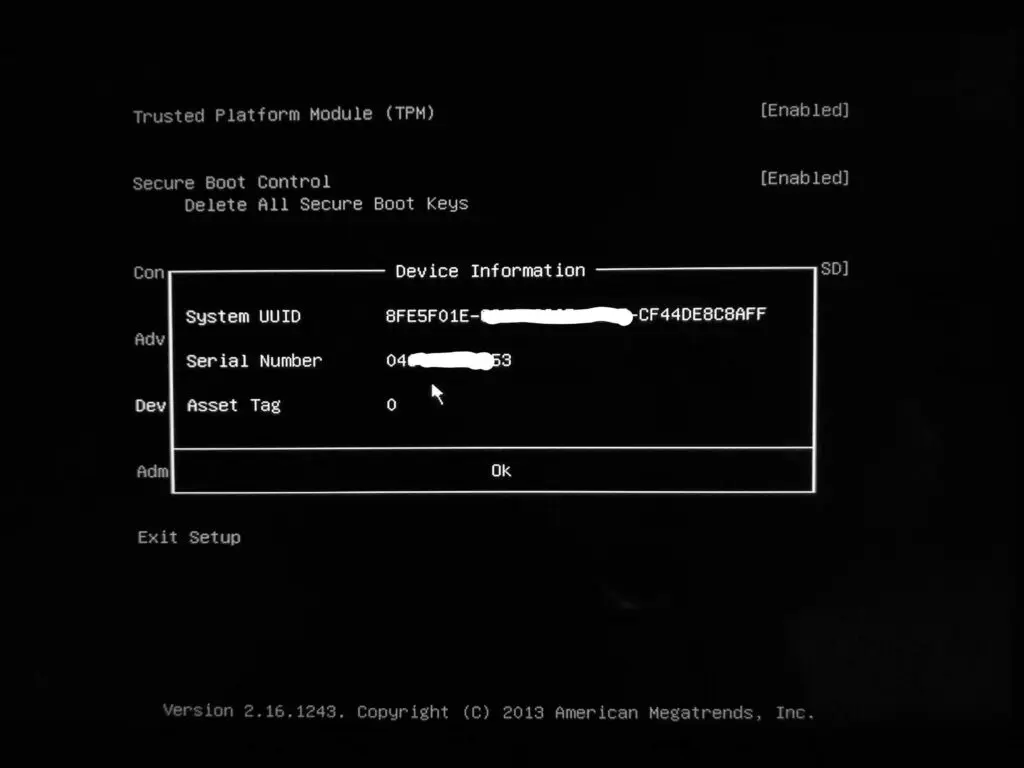
Through BIOS settings, you can find out more information about your device identities, such as System UUID, Serial Number, and Asset Tag. To check that information:
- Enter Surface BIOS settings as per the instructions above.
- In the BIOS settings menu, choose Device Information, and you will see the following information:
See also: How to manage asset tag on Surface Pro 3.
How do you change the system boot order on Surface Pro 3?
To change the alternate system boot order on your Surface Pro 3:
- Enter Surface BIOS settings as per the instructions above.
- In the BIOS settings menu, you will see Configure Alternate System Boot Order as below:
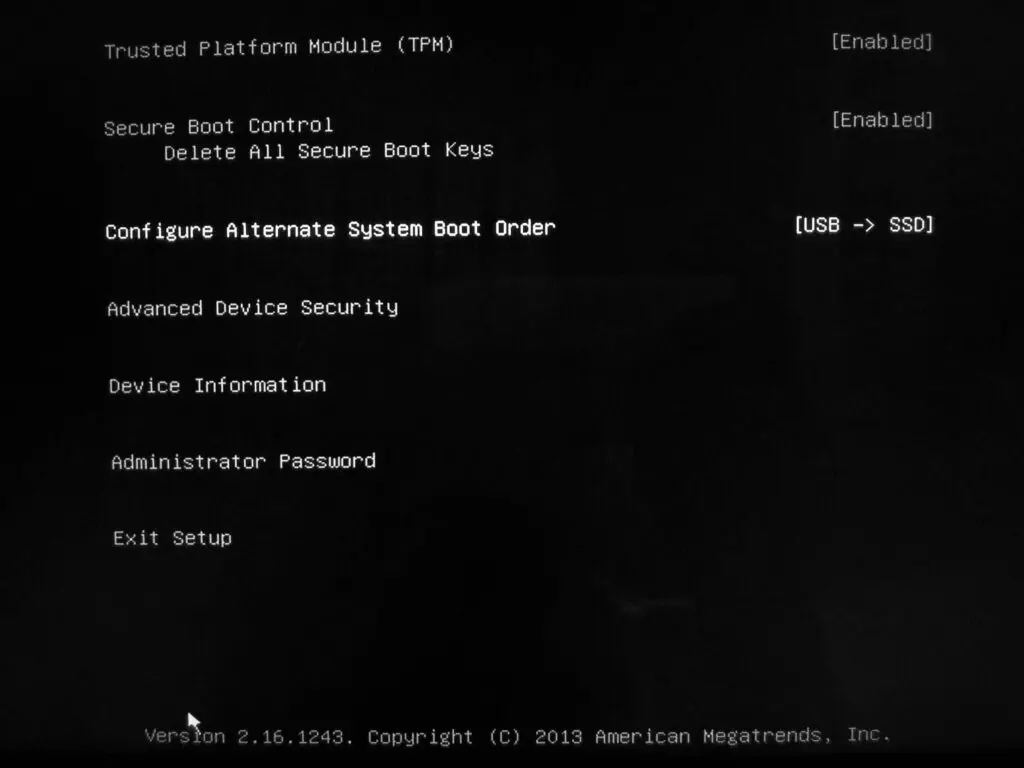
- Select the option and choose one of the following options:
- SSD only
- Network -> USB -> SSD
- USB -> Network -> SSD
- USB -> SSD
- Network -> SSD
How do you manage device security on Surface Pro 3 BIOS settings?
Surface Pro 3 allows you to deactivate some of your surface device components and features to meet your Security requirements. You can turn those security options on or off by:
- Enter Surface BIOS settings as per the instructions above.
- In the BIOS settings menu, choose Advanced Device Security, and you will see the following options:
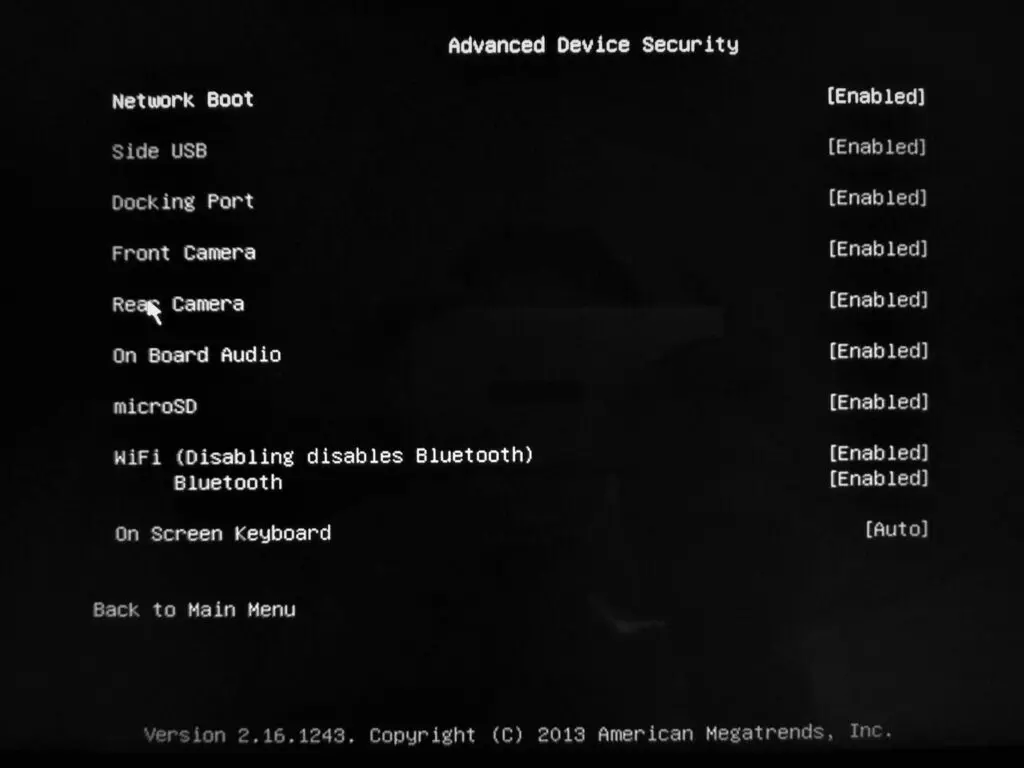
- In my Surface Pro 3 with firmware version 2.16.1243, there are the following advanced security options:
- Network Boot – turn network boot functionality on/off.
- Side USB – turn on/off the ability to boot from a USB device. However, the side USB port remains enabled in Windows.
- Docking port – turn on/off the ability to connect to the Surface Pro 3 docking station or the Surface Dock.
- Front camera – turn the front-facing camera on/off.
- Rear camera – turn the primary rear camera on/off.
- OnBoard Audio – turn internal audio or speakers on/off.
- microSD – turn the microSD port on/off.
- WiFi – enable/disable WiFi. It will also disable Bluetooth if you turn off the WiFi option.
- Bluetooth – turn the internal Bluetooth on/off.
- On-Screen Keyboard – turn the on-screen keyboard functionality on/off.
How do you protect BIOS settings on Surface Pro 3 with a password?
You can prevent others from changing your BIOS settings by setting an Administrator Password in BIOS settings. To do that:
- Enter Surface BIOS settings as per the instructions above.
- In the BIOS settings menu, choose Administrator Pass, and you will see the following requirements:
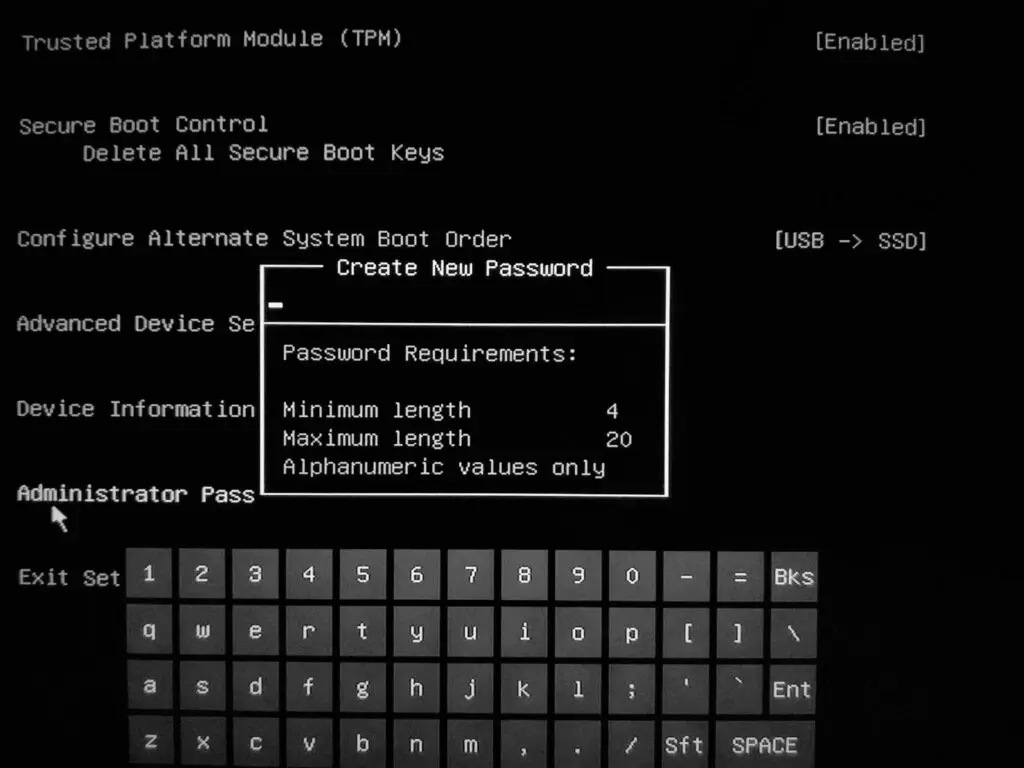
- You will need to enter a password in the box with your keyboard or the on-screen keyboard with the following criteria:
- Minimum Length: 4 characters
- Maximum Length: 20 characters
- Alphanumeric values only
Note If you enter the administrator password incorrectly three times, you’ll be locked out of the BIOS. Restart your Surface to enter the password again.
Important If you set a password for the BIOS, record it in a safe place. If you forget the password, you won’t be able to access the BIOS settings. You can only reset the administrator password from within the BIOS.
Other Surface BIOS/UEFI Settings
We have also covered this topic for other Surface PCs as well. To learn more about other Surface UEFI/BIOS settings, check the link below:






 扫一扫
扫一扫


 被折叠的 条评论
为什么被折叠?
被折叠的 条评论
为什么被折叠?
 到【灌水乐园】发言





