


Creating your first Docker image from a Dockerfile is like writing a recipe that tells Docker how to build a self-contained package for your app. The Dockerfile contains step-by-step instructions, such as selecting a base image, copying your code, installing required tools or libraries, and defining how the app should start. Docker reads this file and builds an image that can be reliably used on any system. This eliminates the need to set up everything manually on each server.
Before you start creating your first Docker image, make sure Docker is installed and currently running on your system, and you have a basic understanding of Docker concepts and how it functions.
What is a Docker Image?
A Docker image is a small, standalone package that has everything your app needs to run, like the code, tools, and libraries it uses. It ensures the application runs consistently on any environment and makes the deployment process smoother and more reliable.
What Is a Dockerfile?
A Dockerfile is a text file that includes specific commands written in a special language known as a Domain Specific Language (DSL). These commands tell Docker how to build a custom image. It acts like a blueprint, outlining each step needed to create the image.
While developing an application, it’s essential to create a Dockerfile early on. Docker reads this file from top to bottom and executes each instruction in that order to generate the final image.
In short, the Dockerfile serves as the source code for your Docker image.
Building a Docker Image Using a Dockerfile
To build a Docker image, we first create a Dockerfile and write the necessary instructions in it. Then, execute the docker build command to generate the image. Once built, this image can be used to run containers on any system where Docker is installed.
Create a New Dockerfile
Let’s create a Dockerfile in your project folder using an editor, like Vim, Nano, etc.
nano DockerfileNote: Dockerfile is the default filename that Docker looks for when building an image. However, you can use a custom name for the file. In that case, you must specify the file name explicitly using the -f option while executing the docker build command.
Add Instructions to the Dockerfile
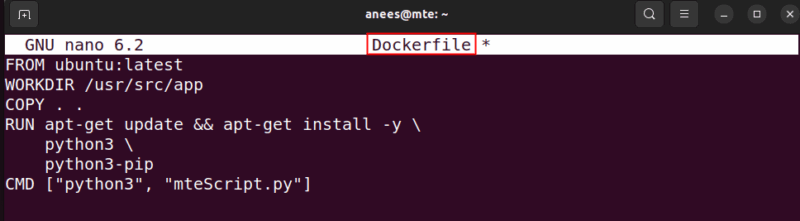
Let’s specify the following code in the Dockerfile to define the environment for your Python app:
FROM ubuntu:latest
WORKDIR /usr/src/app
COPY . .
RUN apt-get update && apt-get install -y \
    python3 \
    python3-pip
CMD ["python3", "mteScript.py"]
In this example, we use Ubuntu as the base, and copy all files from the current host directory into the container. Also, we install Python and pip and set the default command to run a Python script named mteScript.py:
Prepare a Sample Python Script
Now, create a Python file named mteScript.py in the same directory as your Dockerfile:
def message():
print("Hi Geeks! Welcome to maketecheasier.com")

if __name__ == "__main__":
    message()
This is a simple script that will run when the container starts. You can use this to confirm that the image is working properly.
Build the Docker Image
Now, use the docker run command to create the desired Docker image. This command reads the default Dockerfile, executes its steps, and creates an image named python-docker-demo:
sudo docker build -t python-docker-demo .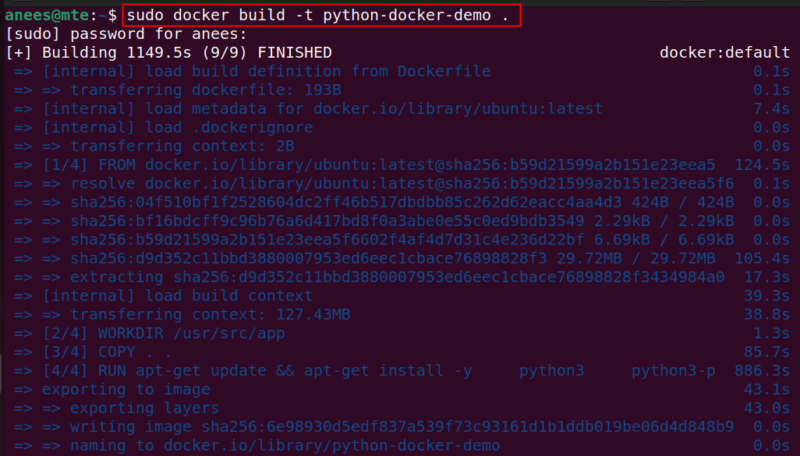
Note: If you’ve used a custom name for your Dockerfile (e.g., ExampleDockerfile), specify it in the docker build command using the -f flag, like this:
sudo docker build -f ExampleDockerfile -t python-docker-demo .Verify the Docker Image
Once the Docker image is built, you can check if it was created successfully by running this command:
sudo docker imagesThis will list all available images on your system, including the one you just built:

Run the Docker Image for Testing
To test your Docker image locally, you can start a container using this command:
sudo docker run python-docker-demoThis command starts a Docker container using the python-docker-demo image with its standard configuration and prints the output in the terminal:

Final Thoughts
Creating your first Docker image using a Dockerfile is an important step toward understanding container-based development. It allows you to control your app’s environment, ensures consistent behavior across systems, and makes deployment much easier.
From here, you can deepen your Docker expertise by learning how to use Docker containers efficiently or even explore more advanced use cases like running GUI-based applications in Docker environments.





 扫一扫
扫一扫


 1269
1269

 被折叠的 条评论
为什么被折叠?
被折叠的 条评论
为什么被折叠?
 到【灌水乐园】发言





