



 本文介绍了使用Appium设置手机WiFi状态时遇到的系统权限弹窗问题及其解决方法。提供了四种不同的解决思路,并详细分析了每种方法的可行性及注意事项。
1、背景说明
从解决这个问题引申而来:
【Appium踩坑】Mitmproxy脚本+Appium启动后,手机无网络问题
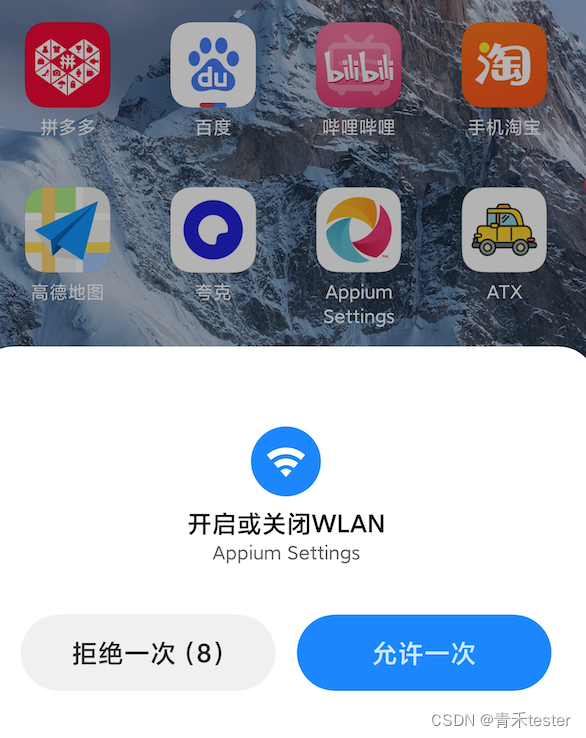
使用Appium Setting开启wifi or 关闭wifi后,会弹系统wifi权限弹窗。
2、原理分析
使用Appium Setting开启wifi or 关闭wifi,其实就是执行这个命令:
# 开启wifi
adb shell am broadcast -a io.appium.settings.wifi -n io.appium.settings/.receivers.WiFiConnectionSettingReceiver --es setstatus enable
# 关闭wifi
adb shell am broadcast -a io.appium.settings.wifi -n io.appium.settings/.receivers.WiFiConnectionSettingReceiver --es setstatus disable
但是通过broadcast 申请权限后,就会弹出系统弹窗,我们需要对弹窗内容做处理。
3、解决
(1)思路1 - 手动允许Appium setting的wifi权限,可行✅
Appium setting 在一个设备上一般只安装一次,下次不需要重新安装。
也就是只需要手动操作一次,也算一劳永逸。
(2)思路2 - 通过 svc 开启/关闭wifi, 可行 ✅
adb shell svc wifi enable
adb shell svc wifi disable
其他信息:
- 本命令在小米11上执行生效,但不知道是否会有厂商限制 ,有待确认。
- 本命令必须在driver启动之前执行,不然可能会导致目标app anr -> 出现概率99%,不知道是有个啥大病
(3)思路3 - 通过Appium UI操作开启、关闭wifi - 待验证❓
1、先打开wifi页面:
adb shell am start -a android.intent.action.MAIN -n com.android.settings/.wifi.WifiSettings
2、判断当前网络情况,如 ping baidu
3、如ping通,UI操作-关闭wifi,再打开wifi
4、如ping不通,UI操作-打开wifi
(4)思路4 - Appium申请修改wifi状态后,uiautomator2关闭弹窗 - 不可行❌
不可行原因:Appium 和 U2,一起用会抢占 Accessibility Service
def appiumAlert_handler(switch):
    """
    开启wifi,关闭wifi;监听弹窗处理
    :return:
    """
    devices = get_devices()
    _driver = uiautomator2.connect_usb(serial=devices)

    # 关闭wifi
    t1 = threading.Thread(target=switch_connection, args=(switch,))
    t1.start()
    # 开始检查弹窗

    obj = _driver.watch_context()
    alert = "允许一次"
    obj.when(alert).click()
    obj.stop()
    _driver.uiautomator.stop()
    time.sleep(2)






 扫一扫
扫一扫


 4万+
4万+

 被折叠的 条评论
为什么被折叠?
被折叠的 条评论
为什么被折叠?
 到【灌水乐园】发言





