



 本文提供了一篇关于如何在Linux系统中安装软件的教程,包括使用软件中心、手动下载.deb包、.rpm和.tar.gz文件的方法。对于Ubuntu用户,推荐使用软件中心进行便捷安装。
I want to install some software such QQ and Sogoupinyin in my linux, and search the internet for help, then I find the paper in : http://www.psychocats.net/ubuntu/installingsoftware
Introduction
Installing 101: Software Center
Manual download: .deb
Last resorts: .rpm and .tar.gz
Links
Advanced interface: Synaptic Package Manager
In
Most Windows users who migrate to Ubuntu end up confused about software installation. They go to a website, download a .tar.gz file, double-click it, and don't see a Next-Next-Next-Finish wizard. This tutorial is intended to introduce you to the preferred methods of software installation in Ubuntu.
Rather than leaving it up to the user to track down installer files and keep applications updated, Ubuntu (like many other Linux distributions) has a software package management system that provides a searchable database of easily installable applications (like an online shopping cart but the software is cost-free), which it will download and install for you with a few clicks.
For those of you with smartphones, it's a very similar process to installing applications using the iTunes App Store or Android Market. It's also like Apple's Mac App Store.
Installing 101: Ubuntu Software Center
The best place to start with this package management process is to use a simple interface for it called Ubuntu Software Center.

You can most likely find Ubuntu Software Center on the left side of your screen.
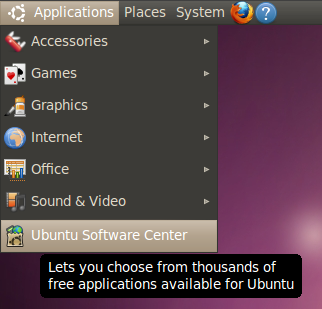
If you're using Ubuntu 10.04, go to Applications and select Ubuntu Software Center.
If you already know what software you're looking for, you can begin typing the name of it in the top-right corner to begin the filtering process. If you don't know, you can also browse by category.

In this case, let's say you're looking for an audio recording and editing program called Audacity.
So after finding it, click Install and get prompted to authenticate with your password.

Then wait for Audacity to be downloaded and installed. Depending on the size of the software you're installing and the speed of your internet connection, this could take a few seconds or several minutes to complete.


Once it's finished installing, it's ready for you to use.
Manual download: .deb
Most of the time, if you need software, you can use the Software Center to install it from the online repositories. Sometimes, software is not available in the repositories, and you have to go to a website to download it. If you are able to download a file with a .deb extension, this is the software package format Ubuntu prefers.


After you download the .deb, it should run in the Ubuntu Software Center by default (if you're using Ubuntu 10.04, it may still run in the GDebi Package Installer). You can run it directly in that program (you can also download the .deb file and double-click it to launch the installer program).

After Ubuntu Software Center loads, click Install to install the .deb file. You'll be prompted for your password. Go ahead and enter it if you trust the source you downloaded the file from.


Pretty soon your application should be ready to use.
Last resorts: .rpm and .tar.gz
The preferred way to install software in Ubuntu is to use the package manager, which you can access through Ubuntu Software Center. As we've seen with Skype, sometimes you can also find a .deb for software not in the repositories. But what if you can't find a .deb?
.rpm
If you can't find a .deb, you can try a .rpm. These files are packaged for other Linux distributions (usually Fedora or Mandriva), but there is an application called alien (which you can install using Synaptic) that allows you (most of the time) to convert .rpm files to .deb. Read more about this process.
.tar.gz
As a last resort, you can download a .tar.gz file. The .tar.gz file extension indicates the file is a compressed set of files and folders (the compressed files you see in Windows usually have a .zip extension). If you see the .tar.gz, it could be compressed files that have a precompiled binary file, or it could be compressed files that have the source code allowing you to compile the application from source.
If you have trouble installing a .tar.gz file, you can ask for help on the Ubuntu Forums.
Links
There are other guides out there that help you understand software installation a bit better.
- Community Documentation on Installing
- Video tutorials: A collection of YouTube videos showing the installation process in real-time, often with spoken narration.





 扫一扫
扫一扫


 1940
1940

 被折叠的 条评论
为什么被折叠?
被折叠的 条评论
为什么被折叠?
 到【灌水乐园】发言





