



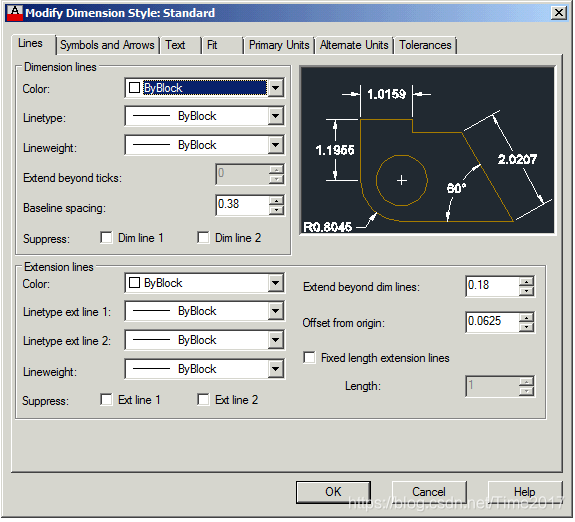
This chapter shows detailed example, how to manage of each option of "Modify Dimension Style" dialog box, on all its tabs:
/* DimStyleSample.cs
* © Andrey Bushman, 2012
* The sample of dimsion style creating.
*/
using System;
using cad = Autodesk.AutoCAD.ApplicationServices
.Application;
using Ap = Autodesk.AutoCAD.ApplicationServices;
using Db = Autodesk.AutoCAD.DatabaseServices;
using Ed = Autodesk.AutoCAD.EditorInput;
using Rt = Autodesk.AutoCAD.Runtime;
using Clr = Autodesk.AutoCAD.Colors;
//************************************
[assembly: Rt.CommandClass(typeof(Bushman.CAD
.Samples.Styles.DimStyleSample))]
namespace Bushman.CAD.Samples.Styles {
public class DimStyleSample {
[Rt.CommandMethod("CreateDimStyle",
Rt.CommandFlags.Modal)]
public void CreateDimStyle() {
Ap.Document doc = cad.DocumentManager
.MdiActiveDocument;
Ed.Editor ed = doc.Editor;
Db.Database db = doc.Database;
using(Db.Transaction tr =
db.TransactionManager.StartTransaction())
{
// Create new Text Style for using in the
// our new Dimension Styles
Db.TextStyleTable tst =
(Db.TextStyleTable)tr.GetObject(
db.TextStyleTableId,
Db.OpenMode.ForWrite);
Db.TextStyleTableRecord textStyle =
new Db.TextStyleTableRecord();
textStyle.Name = "My TextStyle";
textStyle.FileName = "MipGost.shx";
tst.Add(textStyle);
tr.AddNewlyCreatedDBObject(textStyle,
true);
// Create new Dimension Style...
Db.DimStyleTable dst =
(Db.DimStyleTable)tr.GetObject(
db.DimStyleTableId,
Db.OpenMode.ForWrite);
Db.DimStyleTableRecord dimStyle =
new Db.DimStyleTableRecord();
dimStyle.Name = "My DimStyle";
// Please, open the "Modify Dimension
// Style" dialog box (through _DIMSTYLE
// command, and press "Modify.." button)
// - below I will modify these settings.
// *** LINES tab ***
// "Dimension lines" group:
Db.ObjectId lineTypeId =
db.ContinuousLinetype;
dimStyle.Dimclrd = Clr.Color
.FromColorIndex(Clr.ColorMethod.None,
10); // Color
// Linetype
dimStyle.Dimltype = lineTypeId;
dimStyle.Dimlwd = Db.LineWeight
.LineWeight013; // Lineweight
// Extend Beyond Ticks
dimStyle.Dimdle = 1;
dimStyle.Dimdli = 7; // Baseline Spacing
// Suppress dim line 1
dimStyle.Dimsd1 = false;
// Suppress dim line 2
dimStyle.Dimsd2 = false;
// "Extension Lines" group:
dimStyle.Dimclre = Clr.Color
.FromColorIndex(Clr.ColorMethod.None,
84); // Color
// Linetype Ext 1
dimStyle.Dimltex1 = lineTypeId;
// Linetype Ext 2
dimStyle.Dimltex2 = lineTypeId;
dimStyle.Dimlwe = Db.LineWeight
.LineWeight013; // Lineweight
// Suppress Ext line 1
dimStyle.Dimse1 = false;
// Suppress Ext line 2
dimStyle.Dimse2 = false;
// Extend Beyond Dim Lines
dimStyle.Dimexe = 2.5;
// Offset From Origin
dimStyle.Dimexo = 2.5;
// Fixed Length Extension Lines
dimStyle.DimfxlenOn = false;
dimStyle.Dimfxlen = 1; // Length
// *** SYMBOL AND ARROWS tab ***
// "Arrowheads" group:
// Note: Annotative blocks cannot be used
// as custom arrowheads for dimensions or
// leaders.
Db.BlockTable bt = (Db.BlockTable)tr
.GetObject(db.BlockTableId,
Db.OpenMode.ForRead);
Db.ObjectId id1 = GetArrowObjectId_dim(
"DIMBLK1", "_DOT");
Db.ObjectId id2 = GetArrowObjectId_dim(
"DIMBLK2", "_CLOSED");
Db.ObjectId id3 = GetArrowObjectId_dim(
"DIMBLK2", "_Oblique");
// Make sure you set the "Dimsah" to
// true, if you need individually modify
// the 'Dimblk1', and 'Dimblk2'!
// You can set Db.ObjectId.Null as value
// for default marker.
dimStyle.Dimsah = true;
// The "First" option on the "Symbols and
// Arrows" tab
dimStyle.Dimblk1 = id1;
// The "Second" option on the "Symbols
// and Arrows" tab
dimStyle.Dimblk2 = id2;
// Or as variant, you can to change the
// both parameters simultaneously:
// the "First", and the "Second" through
// 'Dimblk', but then you must to comment
// the code rows of setting values for
// 'Dimblk1', and 'Dimblk2'.
// dimStyle.Dimblk = id3;
// Leader ('Closed filled' value)
dimStyle.Dimldrblk = Db.ObjectId.Null;
dimStyle.Dimasz = 3; // Arrow Size
// "Center marks" group:
// 'Dimcen' property's allowed values:
// 0 - None;
// 1 - Mark;
// -1 - Line
Int32 centerMarks = -1;
Double centerMarksSize = 3.52;
// The size of the center mark or
// centerline
dimStyle.Dimcen = centerMarks *
centerMarksSize;
// The "Dimension Break" value is stored
// in XData of Dimension Style item...
// Get the registered application names
// table
Db.RegAppTable regTable =
(Db.RegAppTable)tr.GetObject(
db.RegAppTableId, Db.OpenMode.ForRead);
String xName = "cad_DSTYLE_DIMBREAK";
if(!regTable.Has(xName)) {
regTable.UpgradeOpen();
// Add the application names that would
// be used to add Xdata
Db.RegAppTableRecord app =
new Db.RegAppTableRecord();
app.Name = xName;
regTable.Add(app);
tr.AddNewlyCreatedDBObject(app, true);
}
Db.ResultBuffer rb = new Db.ResultBuffer(
new Db.TypedValue((Int32)Db.DxfCode
.ExtendedDataRegAppName, xName),
new Db.TypedValue((Int32)Db.DxfCode
.ExtendedDataInteger16, 391),
new Db.TypedValue((Int32)Db.DxfCode
.ExtendedDataReal, 19.7
/* our value for "Dimension Break"
* property */));
dimStyle.XData = rb;
// The "Arc Length Symbol" group:
// 'Dimarcsym' property's allowed values:
// 0 - Places arc length symbols before
// the dimension text
// 1 - Places arc length symbols above
// the dimension text
// 2 - Suppresses the display of arc
// length symbols
// Arc Length Symbol
dimStyle.Dimarcsym = 1;
// The "Radius Jog Dimensions" group:
dimStyle.Dimjogang = 90; // Jog Angle
// "Linear Jog Dimensions" group:
// The "Linear Jog Size" value is stored
// in XData of Dimension Style item...
xName = "cad_DSTYLE_DIMJAG";
if(!regTable.Has(xName)) {
regTable.UpgradeOpen();
// Add the application names that would
// be used to add Xdata
Db.RegAppTableRecord app =
new Db.RegAppTableRecord();
app.Name = xName;
regTable.Add(app);
tr.AddNewlyCreatedDBObject(app, true);
}
rb = new Db.ResultBuffer(
new Db.TypedValue((Int32)Db.DxfCode
.ExtendedDataRegAppName, xName),
new Db.TypedValue((Int32)Db.DxfCode
.ExtendedDataInteger16, 388),
new Db.TypedValue((Int32)Db.DxfCode
.ExtendedDataReal, 5.56
/* our value for "Linear Jog Size"
* property */));
dimStyle.XData = rb;
// *** TEXT tab ***
// "Text Appearance" group:
// Text Style
dimStyle.Dimtxsty = textStyle.ObjectId;
dimStyle.Dimclrt = Clr.Color
.FromColorIndex(Clr.ColorMethod.None,
150); // Text Color
// 'Dimtfill' property's allowed values:
// 0 - No background
// 1 - The background color of the
// drawing
// 2 - The background specified by
// Dimtfillclr property
dimStyle.Dimtfill = 2;
dimStyle.Dimtfillclr = Clr.Color
.FromColorIndex(Clr.ColorMethod.None,
210); // Fill Color
dimStyle.Dimtxt = 3.5; // Text Height
// Fraction Height Scale
dimStyle.Dimfrac = 2;
// check/unchek the "Draw Frame Around
// Text"
Boolean drawFrameAroundText = true;
// parameter on the "Text" tab. Look
// 'Dimgap' below...
// "Text Placement" group:
// 'Dimtad' property's allowed values:
// 0 - Centers the dimension text between
// the extension lines.
// 1 - Places the dimension text above
// the dimension line except when the
// dimension line is not horizontal
// and text inside the extension lines
// is forced horizontal (DIMTIH = 1).
// The distance from the dimension
// line to the baseline of the lowest
// line of text is the current DIMGAP
// value.
// 2 - Places the dimension text on the
// side of the dimension line farthest
// away from the defining points.
// 3 - Places the dimension text to
// conform to Japanese Industrial
// Standards (JIS).
dimStyle.Dimtad = 1; // Vertical
// 'Dimjust' property's allowed values:
// 0 - Positions the text above the
// dimension line and center-justifies
// it between the extension lines
// 1 - Positions the text next to the
// first extension line
// 2 - Positions the text next to the
// second extension line
// 3 - Positions the text above and
// aligned with the first extension
// line
// 4 - Positions the text above and
// aligned with the second extension
// line
dimStyle.Dimjust = 1; // Horizontal
// Offset from Dim Line
dimStyle.Dimgap = 7.777 *
(drawFrameAroundText ? -1 : 1);
// "Text Alignment" group:
// Dimtih = true, Dimtoh = true -
// Horizontal.
// Dimtih = false, Dimtoh = true -
// ISO Standard.
// Dimtih = true, Dimtoh = false -
// ISO Standard.
// Dimtih = false, Dimtoh = false -
// Aligned with Dimension Line
// 'Dimtih' property's allowed values:
// false - Aligns text with the dimension
// line
// true - Draws text horizontally
dimStyle.Dimtih = true; // Text Alignment
// 'Dimtoh' property's allowed values:
// false - Aligns text with the dimension
// line
// true - Draws text horizontally
dimStyle.Dimtoh = false;
// *** FIT tab ***
// "Fit Options" group:
// 'Dimjust' property's allowed values:
// 0 - Places both text and arrows
// outside extension lines
// 1 - Moves arrows first, then text
// 2 - Moves text first, then arrows
// 3 - Moves either text or arrows,
// whichever fits best
// The 'Dimtix' property must be false
dimStyle.Dimatfit = 1;
// Always Keep Text Between Ext Lines
dimStyle.Dimtix = false;
// Suppress Arrows If They Don't Fit
// Inside Extension Lines
dimStyle.Dimsoxd = true;
// "Text placement" group:
// 0 - Moves the dimension line with
// dimension text
// 1 - Adds a leader when dimension text
// is moved
// 2 - Allows text to be moved freely
// without a leader
dimStyle.Dimtmove = 1;
// "Scale for Dimension Features" group:
dimStyle.Annotative =
Db.AnnotativeStates.True; // Annotative
dimStyle.Dimscale = 1.23; // Dimscale
// If you need to set "Scale Dimensions
// To Layout" than set .Dimscale = 0:
// dimStyle.Dimscale = 0;
// "Fine Tuning" group:
// Place Text Manually
dimStyle.Dimupt = true;
// Draw Dim Line Between Ext Lines
dimStyle.Dimtofl = true;
// *** PRIMARY UNITS tab ***
// 'Dimlunit' property's allowed values:
// 1 - Scientific
// 2 - Decimal
// 3 - Engineering
// 4 - Architectural (always displayed
// stacked)
// 5 - Fractional (always displayed
// stacked)
// 6 - Microsoft Windows Desktop (decimal
// format using Control Panel
// settings for decimal separator and
// number grouping symbols)
// Linear Dimensions
dimStyle.Dimlunit = 2;
// The relative sizes of numbers in
// stacked fractions are based on the
// DIMTFAC system variable (in the same
// way that tolerance values use this
// system variable).
dimStyle.Dimtfac = 1.0;
dimStyle.Dimdec = 2; // Precision
// 'Dimfrac' property's allowed values:
// 0 - Horizontal stacking
// 1 - Diagonal stacking
// 2 - Not stacked (for example, 1/2)
dimStyle.Dimfrac = 0; // Fraction Format
// If dimension units is set to
// 'Decimal', the 'Dimdsep' property is
// used instead of the default decimal
// point. If 'Dimdsep' is set to NULL
// (default value, reset by entering a
// period), the decimal point is used as
// the dimension separator.
// 'Dimdsep' property's allowed values:
// '.' - Period
// ',' - Comma
// ' ' - Space
// Decimal Separator
dimStyle.Dimdsep = ',';
dimStyle.Dimrnd = 2.5; // Round Off
// Prefix, and Suffix
// For example:
// "www<>ddd"
// www - prefix
// <> - value
// ddd - suffix
// Without prefix and suffix
dimStyle.Dimpost = "<>";
// "Measurement Scale" group:
dimStyle.Dimlfac = 2.5; // Scale Factor
// Check/uncheck the "Apply to Layout
// Dimensions Only" option on the
// "Primary Units" tab:
Boolean applyToLayoutDimensionsOnly =
true;
// negative value of 'Dimfrac' for
// checking
dimStyle.Dimlfac =
applyToLayoutDimensionsOnly ? -1 *
Math.Abs(dimStyle.Dimlfac) :
Math.Abs(dimStyle.Dimlfac);
// "Zero Suppression" group:
// 'Dimzin' property's allowed values:
// 0 - Suppresses zero feet and precisely
// zero inches
// 1 - Includes zero feet and precisely
// zero inches
// 2 - Includes zero feet and suppresses
// zero inches
// 3 - Includes zero inches and
// suppresses zero feet
// 4 - Suppresses leading zeros in
// decimal dimensions (for example,
// 0.5000 becomes .5000)
// 8 - Suppresses trailing zeros in
// decimal dimensions (for example,
// 12.5000 becomes 12.5)
// 12 - Suppresses both leading and
// trailing zeros (for example, 0.5000
// becomes .5)
dimStyle.Dimzin = 0;
// "Angular Dimensions" group:
// 'Dimaunit' property's allowed values:
// 0 - Decimal degrees
// 1 - Degrees/minutes/seconds
// 2 - Gradians
// 3 - Radians
dimStyle.Dimaunit = 0; // Units Format
// 'Dimadec' property's allowed values:
// -1 - Angular dimensions display the
// number of decimal places specified
// by 'Dimdec' property.
// 0-8 - Specifies the number of decimal
// places displayed in angular
// dimensions
// (independent of 'Dimdec' property)
dimStyle.Dimadec = 0; // Precision
// "Zero Suppression" group:
// 'Dimazin' property's allowed values:
// 0 - Displays all leading and trailing
// zeros
// 1 - Suppresses leading zeros in
// decimal dimensions (for example,
// 0.5000 becomes .5000)
// 2 - Suppresses trailing zeros in
// decimal dimensions (for example,
// 12.5000 becomes 12.5)
// 3 - Suppresses leading and trailing
// zeros (for example, 0.5000 becomes
// .5)
dimStyle.Dimazin = 0;
// *** ALTERNATIVE UNITS tab ***
// Display Alternate Units
dimStyle.Dimalt = true;
// "Alternate Units" group:
// 'Dimaltu' property's allowed values:
// 1 - Scientific
// 2 - Decimal
// 3 - Engineering
// 4 - Architectural (stacked)
// 5 - Fractional (stacked)
// 6 - Architectural
// 7 - Fractional
// 8 - Microsoft Windows Desktop (decimal
// format using Control Panel settings
// for decimal separator and number
// grouping symbols)
dimStyle.Dimaltu = 1; // Unit Format
dimStyle.Dimaltd = 1; // Precision
// Multiplier for Alternate Units
dimStyle.Dimaltf = 1;
// Round Distances To
dimStyle.Dimaltrnd = 0;
// Prefix, and Suffix
// For example:
// "www<>ddd"
// www - prefix
// <> - value
// ddd - suffix
// Without prefix and suffix
dimStyle.Dimapost = "<>";
// "Zero Suppression" group:
// 'Dimaltz' property's allowed values:
// 0 - Suppresses zero feet and precisely
// zero inches
// 1 - Includes zero feet and precisely
// zero inches
// 2 - Includes zero feet and suppresses
// zero inches
// 3 - Includes zero inches and
// suppresses zero feet
// 4 - Suppresses leading zeros in
// decimal dimensions (for example,
// 0.5000 becomes .5000)
// 8 - Suppresses trailing zeros in
// decimal dimensions (for example,
// 12.5000 becomes 12.5)
// 12 - Suppresses both leading and
// trailing zeros (for example,
// 0.5000 becomes .5)
dimStyle.Dimaltz = 1; // Zero Suppression
// "Placement" group:
// I don't know how to set a necessary
// value for "Placement" on "Alternate
// Units" tab.
// *** TOLERANCES tab ***
// "Tolerance Format" group:
// Dimtol = true, Dimlim = true -
// 'Limits', but don't set this
// combinations(!!!), or you will get
// "Style Overrides" for Dimension
// Style name. For getting the
// 'Limits' value, look below.
// Dimtol = true, Dimlim = false -
// 'Symmetrical'
// Dimtol = false, Dimlim = true -
// 'Limits'
// Dimtol = false, Dimlim = false -
// 'None'
// I don't know how to set values
// 'Basic', or 'Deviation' value for a
// "Method" option in the "Tolerance
// Format" group, on the "Tolerances" tab
dimStyle.Dimtol = false;
dimStyle.Dimlim = true;
dimStyle.Dimtdec = 1; // Precision
dimStyle.Dimtp = 0; // Upper Value
dimStyle.Dimtm = 0; // Lower Value
// Scaling for Height
dimStyle.Dimtfac = 1;
// 'Dimtolj' property's allowed values:
// 0 - Bottom
// 1 - Middle
// 2 - Top
// Vertical Position
dimStyle.Dimtolj = 0;
// "Tolerance Alignment" group:
// I don't know how to set an "Align
// Decimal Separators", or an "Align
// Operational Symbols" value for the
// "Align Decimal Separators" option in
// the "Tolerance Alignment" group on
// the "Tolerances" tab.
// "Dimalttd" group:
// 'Dimtolj' property's allowed values:
// 0 - Suppresses zero feet and precisely
// zero inches
// 1 - Includes zero feet and precisely
// zero inches
// 2 - Includes zero feet and suppresses
// zero inches
// 3 - Includes zero inches and
// suppresses zero feet
// 4 - Suppresses leading zeros in
// decimal dimensions (for example,
// 0.5000 becomes .5000)
// 8 - Suppresses trailing zeros in
// decimal dimensions (for example,
// 12.5000 becomes 12.5)
// 12 - Suppresses both leading and
// trailing zeros (for example,
// 0.5000 becomes .5)
dimStyle.Dimtzin = 1; // Zero Suppression
// "Alternate Unit Tolerance" group:
dimStyle.Dimalttd = 1; // Precision
// "Zero Suppression" group:
// 'Dimalttz' property's allowed values:
// 0 - Suppresses zero feet and precisely
// zero inches
// 1 - Includes zero feet and precisely
// zero inches
// 2 - Includes zero feet and suppresses
// zero inches
// 3 - Includes zero inches and
// suppresses zero feet
// 4 - Suppresses leading zeros
// 8 - Suppresses trailing zeros
// Zero Suppression
dimStyle.Dimalttz = 1;
// ***
// save changes
dst.Add(dimStyle);
tr.AddNewlyCreatedDBObject(dimStyle,
true);
// Solving a "Style Overrides" problem:
// Set as current dimension style
db.Dimstyle = dimStyle.ObjectId;
db.SetDimstyleData(dimStyle);
// Now create child dimensions, based on
// our dimension style. Read the
// ObjectARX Reference Guide > Additional
// Information > Dimension Styles >
// Dimension Style Families
String[] names = new String[] {
"$0", // Linear child
// style (both rotated and
// aligned types)
"$2", // Angular child of
// style (both 2-line and
// 3-point types)
"$3", // Diameter child of
// style
"$4", // Radius child of
// style
"$6", // Ordinate child of
// style
"$7" // Leader child of
// style (used for tolerance entities
//(DbFcf) also)
};
foreach(String item in names) {
Db.DimStyleTableRecord childStyle;
String childName = dimStyle.Name +
item;
if(dst.Has(childName)) {
childStyle =
(Db.DimStyleTableRecord)tr
.GetObject(dst[childName],
Db.OpenMode.ForWrite);
}
else {
childStyle =
(Db.DimStyleTableRecord)dimStyle
.Clone();
childStyle.Name = childName;
dst.Add(childStyle);
tr.AddNewlyCreatedDBObject(
childStyle, true);
}
}
tr.Commit();
}
}
static Db.ObjectId GetArrowObjectId_dim(
string arrow, string newArrName) {
Db.ObjectId arrObjId = Db.ObjectId.Null;
Ap.Document doc = cad.DocumentManager
.MdiActiveDocument;
Db.Database db = doc.Database;
// Get the current value of DIMBLK1
string oldArrName = cad.GetSystemVariable(
arrow) as string;
// Set DIMBLK to the new style
// (this action may create a new block)
cad.SetSystemVariable(arrow, newArrName);
// Reset the previous value of DIMBLK
if(oldArrName.Length != 0)
cad.SetSystemVariable(arrow, oldArrName);
// Now get the objectId of the block
Db.Transaction tr = db.TransactionManager
.StartTransaction();
using(tr) {
Db.BlockTable bt = (Db.BlockTable)tr
.GetObject(db.BlockTableId, Db.OpenMode
.ForRead);
arrObjId = bt[newArrName];
tr.Commit();
}
return arrObjId;
}
}
}


 197


 扫一扫


 被折叠的 条评论
为什么被折叠?
 到【灌水乐园】发言


