


需求
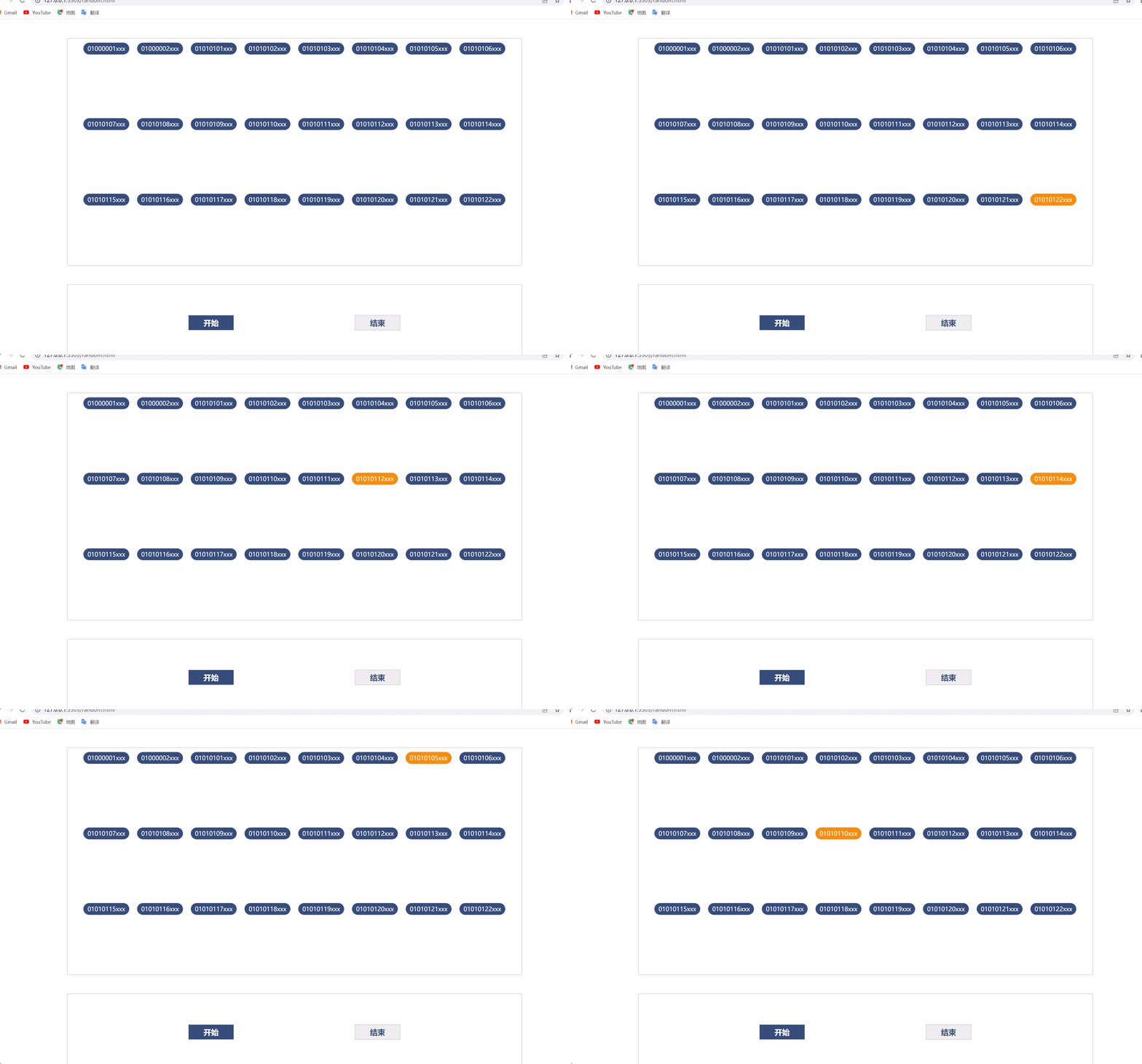
分为上下两个部分,上方为显示区域, 下方为控制区域。显示区域显示基地所有成员的工号和姓名,控制区域由开始和结束两个按钮。点击开始按钮,示区域里的内容开始滚动,点击结束按钮,内容滚动停止,随机显示一位成员的工号和姓名。
实现原理
| 需求 | 实现原理 | |||
|---|---|---|---|---|
|
|
| |||
| 遍历录入信息元素,创建子节点,将信息各自套入 li 里,在上方区域存入创建的子节点 | ||||
|
| 给开始按钮绑定鼠标点击事件,并调用定时器 | |||
|
|
| |||
|
|
| |||
代码
<!DOCTYPE html>
<html lang="en">

<head>
    <meta charset="UTF-8">
    <meta http-equiv="X-UA-Compatible" content="IE=edge">
    <meta name="viewport" content="width=device-width, initial-scale=1.0">
    <title>Ramdon</title>
    <style>
        * {
            margin: 0;
            padding: 0;
        }

        ul,
        li {
            list-style: none;
        }

        .upper {
            width: 1200px;
            height: 600px;
            margin: 50px auto;
            border: 1px solid #b0b0b0;
            display: flex;
            justify-content: center;
            flex-wrap: wrap;
        }

        .down {
            width: 1200px;
            height: 200px;
            margin: auto;
            border: 1px solid #b0b0b0;
            display: flex;
            justify-content: space-evenly;
            align-items: center;
        }

        .idName {
            width: 120px;
            height: 30px;
            background-color: #364c7b;
            border: 1px solid #b0b0b0;
            border-radius: 25px;
            text-align: center;
            color: #fff;
            line-height: 30px;
            margin: 10px 10px;
        }

        #start {
            width: 120px;
            height: 40px;
            border: 1px solid #b0b0b0;
            background-color: #364c7b;
            color: #fff;
            font-weight: bold;
            font-size: 20px;
            cursor: pointer;
        }

        #end {
            width: 120px;
            height: 40px;
            border: 1px solid #b0b0b0;
            background-color: #f0f0f0;
            color: #364c7b;
            font-weight: bold;
            font-size: 20px;
            cursor: pointer;
        }
    </style>
</head>

<body>
    <div class="container">
        <ul class="upper" id="upper"></ul>
        <div class="down" id="down">
            <button id="start">开始</button>
            <button id="end">结束</button>
        </div>
    </div>
    <script>
        const data = [
            '01000001xxx', '01000002xxx', '01010101xxx', '01010102xxx', '01010103xxx', '01010104xxx',
            '01010105xxx', '01010106xxx', '01010107xxx', '01010108xxx', '01010109xxx', '01010110xxx',
            '01010111xxx', '01010112xxx', '01010113xxx', '01010114xxx', '01010115xxx', '01010116xxx',
            '01010117xxx', '01010118xxx', '01010119xxx', '01010120xxx', '01010121xxx', '01010122xxx'
        ]//创建所有信息录入数组
        const upper = document.getElementById('upper')
        for (let i = 0; i < data.length; i++) {//遍历数组
            const item = document.createElement('li')//声明并创建子节点
            item.innerHTML = data[i]//子节点向页面内写入数组元素中内容
            item.className = 'idName'//给子节点设置类名便修改样式
            upper.appendChild(item)//子节点存入相应容器
        }
        const start = document.getElementById('start')
        start.onclick = function () {
            timer = setInterval('bounce()', 100)//用timer接收定时器
        }
        const end = document.getElementById('end')
        end.onclick = function () {
            clearInterval(timer)//清除定时器
        }
        function bounce() {
            for (let j = 0; j < data.length; j++) {//再次遍历数组改变点击后样式
                upper.children[j].style.background = ''//清空背景色

            }
            upper.children[parseInt(Math.random() * data.length)].style.background = '#FF8C00'//设置随机选中且改变当前背景色
        }

    </script>
</body>

</html>
效果展示





 扫一扫
扫一扫


 806
806

 被折叠的 条评论
为什么被折叠?
被折叠的 条评论
为什么被折叠?
 到【灌水乐园】发言





