


Visual Studio Code for the Web provides a free, zero-install Microsoft Visual Studio Code experience running entirely in your browser, allowing you to quickly and safely browse source code repositories and make lightweight code changes. To get started, go to https://vscode.dev in your browser.
VS Code for the Web has many of the features of VS Code Desktop that you love, including search and syntax highlighting while browsing and editing, along with extension support to work on your codebase and make simpler edits. In addition to opening repositories, forks, and pull requests from source control providers like GitHub and Azure Repos, you can also work with code that is stored on your local machine.
VS Code for the Web runs entirely in your web browser, so there are certain limitations compared to the desktop experience, which you can read more about below.
Relationship to VS Code Desktop
VS Code for the Web provides a browser-based experience for navigating files and repositories and committing lightweight code changes. However, if you need access to a runtime to run, build, or debug your code, you want to use platform features such as a terminal, or you want to run extensions that aren't supported in the web, we recommend moving your work to the desktop application, GitHub Codespaces, or using Remote - Tunnels for the full capabilities of VS Code. In addition, VS Code Desktop lets you use a full set of keyboard shortcuts not limited by your browser.
When you're ready to switch, you'll be able to "upgrade" to the full VS Code experience with a few clicks.
You can also switch between the Stable and Insiders versions of VS Code for the Web by selecting the gear icon, then Switch to Insiders Version..., or by navigating directly to https://insiders.vscode.dev.
Opening a project
By navigating to https://vscode.dev, you can create a new local file or project, work on an existing local project, or access source code repositories hosted elsewhere, such as on GitHub and Azure Repos (part of Azure DevOps).
You can create a new local file in the web just as you would in a VS Code Desktop environment, using File > New File from the Command Palette (F1).
GitHub repos
You can open a GitHub repository in VS Code for the Web directly from a URL, following the schema: https://vscode.dev/github/<organization>/<repo>. Using the VS Code repository as an example, this would look like: https://vscode.dev/github/microsoft/vscode.
This experience is delivered at a custom vscode.dev/github URL, which is powered by the GitHub Repositories extension (which is part of the broader Remote Repositories extension).
GitHub Repositories allows you to remotely browse and edit a repository from within the editor, without needing to pull code onto your local machine. You can learn more about the extension and how it works in our GitHub Repositories guide.
Note: The GitHub Repositories extension works in VS Code Desktop as well to provide fast repository browsing and editing. Once you have the extension installed, you can open a repo with the GitHub Repositories: Open Repository... command.
You can also open GitHub repositories in vscode.dev through your browser's search bar (aka omnibox) by installing the vscode.dev extension for Chrome and Edge. Then, type code to activate the omnibox, followed by your repository's name. Suggestions are populated by your browser search history, so if the repo you want doesn't come up, you can also type in the fully qualified <owner>/<repo> name to open it, for example microsoft/vscode.
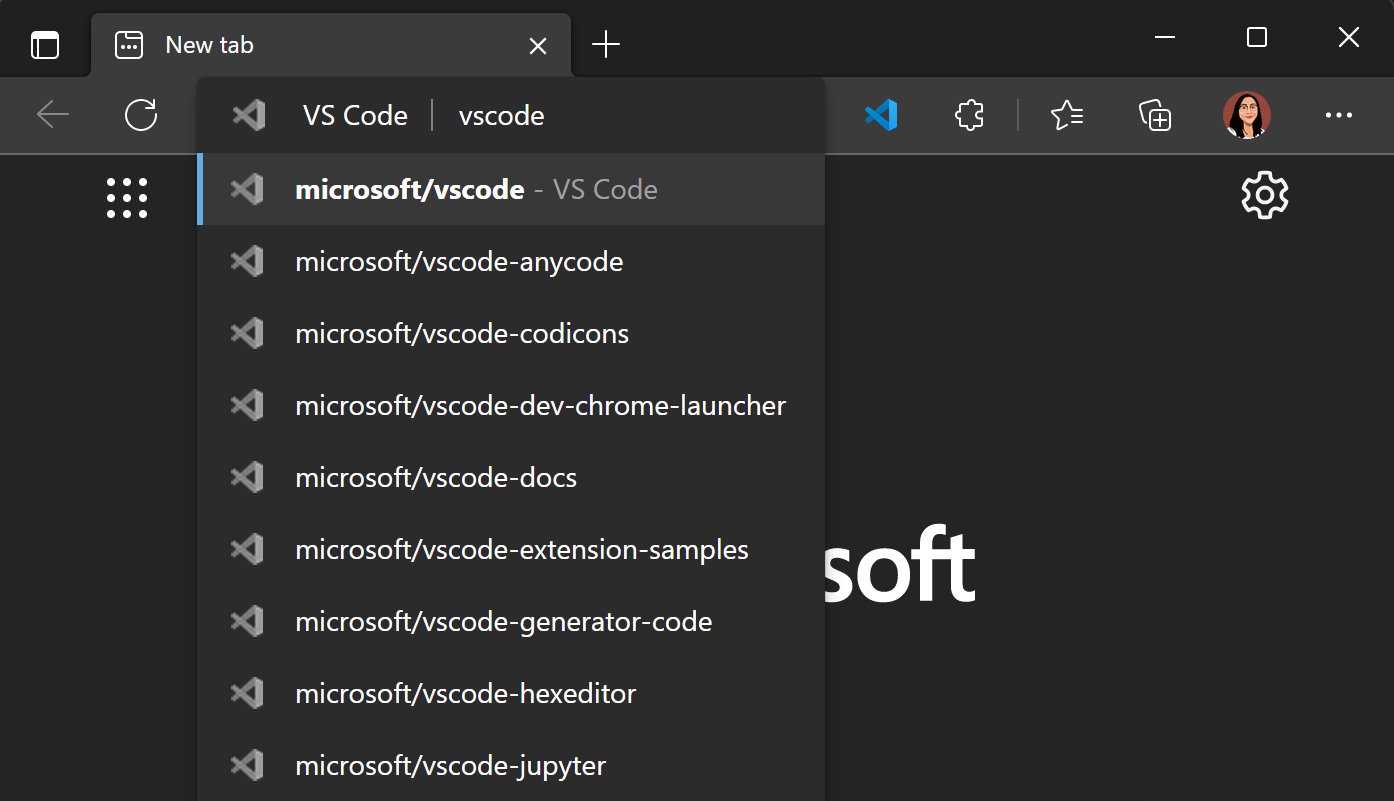
If you're already in VS Code for the Web at https://vscode.dev, you can alternatively navigate to different repos via the Remote Repositories extension commands. Select the remote indicator in the lower left of the Status bar, and you'll be presented with the Open Remote Repository... command.





 扫一扫
扫一扫


 3250
3250

 被折叠的 条评论
为什么被折叠?
被折叠的 条评论
为什么被折叠?
 到【灌水乐园】发言





