小白也能懂:什么是multipart边界错误?

快速体验

  1. 打开 InsCode(快马)平台 https://www.inscode.net
  2. 输入框内输入如下内容:
    创建一个交互式学习模块,通过3个步骤讲解multipart边界:1)动画展示正常/异常请求差异 2)可拖拽修改的请求头示例 3)实时反馈的迷你测试题。要求使用通俗语言解释技术概念,并提供'尝试修复'按钮让用户实践所学内容。
  3. 点击'项目生成'按钮,等待项目生成完整后预览效果

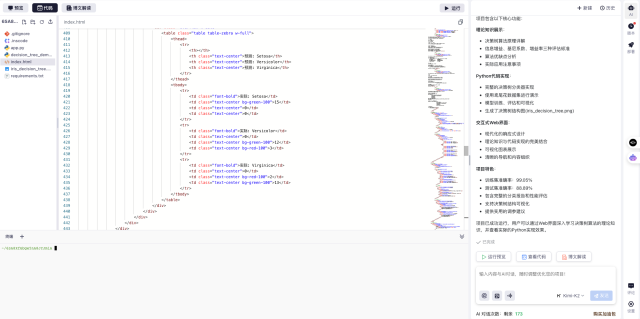
示例图片

最近在学文件上传功能时遇到了个报错the request was rejected because no multipart boundary was found,查资料发现这是新手常见问题。经过摸索终于搞明白原理,这里用最直白的方式分享给大家。

1. 为什么会出现这个错误?

想象你要寄一个快递包裹,boundary就像快递单上的分隔线。没有这个分隔线,服务器就不知道文件数据从哪里开始、到哪里结束。

  • 正常情况:请求头会包含类似Content-Type: multipart/form-data; boundary=----WebKitFormBoundaryABC123的标记
  • 错误情况:要么完全没boundary参数,要么格式写错了

2. 三分钟搞懂核心原理

通过三个关键点就能理解:

  1. 数据分块:文件上传时,数据会被切割成多个部分传输,就像把大象分块装进冰箱
  2. 边界标记:每个数据块前后需要--boundary字符串作为分隔符(就像冰箱隔板)
  3. 结束标志:最后要用--boundary字符串--表示结束(双横杠结尾)

3. 动手实践理解更深刻

建议按这个顺序体验:

  1. 对比观察:先看正常请求和错误请求的差异(注意Content-Type字段)
  2. 模拟修复:试着在缺失boundary的请求头里手动添加正确格式
  3. 小测试:判断几个修改方案哪些能解决问题

示例图片

4. 常见踩坑点

根据我的踩坑经验总结:

  • 前端框架自动处理时,不要手动设置Content-Type
  • 使用Postman测试时记得勾选form-data类型
  • SpringBoot项目需要检查是否配置了MultipartResolver

5. 快速验证方案

遇到问题时可以:

  1. 浏览器F12查看Network标签里的原始请求
  2. 用curl命令测试:注意-F参数会自动处理boundary
  3. 在线工具检查请求原始数据格式

示例图片

最后安利下InsCode(快马)平台,我在这里创建了可交互的调试环境,不需要配环境就能直接修改代码测试文件上传,一键部署特别适合新手实践。最开始我就是通过它的实时预览功能,直观看到了正确和错误请求的差异,比看文档理解快多了。

快速体验

  1. 打开 InsCode(快马)平台 https://www.inscode.net
  2. 输入框内输入如下内容:
    创建一个交互式学习模块,通过3个步骤讲解multipart边界:1)动画展示正常/异常请求差异 2)可拖拽修改的请求头示例 3)实时反馈的迷你测试题。要求使用通俗语言解释技术概念,并提供'尝试修复'按钮让用户实践所学内容。
  3. 点击'项目生成'按钮,等待项目生成完整后预览效果

创作声明:本文部分内容由AI辅助生成(AIGC),仅供参考

<template> <div class="news-images"> <div v-for="(img, idx) in images" :key="idx" class="news-img-wrap"> <!-- 上传进度显示 --> <div v-if="img.status === 'uploading'" class="progress-overlay"> <van-circle v-model:current-rate="img.progress" :rate="100" :speed="10" size="120rem" :stroke-width="20" stroke-linecap="round" class="progress" > <span class="progress-text">{{ img.progress }}%</span> </van-circle> </div> <!-- 错误状态显示 --> <div v-if="img.status === 'error'" class="error-overlay"> <van-icon name="warning" size="32rem" color="#ff4444" /> <span>上传失败</span> <van-button type="primary" size="small" @click="reUpload(idx)" style="margin-top: 16rem">重新上传</van-button> </div> <img :src="img.url" class="news-img" /> <div class="img-close" @click="removeImg(idx)"> <van-icon name="cross" size="32rem" color="#fff" /> </div> </div> <div v-if="images.length < maxCount" class="news-img-add" @click="onAddImg"> <van-icon name="plus" size="64rem" color="#bbb" /> </div> <!-- 隐藏的文件选择器 --> <input ref="fileInput" type="file" multiple accept="image/*" style="display: none" @change="handleFileChange" /> </div> </template> <script setup lang="ts"> import { apis } from '@/api' import System from '@/utils/System' import { showToast } from 'vant' import { ref, onUnmounted } from 'vue' const emit = defineEmits(['update:modelValue']) const props = defineProps({ autoUpload: { type: Boolean, default: true }, maxCount: { type: Number, default: 9 }, modelValue: { type: Array as () => imgageItem[], default: () => [] } }) interface imgageItem { url: string progress: number status: 'pending' | 'uploading' | 'success' | 'error' file?: File } const fileInput = ref<HTMLInputElement | null>(null) const images = ref<imgageItem[]>(props.modelValue) const onAddImg = () => { fileInput.value?.click() } const removeImg = async (idx: number) => { images.value.splice(idx, 1) emit('update:modelValue', [...images.value]) } // const handleFileChange = async (e: Event) => { // const target = e.target as HTMLInputElement // const files = target.files // if (!files || files.length === 0) return // for (const file of Array.from(files)) { // if (images.value.length >= props.maxCount) break // try { // const reader = new FileReader() // console.log("🚀 ~ handleFileChange ~ reader:", reader) // reader.onload = (ev) => { // if (typeof ev.target?.result === 'string') { // const index = images.value.length // images.value.push({ // url: ev.target.result, // 临时预览URL // progress: 0, // status: 'pending', // file: file // }) // console.log("🚀 ~ handleFileChange ~ images.value:", images.value) // if (props.autoUpload) { // uploadFile(file, index) // } // reader.readAsDataURL(file) // } // } // // 清空 input // ;(e.target as HTMLInputElement).value = '' // // 更新父组件 // emit('update:modelValue', [...images.value]) // } catch (error) { // System.toast('图片处理失败') // console.error('文件处理错误:', error) // } // } // // 清空文件选择器 // ;(e.target as HTMLInputElement).value = '' // } const handleFileChange = (e: Event) => { const files = (e.target as HTMLInputElement).files if (files && files.length > 0) { Array.from(files).forEach((file) => { if (images.value.length >= 6) return const reader = new FileReader() reader.onload = (ev) => { if (typeof ev.target?.result === 'string') { const index = images.value.length images.value.push({ url: ev.target.result, // 临时预览URL progress: 0, status: 'pending', file: file }) // 开始上传 if (props.autoUpload) { uploadFile(file, index) } } } reader.readAsDataURL(file) }) emit('update:modelValue', [...images.value]) // 清空 input ;(e.target as HTMLInputElement).value = '' } } const uploadFile = async (file: File, index: number) => { // try { images.value[index].status = 'uploading' // 调用API上传 const formData = new FormData() formData.append("file",file) const res: any = await apis.uploadFile({ file: formData.get('file') }, (progressEvent: { loaded: number; total: number }) => { if (progressEvent.total > 0) { images.value[index].progress = Math.round((progressEvent.loaded / progressEvent.total) * 100) } }) if (res.code === 200) { images.value[index].status = 'success' images.value[index].url = res.data } else { images.value[index].status = 'error' System.toast('图片上传失败') } emit('update:modelValue', [...images.value]) // } catch (error) { // images.value[index].status = 'error' // System.toast('图片上传失败') // console.error('上传错误:', error) // emit('update:modelValue', [...images.value]) // } } // 自动上传全部待上传图片 const autoUploadAll = () => { images.value.forEach((img, index) => { if (img.status === 'pending' && img.file) { uploadFile(img.file, index) } }) } // 重新上传指定失败图片 const reUpload = (index: number) => { if (images.value[index].status !== 'error' || !images.value[index].file) return images.value[index].status = 'pending' uploadFile(images.value[index].file!, index) } // 组件卸载时清理临时文件 onUnmounted(async () => {}) defineExpose({ autoUploadAll, reUpload }) </script> <style lang="less" scoped> .news-images { display: flex; flex-wrap: wrap; gap: 18.5rem; margin-bottom: 48rem; .news-img-wrap { position: relative; width: 216rem; height: 216rem; border-radius: 23rem; overflow: hidden; margin-bottom: 32rem; // 新增,保证多行间距 .progress-overlay { position: absolute; top: 0; left: 0; width: 100%; height: 100%; background: rgba(0, 0, 0, 0.5); display: flex; justify-content: center; align-items: center; z-index: 2; .progress { display: flex; align-items: center; justify-content: center; } .progress-text { color: #fff; font-size: 24rem; } } .error-overlay { position: absolute; top: 0; left: 0; width: 100%; height: 100%; background: rgba(0, 0, 0, 0.5); display: flex; flex-direction: column; justify-content: center; align-items: center; z-index: 2; span { color: #fff; font-size: 24rem; margin-top: 8rem; } } .news-img { width: 100%; height: 100%; object-fit: cover; border-radius: 24rem; } .img-close { position: absolute; top: 8rem; right: 8rem; background: rgba(0, 0, 0, 0.4); border-radius: 50%; width: 40rem; height: 40rem; display: flex; align-items: center; justify-content: center; cursor: pointer; z-index: 3; } } .news-img-add { width: 216rem; height: 216rem; background: #f6f6f6; border-radius: 23rem; display: flex; align-items: center; justify-content: center; cursor: pointer; margin-bottom: 32rem; // 保持添加按钮与图片对齐 .van-icon { font-weight: bold; } } } </style> 这个代码帮我解决
07-05
内容概要:本文是一份针对2025年中国企业品牌传播环境撰写的《全网媒体发稿白皮书》,聚焦企业媒体发稿的策略制定、渠道选择与效果评估难题。通过分析当前企业面临的资源分散、内容同质、效果难量化等核心痛点,系统性地介绍了新闻媒体、央媒、地方官媒和自媒体四大渠道的特点与适用场景,并深度融合“传声港”AI驱动的新媒体平台能力,提出“策略+工具+落地”的一体化解决方案。白皮书详细阐述了传声港在资源整合、AI智能匹配、舆情监测、合规审核及全链路效果追踪方面的技术优势,构建了涵盖曝光、互动、转化与品牌影响力的多维评估体系,并通过快消、科技、零售等行业的实战案例验证其有效性。最后,提出了按企业发展阶段和营销节点定制的媒体组合策略,强调本土化传播与政府关系协同的重要性,助力企业实现品牌声量与实际转化的双重增长。; 适合人群:企业市场部负责人、品牌方管理者、公关传播从业者及从事数字营销的相关人员,尤其适用于初创期至成熟期不同发展阶段的企业决策者。; 使用场景及目标:①帮助企业科学制定媒体发稿策略,优化预算分配;②解决渠道对接繁琐、投放不精准、效果不可衡量等问题;③指导企业在重大营销节点(如春节、双11)开展高效传播;④提升品牌权威性、区域渗透力与危机应对能力; 阅读建议:建议结合自身企业所处阶段和发展目标,参考文中提供的“传声港服务组合”与“预算分配建议”进行策略匹配,同时重视AI工具在投放、监测与优化中的实际应用,定期复盘数据以实现持续迭代。
先展示下效果 https://pan.quark.cn/s/987bb7a43dd9 VeighNa - By Traders, For Traders, AI-Powered. Want to read this in english ? Go here VeighNa是一套基于Python的开源量化交易系统开发框架,在开源社区持续不断的贡献下一步步成长为多功能量化交易平台,自发布以来已经积累了众多来自金融机构或相关领域的用户,包括私募基金、证券公司、期货公司等。 在使用VeighNa进行二次开发(策略、模块等)的过程中有任何疑问,请查看VeighNa项目文档,如果无法解决请前往官方社区论坛的【提问求助】板块寻求帮助,也欢迎在【经验分享】板块分享你的使用心得! 想要获取更多关于VeighNa的资讯信息? 请扫描下方二维码添加小助手加入【VeighNa社区交流微信群】: AI-Powered VeighNa发布十周年之际正式推出4.0版本,重磅新增面向AI量化策略的vnpy.alpha模块,为专业量化交易员提供一站式多因子机器学习(ML)策略开发、投研和实盘交易解决方案: :bar_chart: dataset:因子特征工程 * 专为ML算法训练优化设计,支持高效批量特征计算与处理 * 内置丰富的因子特征表达式计算引擎,实现快速一键生成训练数据 * Alpha 158:源于微软Qlib项目的股票市场特征集合,涵盖K线形态、价格趋势、时序波动等多维度量化因子 :bulb: model:预测模型训练 * 提供标准化的ML模型开发模板,大幅简化模型构建与训练流程 * 统一API接口设计,支持无缝切换不同算法进行性能对比测试 * 集成多种主流机器学习算法: * Lass...
评论
成就一亿技术人!
拼手气红包6.0元
还能输入1000个字符  | 博主筛选后可见
 
红包 添加红包
表情包 插入表情
 条评论被折叠 查看
添加红包

请填写红包祝福语或标题

红包个数最小为10个

红包金额最低5元

当前余额3.43前往充值 >
需支付:10.00
成就一亿技术人!
领取后你会自动成为博主和红包主的粉丝 规则
hope_wisdom
发出的红包

打赏作者

RubyLion28

你的鼓励将是我创作的最大动力

¥1 ¥2 ¥4 ¥6 ¥10 ¥20
扫码支付:¥1
获取中
扫码支付

您的余额不足,请更换扫码支付或充值

打赏作者

实付
使用余额支付
点击重新获取
扫码支付
钱包余额 0

抵扣说明:

1.余额是钱包充值的虚拟货币,按照1:1的比例进行支付金额的抵扣。
2.余额无法直接购买下载,可以购买VIP、付费专栏及课程。

余额充值