回车到下一个输入框 vue + element ui实现

Vue.js与Element UI实现回车跳转输入框
本文介绍了如何在Vue.js项目中结合Element UI库,利用键盘事件监听回车键,实现在多个输入框之间的焦点切换,提升前端交互体验。
<template>
  <div class="table-container">
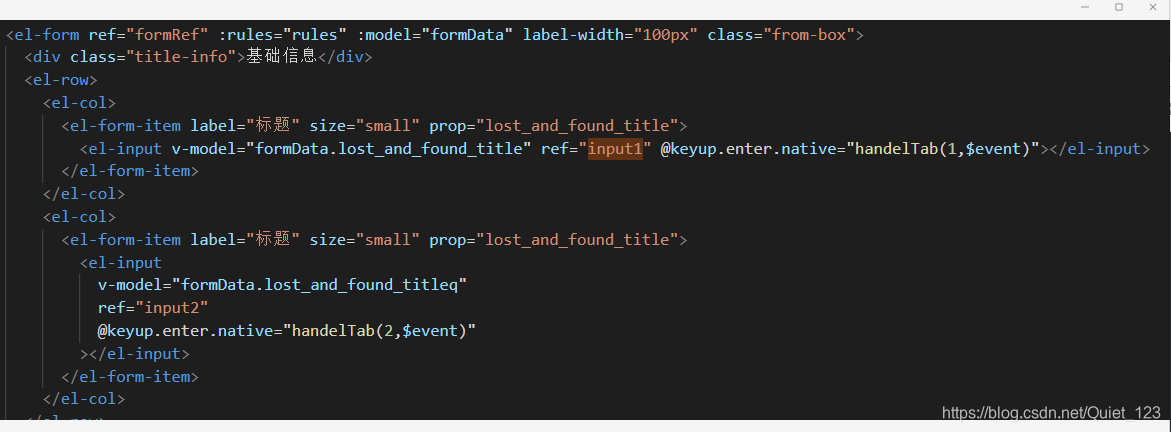
    <el-form ref="formRef" :rules="rules" :model="formData" label-width="100px" class="from-box">
      <div class="title-info">基础信息</div>
      <el-row>
        <el-col>
          <el-form-item label="标题" size="small" prop="lost_and_found_title">
            <el-input v-model="formData.lost_and_found_title" ref="input1" @keyup.enter.native="handelTab(1,$event)"></el-input>
          </el-form-item>
        </el-col>
        <el-col>
          <el-form-item label="标题" size="small" prop="lost_and_found_title">
            <el-input
              v-model="formData.lost_and_found_titleq"
              ref="input2"
              @keyup.enter.native="handelTab(2,$event)"
            ></el-input>
          </el-form-item>
        </el-col>
      </el-row>
    </el-form>
  </div>
</template>
<script>
export default {
  name: "Index",
  data() {
    return {
      formData: {},
      rules: {},
    };
  },
  computed: {},
  created() {},
  mounted() {},
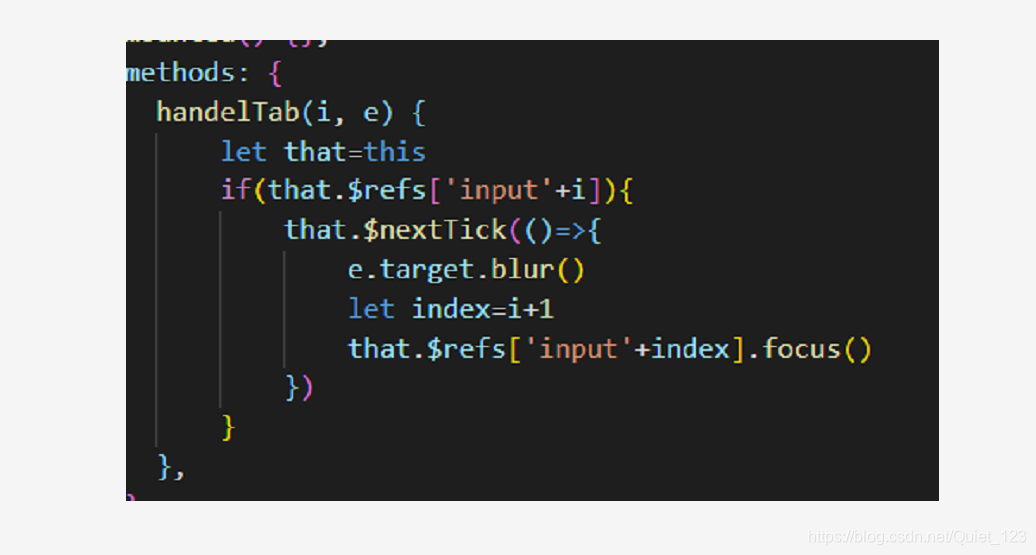
  methods: {
    handelTab(i, e) {
        let that=this
        if(that.$refs['input'+i]){
            that.$nextTick(()=>{
                e.target.blur()
                let index=i+1
                that.$refs['input'+index].focus()
            })
        }
    },
  },
};
</script>
<style lang="scss" scoped>
.table-container {
  width: calc(100% - 40px);
  height: calc(100vh - 120px);
  background: #ffffff;
  margin: 20px;
  .from-box {
    padding: 20px;
    width: 100%;
    max-height: 90%;
    overflow-y: auto;
    .title-info {
      font-weight: 400;
      font-size: 16px;
      color: rgba(42, 101, 190, 1);
      margin-bottom: 20px;
      &:not(:first-of-type) {
        margin-top: 30px;
      }
    }
  }
  .btn-footer {
    width: 80%;
    margin-top: 15px;
    text-align: right;
  }
}
>>> .el-col-24 {
  width: 40%;
}
>>> .el-upload--picture-card {
  width: 100px;
  height: 100px;
  line-height: 100px;
}
>>> .el-date-editor.el-input,
.el-date-editor.el-input__inner {
  width: 100%;
}

主要方法:


### 创建 Vue 项目并引入 Element UI 要使用 VueElement UI 构建登录界面,首先需要创建一个 Vue 项目,并引入 Element UI。可以通过以下步骤完成: 1. 使用 `vue-cli` 创建项目: ```bash vue init webpack element_ui_login ``` 2. 安装 Element UI 模块: ```bash npm install element-ui -S ``` 3. 在项目的 `main.js` 文件中引入 Element UI: ```javascript import Vue from 'vue' import ElementUI from 'element-ui' import 'element-ui/lib/theme-chalk/index.css' import App from './App' import router from './router' Vue.use(ElementUI) new Vue({ el: '#app', router, components: { App }, template: '<App/>' }) ``` ### 设计登录界面 接下来,可以设计登录界面。通常,登录界面包含用户名和密码的输入框,以及登录按钮。Element UI 提供了丰富的组件来实现这一功能。 ```html <template> <div class="login-container"> <h2>Login</h2> <el-form :model="loginForm" :rules="rules" ref="loginForm" label-width="80px"> <el-form-item label="Username" prop="username"> <el-input v-model="loginForm.username"></el-input> </el-form-item> <el-form-item label="Password" prop="password"> <el-input type="password" v-model="loginForm.password" @keyup.enter.native="submitForm('loginForm')"></el-input> </el-form-item> <el-form-item> <el-button type="primary" @click="submitForm('loginForm')">Login</el-button> </el-form-item> </el-form> </div> </template> <script> export default { data() { return { loginForm: { username: '', password: '' }, rules: { username: [ { required: true, message: 'Please enter your username', trigger: 'blur' } ], password: [ { required: true, message: 'Please enter your password', trigger: 'blur' } ] } } }, methods: { submitForm(formName) { this.$refs[formName].validate(valid => { if (valid) { // 登录逻辑 alert('Login successful'); } else { console.log('Validation failed'); return false; } }); } } } </script> <style scoped> .login-container { width: 400px; margin: 100px auto; } </style> ``` ### 处理回车键登录 为了提升用户体验,可以添加对回车键的支持,使得用户在输入完密码后按回车键即可登录。这可以通过监听键盘事件来实现。 ```javascript mounted() { this.enterLogin(); }, methods: { enterLogin() { document.onkeydown = (e) => { e = window.event || e; if (this.$route.path == '/login' && (e.code == 'Enter' || e.code == 'enter')) { this.submitForm('loginForm'); } }; } } ``` ### 解决跨域问题 在实际开发中,前端应用可能会遇到跨域问题。解决这个问题的一种方法是在 Vue 项目的 `config/index.js` 文件中配置代理: ```javascript module.exports = { devServer: { proxy: { '/api': { target: 'http://localhost:3000', // 目标服务器地址 changeOrigin: true, pathRewrite: { '^/api': '' } } } } } ``` 这样,当请求 `/api/login` 时,请求会被代理到 `http://localhost:3000/login`,从而避免了跨域问题[^4]。
评论
添加红包

请填写红包祝福语或标题

红包个数最小为10个

红包金额最低5元

当前余额3.43前往充值 >
需支付:10.00
成就一亿技术人!
领取后你会自动成为博主和红包主的粉丝 规则
hope_wisdom
发出的红包
实付
使用余额支付
点击重新获取
扫码支付
钱包余额 0

抵扣说明:

1.余额是钱包充值的虚拟货币,按照1:1的比例进行支付金额的抵扣。
2.余额无法直接购买下载,可以购买VIP、付费专栏及课程。

余额充值