


 本文介绍如何在微信小程序的二级页面实现自定义底部tabbar。内容包括在分包下创建自定义tabbar的文件结构,以及在index.wxml、js、json和wxss中的具体实现代码,通过传递idx索引来区分不同页面状态。
外面是官方的tabbar 在个人中心进入特定页面 需要自定义一个新的底部tabbar
我这个是分包下的自定义底部tabbar 不分包自定义官方就有 在app.json中
开始-------------------------------------
先新建个文件夹 用来自定义tabar文件
我的文件结构是
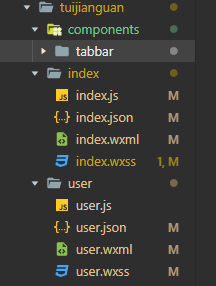
自定义底部tabbar 的wxml:
<view class="tab-bar">
  <block wx:for="{{tabBar}}" wx:key="pagePath">
  <!-- // data-url 传递参数,可以在navigateDetail方法中的e.currentTarget.dataset.url获取,在tabbar.js代码块中可以看到 -->
    <view class="section_item" bindtap="navigateDetail" data-url="{{item.pagePath}}">
        <image class="section_image" src="{{item.selected ? item.selectedIconPath : item.iconPath}}"></image>
        <text class="section_title">{{item.text}}</text>
    </view>
  </block>
</view>
js:
Component({
    /**
     * 组件的属性列表
     */
    // 核心功能代码
    properties: {
        idx:{
            type:Number
          }
    },
    /**
     * 组件的初始数据
     */
    data: {
      tabBar: [
        {
          "pagePath": "/pages/tuijianguan/index/index",
          "text": "首页",
          "iconPath": "/assets/images/index/icon_shouye.png",
          "selectedIconPath": "/assets/images/index/icon_shouye_selected.png",
          "selected":false
        },
        {
          "pagePath": "../../user/user",
          "text": "素材",
          "iconPath": "/assets/images/index/icon_sucai.png",
          "selectedIconPath": "/assets/images/index/icon_sucai_selected.png",
          "selected":false
        },
        {
            "pagePath": "../../user/user",
            "text": "学院",
            "iconPath": "/assets/images/index/icon_xueyuan.png",
            "selectedIconPath": "/assets/images/index/icon_xueyuan_selected.png",
            "selected":false
          },
          {
            "pagePath": "/pages/tuijianguan/user/user",
            "text": "我的",
            "iconPath": "/assets/images/index/icon_wode .png",
            "selectedIconPath": "/assets/images/index/icon_wode_selected.png",
            "selected":false
          }
      ]
    },
    observers: {
        // 核心功能代码
        "idx": function (id) {
          var otabbar = this.data.tabBar;
          otabbar[id]['iconPath'] = otabbar[id]['selectedIconPath']//换当前的icon
          otabbar[id]['selected'] = true;
          console.log(this.data.tabBar)
          this.setData({ tabBar: otabbar});
        }

      },
    /**
     * 组件的方法列表
     */
    methods: {
      navigateDetail: function (e) {
        wx.reLaunch({ // 关闭所有打开过的页面,跳转到相对于的页面
          url: e.currentTarget.dataset.url  // 获取tabbar.wxml中data-url传递的参数
        })
      }
    }
  })
json:
{
    "component": true,
    "usingComponents": {}
}
wxss:
.tab-bar {
    width: 100%;
    height: 95rpx;
    position: fixed;
    bottom: 0;
    background: #fff;
    display: flex;
    z-index: 999;
  }
  .section_item {
    flex: 1;
    display: flex;
    flex-direction: column;
    justify-content: space-around;
    align-items: center;
    padding: 5rpx 0 0 0;
  }
  .section_item .section_image {
    width: 55rpx;
    height: 55rpx;
  }
  .section_item .section_title {
    font-size: 20rpx;
    font-weight:300;
  }
在使用的文件中代码如下:
index.wxml 这里传了个idx
<tabBar idx="0"></tabBar>
index.json
{
  "usingComponents": {
    "tabBar": "../components/tabbar/tabbar"
  },
  "navigationStyle": "default"
}
第几页传个idx的索引就行。
如果不需要改变选中的页面图标 删除多余代码就可以了






 扫一扫
扫一扫


 793
793

 被折叠的 条评论
为什么被折叠?
被折叠的 条评论
为什么被折叠?
 到【灌水乐园】发言





