


自己看到一个换肤,以前做过但是忘记了,只是依稀记得是一排颜色选你喜欢的然后背景改了,效果是
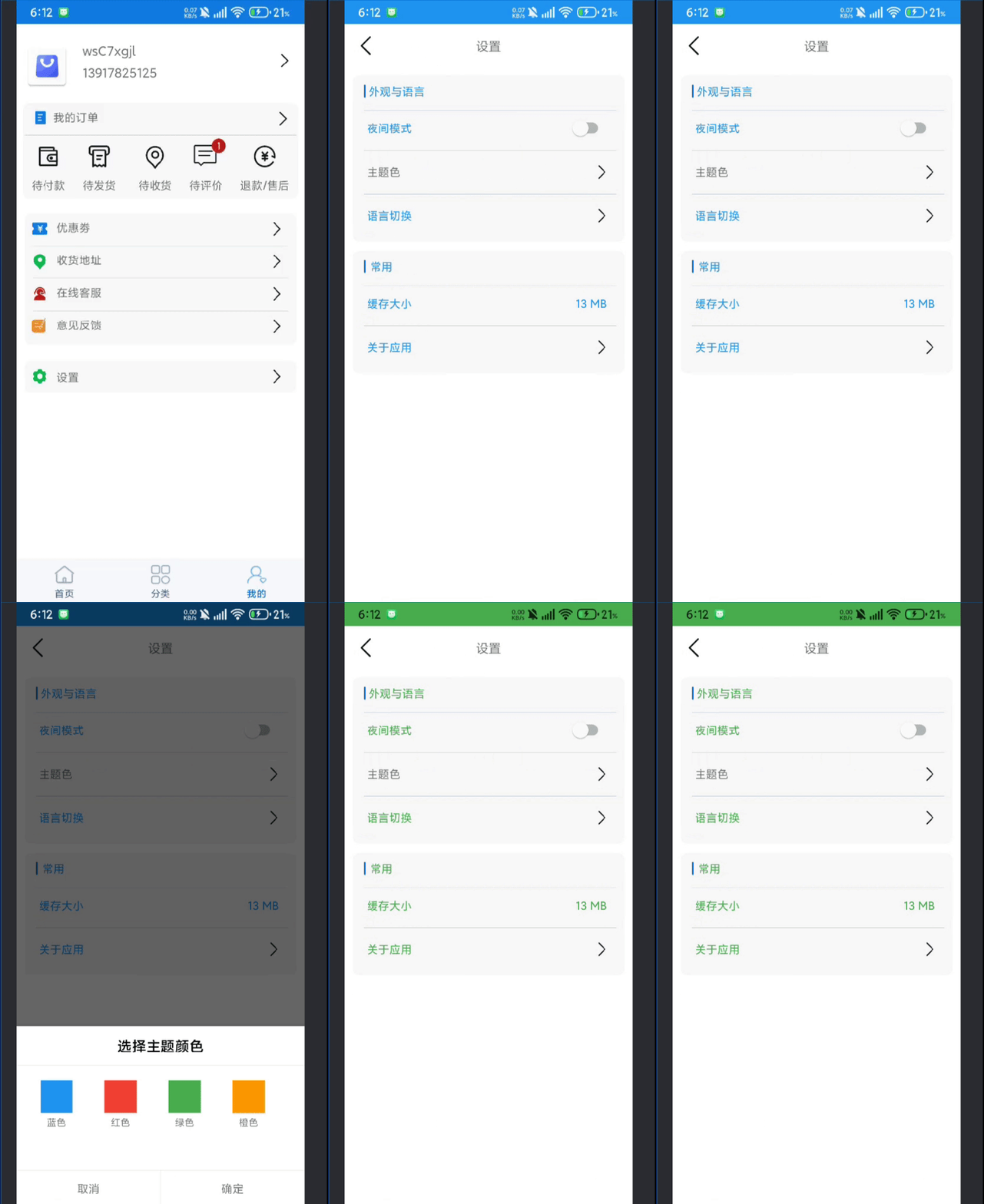
怎么去实现这个呢?首先我们要定义数据类
/**
 * 主题颜色数据类
 */
data class ThemeColor(
    val id: Int,           // 主题ID
    val name: String,      // 主题名称
    val colorValue: Int    // 颜色值
)
定义三个属性,一个主题id,第二个主题名,最后是改变主题色值,接下来我们要有主题管理类,以及选择器UI
UI就是一个recycleview,标题就是选择颜色,下面两个按钮,取消和确定。那么先看适配器
class ThemeAdapter(
    private val themeColors: List<ThemeColorBean>,
    private val selectedColorId: Int,
    private val onThemeSelected: (ThemeColorBean) -> Unit):
    BaseQuickAdapter<ThemeColorBean, QuickViewHolder>()  {


    override fun onCreateViewHolder(
        context: Context,
        parent: ViewGroup,
        viewType: Int
    ): QuickViewHolder {
        return QuickViewHolder(R.layout.item_theme, parent)
    }

    override fun onBindViewHolder(
        holder: QuickViewHolder,
        position: Int,
        item: ThemeColorBean?
    ) {
           val themeColor = themeColors[position]
           holder.setBackgroundColor(R.id.color_circle,themeColor.colorValue)
           setUrlLocalRound(themeColor.colorValue,50f,holder.getView(R.id.color_circle))
           holder.setText(R.id.color_name,themeColor.name)
           // 显示选中状态
           if (themeColor.id == selectedColorId) {
               holder.setGone(R.id.selected_indicator,false)
           }else{
               holder.setGone(R.id.selected_indicator,true)

           }
           // 设置点击事件
           holder.itemView.setOnClickListener {
               onThemeSelected(themeColor)
           }


    }
     //返回主题长度
    override fun getItemCount(items: List<ThemeColorBean>): Int {
        if (themeColors.isNotEmpty()) {
            return themeColors.size
        }
        return 0
    }
}
适配器里从外部Activity传入颜色数组和颜色名,然后当前选中主题和列表主题id一样右下角有打勾
接下来是主题管理类
object ThemeManager {
    // 默认主题颜色
    private var currentThemeColor: Int = Color.BLUE
    private var currentThemeId: Int = 0

    /**
     * 初始化主题管理器
     */
    fun init(context: Context) {
        currentThemeId = MMKVUtils.getInt(KEY_SELECTED_THEME_ID, 0)
        currentThemeColor = MMKVUtils.getInt(KEY_SELECTED_THEME_COLOR, Color.BLUE)
    }

    /**
     * 获取当前主题颜色
     */
    fun getCurrentThemeColor(): Int {
        return currentThemeColor
    }

    /**
     * 获取当前主题ID
     */
    fun getCurrentThemeId(): Int {
        return currentThemeId
    }

    /**
     * 保存主题选择
     */
    fun saveThemeSelection(context: Context, themeId: Int, colorValue: Int) {
        currentThemeId = themeId
        currentThemeColor = colorValue

        MMKVUtils .putInt(KEY_SELECTED_THEME_ID, themeId)
        MMKVUtils .putInt(KEY_SELECTED_THEME_COLOR, colorValue)
    }

    /**
     * 应用主题到Activity
     */
    fun applyThemeToActivity(activity: AppCompatActivity, color: Int) {
        // 应用颜色到状态栏
        if (Build.VERSION.SDK_INT >= Build.VERSION_CODES.LOLLIPOP) {
            activity.window.statusBarColor = color

            // 根据颜色亮度调整状态栏文字颜色
            val luminance = calculateLuminance(color)
            if (luminance > 0.5) {
                activity.window.decorView.systemUiVisibility = View.SYSTEM_UI_FLAG_LIGHT_STATUS_BAR
            } else {
                activity.window.decorView.systemUiVisibility = 0
            }
        }

        // 应用颜色到标题栏
        activity.supportActionBar?.setBackgroundDrawable(
            ContextCompat.getDrawable(activity, android.R.color.transparent)
        )

        // 应用颜色到导航栏
        if (Build.VERSION.SDK_INT >= Build.VERSION_CODES.LOLLIPOP) {
            activity.window.navigationBarColor = color
        }

        // 递归应用颜色到所有视图
        applyThemeToView(activity.findViewById(android.R.id.content), color)

        // 强制重绘
        activity.findViewById<View>(android.R.id.content)?.invalidate()
        activity.findViewById<View>(android.R.id.content)?.requestLayout()
    }

    /**
     * 递归应用主题到视图
     */
    private fun applyThemeToView(view: View?, color: Int) {
        if (view == null) return

        // 根据视图类型应用主题
        when (view) {
            is androidx.appcompat.widget.AppCompatButton,
            is com.google.android.material.button.MaterialButton,
            is android.widget.Button -> {
                // 检查视图是否有特定tag标记为主题按钮
                if (view.tag != null && view.tag.toString().contains("theme_button")) {
                    view.background.setTint(color)
                    val textColor = if (calculateLuminance(color) > 0.5) Color.BLACK else Color.WHITE
                    view.setTextColor(textColor)
                }
            }
            is androidx.appcompat.widget.AppCompatTextView,
            is android.widget.TextView -> {
                // 检查视图是否有特定tag标记为主题文本
                if (view.tag != null && view.tag.toString().contains("theme_text")) {
                    view.setTextColor(color)
                }
            }
            is androidx.appcompat.widget.AppCompatImageView,
            is android.widget.ImageView -> {
                // 检查视图是否有特定tag标记为主题图标
                if (view.tag != null && view.tag.toString().contains("theme_icon")) {
                    view.setColorFilter(color)
                }
            }
            is ViewGroup -> {
                // 递归处理子视图
                for (i in 0 until view.childCount) {
                    applyThemeToView(view.getChildAt(i), color)
                }

                // 检查ViewGroup是否有特定tag标记为主题背景
                if (view.tag != null && view.tag.toString().contains("theme_background")) {
                    view.setBackgroundColor(color)
                }
            }
        }
    }

    /**
     * 计算颜色亮度
     */
    private fun calculateLuminance(color: Int): Double {
        val r = Color.red(color) / 255.0
        val g = Color.green(color) / 255.0
        val b = Color.blue(color) / 255.0

        // 标准 luminance 计算
        return 0.299 * r + 0.587 * g + 0.114 * b
    }
}
看出管理类改主题先改状态栏,导航栏然后递归到所有视图并强制重绘,在applyThemeToView方法里看你项目用哪些控件,如按钮变红蓝底白字等。每次选中后用MMKV本地保存下
主题选择器,UI部分底部弹窗
/**
 * 主题颜色选择器
 */
class ThemeColorSelector(
    private val activity: Activity,
    private val onThemeApplied: (ThemeColor) -> Unit
) {

    // 预设主题颜色列表
    private val themeColors = listOf(
        ThemeColor(0, "蓝色", Color.parseColor("#2196F3")),
        ThemeColor(1, "红色", Color.parseColor("#F44336")),
        ThemeColor(2, "绿色", Color.parseColor("#4CAF50")),
        ThemeColor(3, "橙色", Color.parseColor("#FF9800")),
        ThemeColor(4, "紫色", Color.parseColor("#9C27B0")),
        ThemeColor(5, "青色", Color.parseColor("#00BCD4")),
        ThemeColor(6, "灰色", Color.parseColor("#9E9E9E")),
        ThemeColor(7, "黑色", Color.parseColor("#212121"))
    )

    private val bottomSheetDialog by lazy {
        BottomSheetDialog(activity)
    }

    /**
     * 显示主题颜色选择弹窗
     */
    fun show() {
        val view = LayoutInflater.from(activity).inflate(R.layout.dialog_theme_color_selector, null)
        val recyclerView = view.findViewById<RecyclerView>(R.id.theme_colors_recycler_view)
        val cancelButton = view.findViewById<TextView>(R.id.cancel_button)
        val confirmButton = view.findViewById<TextView>(R.id.confirm_button)

        // 初始化RecyclerView
        recyclerView.layoutManager = LinearLayoutManager(activity, LinearLayoutManager.HORIZONTAL, false)

        // 获取当前选中的主题ID
        val currentThemeId = ThemeManager.getCurrentThemeId()

        // 创建适配器
        val adapter = ThemeColorAdapter(
            activity,
            themeColors,
            currentThemeId
        ) { themeColor ->
            // 选择主题后立即应用
            applyTheme(themeColor)
            bottomSheetDialog.dismiss()
        }

        recyclerView.adapter = adapter

        // 设置取消按钮点击事件
        cancelButton.setOnClickListener {
            bottomSheetDialog.dismiss()
        }

        // 设置确认按钮点击事件(可选)
        confirmButton.setOnClickListener {
            bottomSheetDialog.dismiss()
        }

        // 显示弹窗
        bottomSheetDialog.setContentView(view)
        bottomSheetDialog.show()
    }

    /**
     * 应用选择的主题
     */
    private fun applyTheme(themeColor: ThemeColor) {
        // 保存主题选择
        ThemeManager.saveThemeSelection(activity, themeColor.id, themeColor.colorValue)

        // 应用主题到Activity
        if (activity is AppCompatActivity) {
            ThemeManager.applyThemeToActivity(activity, themeColor.colorValue)
        }

        // 通知回调
        onThemeApplied(themeColor)
    }
最后主Acitivity
class MainActivity : AppCompatActivity() {

    private var themeColorSelector: ThemeColorSelector?=null

    override fun onCreate(savedInstanceState: android.os.Bundle?) {
        super.onCreate(savedInstanceState)
        setContentView(R.layout.activity_main)

        // 初始化主题管理器
        ThemeManager.init(this)

        // 创建主题颜色选择器
       themeColorSelector = ThemeColorSelector(this) {(id, name, colorValue) ->
            // 主题应用后的回调处理,另外这里可以添加额外的UI更新逻辑


        }
        //直接底部把选择器显示
        themeColorSelector?.show()

        // 应用保存的主题
        applySavedTheme()
    }

    /**
     * 应用保存的主题
     */
    private fun applySavedTheme() {
        val savedColor = ThemeManager.getCurrentThemeColor()
        if (savedColor != 0) {
            ThemeManager.applyThemeToActivity(this, savedColor)
        }
    }
}
注意: 1.在你的Activity布局中添加一个主题选择按钮,并为需要应用主题的视图添加相应的tag,比如:
- 主题按钮: android:tag="theme_button"
- 主题文本: android:tag="theme_text"
- 主题图标: android:tag="theme_icon"
- 主题背景: android:tag="theme_background"
2.在Activity的onCreate方法中初始化ThemeManager和ThemeColorSelector
3.通过点击按钮显示主题选择弹窗,选择颜色后,ThemeManager会自动应用主题到整个应用
附赠:底部弹窗
```
<LinearLayout xmlns:android="http://schemas.android.com/apk/res/android"
    android:layout_width="match_parent"
    android:orientation="vertical"
    android:layout_height="match_parent">

    <TextView
        android:layout_width="match_parent"
        android:layout_height="wrap_content"
        android:text="选择主题颜色"
        android:textSize="@dimen/sp_18"
        android:textColor="#000000"
        android:textStyle="bold"
        android:gravity="center"
        android:paddingVertical="@dimen/dp_12" />

    <View
        android:layout_width="match_parent"
        android:layout_height="1dp"
        android:background="#EEEEEE" />

    <androidx.recyclerview.widget.RecyclerView
        android:id="@+id/theme_colors_recycler_view"
        android:layout_width="match_parent"
        android:layout_height="@dimen/dp_129"
        android:padding="@dimen/dp_10" />

    <View
        android:layout_width="match_parent"
        android:layout_height="@dimen/dp_0_1"
        android:background="@color/OutlineVariant" />

    <LinearLayout
        android:layout_width="match_parent"
        android:layout_height="wrap_content"
        android:orientation="horizontal">

        <TextView
            android:id="@+id/cancel_button"
            android:layout_width="0dp"
            android:layout_height="@dimen/dp_46"
            android:layout_weight="1"
            android:text="取消"
            android:textSize="@dimen/sp_14"
            android:gravity="center"
           />

        <View
            android:layout_width="1dp"
            android:layout_height="match_parent"
            android:background="#EEEEEE" />

        <TextView
            android:id="@+id/confirm_button"
            android:layout_width="0dp"
            android:layout_height="@dimen/dp_46"
            android:layout_weight="1"
            android:text="确定"
            android:textSize="@dimen/sp_14"
            android:gravity="center"
           />
    </LinearLayout>
</LinearLayout>
item_theme:
```
<LinearLayout xmlns:android="http://schemas.android.com/apk/res/android"
    android:layout_width="@dimen/dp_80"
    android:layout_height="wrap_content"
    android:orientation="vertical"
    android:gravity="center"
    android:padding="@dimen/dp_8">

    <FrameLayout
        android:layout_width="wrap_content"
        android:layout_height="wrap_content"
        android:gravity="center">

        <ImageView
            android:id="@+id/color_circle"
            android:layout_width="@dimen/dp_40"
            android:layout_height="@dimen/dp_40"
            android:background="#2196F3"
            android:radius="@dimen/dp_20"
            android:elevation="@dimen/dp_2" />

        <ImageView
            android:id="@+id/selected_indicator"
            android:layout_width="@dimen/dp_20"
            android:layout_height="@dimen/dp_20"
            android:background="#FFFFFF"
            android:scaleType="centerInside"
            android:visibility="gone"
            android:layout_gravity="bottom|right" />
    </FrameLayout>

    <TextView
        android:id="@+id/color_name"
        android:layout_width="wrap_content"
        android:layout_height="wrap_content"
        android:text="蓝色"
        android:textSize="@dimen/sp_12"
        android:layout_marginTop="@dimen/dp_4" />

</LinearLayout>





 扫一扫
扫一扫


 2212
2212

 被折叠的 条评论
为什么被折叠?
被折叠的 条评论
为什么被折叠?
 到【灌水乐园】发言





