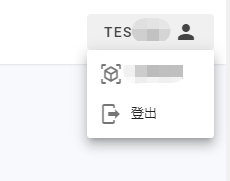
Vuetify——使用 v-menu

在这里插入图片描述

<v-app-bar app elevation="1" light clipped-right class="white pr-3">
      <v-img
        class="shrink v-toolbar__content"
        contain
        max-width="100"
        min-width="50"
        height="40"
        aspect-ratio="1"
        src="/upload/logo.png"
        :lazy-src="require('@/assets/favicon.png')"
      />
      <v-spacer style="border-left:1px solid #eee" class="text-h6 ml-4 pl-4"></v-spacer>
      <div class="text-center">
        <v-menu open-on-hover bottom offset-y>
          <template v-slot:activator="{ on, attrs }">
            <v-btn text v-bind="attrs" v-on="on" color="#444">
              {{ role }}
              <v-icon class="ml-1">mdi-account</v-icon>
            </v-btn>
          </template>
          <v-sheet class="overflow-hidden">
            <v-list dense expand nav>
              <v-list-item to="/user/home">
                <v-list-item-title class="d-flex align-center">
                  <v-icon class="mr-2">mdi-account</v-icon>
                  个人中心
                </v-list-item-title>
              </v-list-item>
              <v-list-item to="#" @click="logout()">
                <v-list-item-title class="d-flex align-center">
                  <v-icon class="mr-2">mdi-logout</v-icon>
                  登出
                </v-list-item-title>
              </v-list-item>
            </v-list>
          </v-sheet>
        </v-menu>
      </div>
    </v-app-bar>
### 使用方法 在 `el-menu` 中使用 `v-for` 可以动态渲染菜单项,通常用于根据数据生成菜单。以下是一个简单的示例: ```vue <template> <el-menu mode="horizontal"> <el-menu-item v-for="item in menuItems" :key="item.id" :index="item.id"> <span slot="title">{{ item.title }}</span> </el-menu-item> </el-menu> </template> <script> export default { data() { return { menuItems: [ { id: '1', title: '首页' }, { id: '2', title: '关于我们' }, { id: '3', title: '联系我们' } ] }; } }; </script> ``` 在这个示例中,`menuItems` 是一个包含菜单项信息的数组,通过 `v-for` 指令遍历该数组,为每个菜单项生成一个 `el-menu-item` 组件。 ### 注意事项 1. **`index` 唯一性**:确保所有 `<el-menu-item>` 和 `<el-submenu>` 的 `index` 值在整个菜单树中是唯一的,否则 `default-active` 和 `unique-opened` 可能会出错[^1]。 2. **路由联动**:优先使用 `<el-menu-item>` 的 `route` 属性来实现路由跳转,代码更简洁。如果逻辑复杂,再使用 `@select` 事件[^1]。 3. **高亮精准**:`default-active` 的值必须与 `$route.path` 完全匹配才能高亮。注意路由的 `path` 是否包含参数或是否是嵌套路由。必要时进行映射[^1]。 4. **性能**:对于非常深或非常宽的菜单,考虑虚拟滚动或懒加载,但 Element UI 默认的 `<el-menu>` 对于一般后台系统性能足够[^1]。 5. **无障碍**:确保菜单项有清晰的文本标签(`<span slot="title">`),方便屏幕阅读器识别[^1]。 6. **响应式**:在移动端,考虑使用 `<el-menu mode="popmenu">` 或将侧边栏改为可滑动的抽屉 (`<el-drawer>`)[^1]。 ### 遇到的问题及解决方案 1. **同时展开和折叠问题**:当使用 `v-for` 渲染 `el-sub-menu` 时,可能会遇到同时展开和折叠的问题。可以手动编写样式隐藏文字和箭头,或者使用 `fragment` 标签进行渲染[^1]。 ```css /* 隐藏文字 */ .el-menu--collapse .el-submenu__title span { display: none; } /* 隐藏 > */ .el-menu--collapse .el-submenu__title .el-submenu__icon-arrow { display: none; } ``` ```vue <fragment v-for="item in menuData" :key="item.id"> <el-submenu v-if="!item.children" :index="item.id"> <template slot="title"> <span slot="title">{{item.menuName}}</span> </template> <el-menu-item v-for="item1 in item.children" :index="item1.menuId" :key="item1.menuId"> <span slot="title">{{item1.menuName}}</span> </el-menu-item> </el-submenu> <el-menu-item v-else :index="item.menuId" :key="item.menuId"> <span slot="title">{{item.menuName}}</span> </el-menu-item> </fragment> ```
评论
添加红包

请填写红包祝福语或标题

红包个数最小为10个

红包金额最低5元

当前余额3.43前往充值 >
需支付:10.00
成就一亿技术人!
领取后你会自动成为博主和红包主的粉丝 规则
hope_wisdom
发出的红包
实付
使用余额支付
点击重新获取
扫码支付
钱包余额 0

抵扣说明:

1.余额是钱包充值的虚拟货币,按照1:1的比例进行支付金额的抵扣。
2.余额无法直接购买下载,可以购买VIP、付费专栏及课程。

余额充值


