



 本文介绍了电机运行中电磁场的重要性及其数值模拟方法,特别是使用MATLAB的有限元法进行电磁场计算。作者详细阐述了有限元法的基本原理,通过实例展示了如何在MATLAB中实施和验证该方法,以及麦克斯韦方程组在电磁场理论中的核心作用。
💥💥💥💥💥💥💥💥💞💞💞💞💞💞💞💞💞Matlab武动乾坤博客之家💞💞💞💞💞💞💞💞💞💥💥💥💥💥💥💥💥
🚀🚀🚀🚀🚀🚀🚀🚀🚀🚀🚤🚤🚤🚤🚤🚤🚤🚤🚤🚤🚤🚤🚤🚤🚤🚤🚤🚤🚤🚤🚀🚀🚀🚀🚀🚀🚀🚀🚀🚀

🔊博主简介:985研究生,Matlab领域科研开发者;
🚅座右铭:行百里者,半于九十。
🏆代码获取方式:
优快云 Matlab武动乾坤—代码获取方式
更多Matlab物理应用仿真内容点击👇
①Matlab物理应用(进阶版)
⛳️关注优快云 Matlab武动乾坤,更多资源等你来!!
⛄一、电机内电磁场简介
当电机运行时,在它的内部空间存在着电磁场,决定了电机的运行状态与性能。因此,研究电机中的电磁场对分析和设计电机具有重要的意义。
由于涡流效应、铁心饱和等导致电机电磁场计算的复杂性,在过去的一段时间里,电磁场的求解往往不尽如人意。随着近年来计算机应用日益普及,数值解法显示出了强大的优越性,它几乎可以解决电机电磁场中目前的所有问题,并可以达到足够的精度。
对于电机电磁场问题,常用的数值解法有差分法和有限元法两种。与差分法相比,有限元法将三角形剖分取代了原来的四边形剖分,对边界的处理更加灵活,精度更高,且更具普及性。
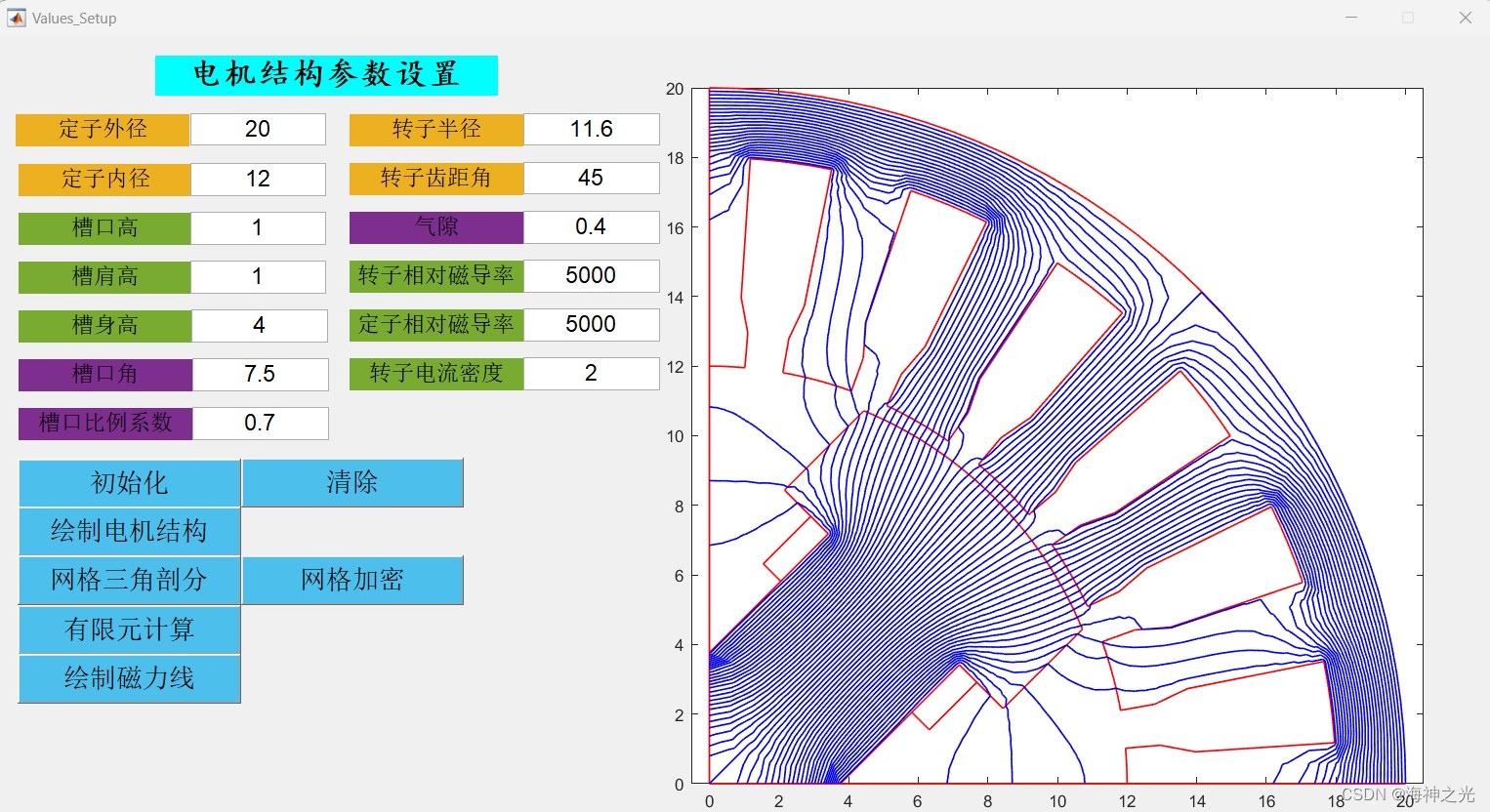
本文首先介绍了工程电磁场计算的基本理论原理,并且介绍了电磁场有限元数值解法的基本原理,以及过程中所作的优化手段,随后针对某简单电机结构,采用MATLAB软件进行有限元方法编码、分析和计算,最终验证了所编有限元算法的正确性。
1 麦克斯韦方程组
麦克斯韦电磁场理论的要点可以归结为:
(1) 几分立的带电体或电流,它们之间的一切电的及磁的作用都是通过它们之间的中间区域传递的,不论中间区域是真空还是实体物质。
(2) 电能或磁能不仅存在于带电体、磁化体或带电流物体中,其大部分分布在周围的电磁场中。
(3) 导体构成的电路若有中断处,电路中的传导电流将由电介质中的位移电流补偿贯通,即全电流连续。且位移电流与其所产生的磁场的关系与传导电流的相同。
(4) 磁通量既无始点又无终点,即不存在磁荷。
(5) 光波也是电磁波。
麦克斯韦方程组是分析、研究电磁现象的基本依据,有两种表达方式。积分形式的麦克斯韦方程组是描述电磁场在某一体积或某一面积内的数学模型。
2 有限元法概述
有限元法计算电磁场的主旨思想是:将电磁场的方程等价为一个条件变分问题,然后由条件变分问题离散为代数方程组,最终求解电磁场。全过程可归纳为如下几个步骤[1]:
(1)列出与偏微分方程边值问题等价的条件变分问题;
(2)将区域作三角形单元剖分,并在单元中构造出线性插值函数;
(3)将能量泛函的极值问题转化成能量函数的极值问题,建立线性代数方程组,并按第一类边界条件加以修改;
(4)求解线性方程组。
⛄二、部分源代码
function varargout = Values_Setup(varargin)
%VALUES_SETUP MATLAB code file for Values_Setup.fig
% VALUES_SETUP, by itself, creates a new VALUES_SETUP or raises the existing
% singleton*.
%
% H = VALUES_SETUP returns the handle to a new VALUES_SETUP or the handle to
% the existing singleton*.
%
% VALUES_SETUP(‘Property’,‘Value’,…) creates a new VALUES_SETUP using the
% given property value pairs. Unrecognized properties are passed via
% varargin to Values_Setup_OpeningFcn. This calling syntax produces a
% warning when there is an existing singleton*.
%
% VALUES_SETUP(‘CALLBACK’) and VALUES_SETUP(‘CALLBACK’,hObject,…) call the
% local function named CALLBACK in VALUES_SETUP.M with the given input
% arguments.
%
% *See GUI Options on GUIDE’s Tools menu. Choose “GUI allows only one
% instance to run (singleton)”.
%
% See also: GUIDE, GUIDATA, GUIHANDLES
% Edit the above text to modify the response to help Values_Setup
% Last Modified by GUIDE v2.5 20-Jul-2017 18:41:26
% Begin initialization code - DO NOT EDIT
gui_Singleton = 1;
gui_State = struct(‘gui_Name’, mfilename, …
‘gui_Singleton’, gui_Singleton, …
‘gui_OpeningFcn’, @Values_Setup_OpeningFcn, …
‘gui_OutputFcn’, @Values_Setup_OutputFcn, …
‘gui_LayoutFcn’, [], …
‘gui_Callback’, []);
if nargin && ischar(varargin{1})
gui_State.gui_Callback = str2func(varargin{1});
end
if nargout
[varargout{1:nargout}] = gui_mainfcn(gui_State, varargin{:});
else
gui_mainfcn(gui_State, varargin{:});
end
% End initialization code - DO NOT EDIT
% — Executes just before Values_Setup is made visible.
function Values_Setup_OpeningFcn(hObject, eventdata, handles, varargin)
% This function has no output args, see OutputFcn.
% hObject handle to figure
% eventdata reserved - to be defined in a future version of MATLAB
% handles structure with handles and user data (see GUIDATA)
% varargin unrecognized PropertyName/PropertyValue pairs from the
% command line (see VARARGIN)
% Choose default command line output for Values_Setup
handles.output = hObject;
% Update handles structure
guidata(hObject, handles);
% UIWAIT makes Values_Setup wait for user response (see UIRESUME)
% uiwait(handles.figure1);
% — Outputs from this function are returned to the command line.
function varargout = Values_Setup_OutputFcn(hObject, eventdata, handles)
% varargout cell array for returning output args (see VARARGOUT);
% hObject handle to figure
% eventdata reserved - to be defined in a future version of MATLAB
% handles structure with handles and user data (see GUIDATA)
% Get default command line output from handles structure
varargout{1} = handles.output;
function R1_edit_Callback(hObject, eventdata, handles)
% hObject handle to R1_edit (see GCBO)
% eventdata reserved - to be defined in a future version of MATLAB
% handles structure with handles and user data (see GUIDATA)
% Hints: get(hObject,‘String’) returns contents of R1_edit as text
% str2double(get(hObject,‘String’)) returns contents of R1_edit as a double
% — Executes during object creation, after setting all properties.
function R1_edit_CreateFcn(hObject, eventdata, handles)
% hObject handle to R1_edit (see GCBO)
% eventdata reserved - to be defined in a future version of MATLAB
% handles empty - handles not created until after all CreateFcns called
% Hint: edit controls usually have a white background on Windows.
% See ISPC and COMPUTER.
if ispc && isequal(get(hObject,‘BackgroundColor’), get(0,‘defaultUicontrolBackgroundColor’))
set(hObject,‘BackgroundColor’,‘white’);
end
function R2_edit_Callback(hObject, eventdata, handles)
% hObject handle to R2_edit (see GCBO)
% eventdata reserved - to be defined in a future version of MATLAB
% handles structure with handles and user data (see GUIDATA)
% Hints: get(hObject,‘String’) returns contents of R2_edit as text
% str2double(get(hObject,‘String’)) returns contents of R2_edit as a double
% — Executes during object creation, after setting all properties.
function R2_edit_CreateFcn(hObject, eventdata, handles)
% hObject handle to R2_edit (see GCBO)
% eventdata reserved - to be defined in a future version of MATLAB
% handles empty - handles not created until after all CreateFcns called
% Hint: edit controls usually have a white background on Windows.
% See ISPC and COMPUTER.
if ispc && isequal(get(hObject,‘BackgroundColor’), get(0,‘defaultUicontrolBackgroundColor’))
set(hObject,‘BackgroundColor’,‘white’);
end
function Slot_h1_edit_Callback(hObject, eventdata, handles)
% hObject handle to Slot_h1_edit (see GCBO)
% eventdata reserved - to be defined in a future version of MATLAB
% handles structure with handles and user data (see GUIDATA)
% Hints: get(hObject,‘String’) returns contents of Slot_h1_edit as text
% str2double(get(hObject,‘String’)) returns contents of Slot_h1_edit as a double
% — Executes during object creation, after setting all properties.
function Slot_h1_edit_CreateFcn(hObject, eventdata, handles)
% hObject handle to Slot_h1_edit (see GCBO)
% eventdata reserved - to be defined in a future version of MATLAB
% handles empty - handles not created until after all CreateFcns called
% Hint: edit controls usually have a white background on Windows.
% See ISPC and COMPUTER.
if ispc && isequal(get(hObject,‘BackgroundColor’), get(0,‘defaultUicontrolBackgroundColor’))
set(hObject,‘BackgroundColor’,‘white’);
end
function Slot_h2_edit_Callback(hObject, eventdata, handles)
% hObject handle to Slot_h2_edit (see GCBO)
% eventdata reserved - to be defined in a future version of MATLAB
% handles structure with handles and user data (see GUIDATA)
% Hints: get(hObject,‘String’) returns contents of Slot_h2_edit as text
% str2double(get(hObject,‘String’)) returns contents of Slot_h2_edit as a double
% — Executes during object creation, after setting all properties.
function Slot_h2_edit_CreateFcn(hObject, eventdata, handles)
% hObject handle to Slot_h2_edit (see GCBO)
% eventdata reserved - to be defined in a future version of MATLAB
% handles empty - handles not created until after all CreateFcns called
% Hint: edit controls usually have a white background on Windows.
% See ISPC and COMPUTER.
if ispc && isequal(get(hObject,‘BackgroundColor’), get(0,‘defaultUicontrolBackgroundColor’))
set(hObject,‘BackgroundColor’,‘white’);
end
function Slot_h3_edit_Callback(hObject, eventdata, handles)
% hObject handle to Slot_h3_edit (see GCBO)
% eventdata reserved - to be defined in a future version of MATLAB
% handles structure with handles and user data (see GUIDATA)
% Hints: get(hObject,‘String’) returns contents of Slot_h3_edit as text
% str2double(get(hObject,‘String’)) returns contents of Slot_h3_edit as a double
% — Executes during object creation, after setting all properties.
function Slot_h3_edit_CreateFcn(hObject, eventdata, handles)
% hObject handle to Slot_h3_edit (see GCBO)
% eventdata reserved - to be defined in a future version of MATLAB
% handles empty - handles not created until after all CreateFcns called
% Hint: edit controls usually have a white background on Windows.
% See ISPC and COMPUTER.
if ispc && isequal(get(hObject,‘BackgroundColor’), get(0,‘defaultUicontrolBackgroundColor’))
set(hObject,‘BackgroundColor’,‘white’);
end
⛄三、运行结果
⛄四、matlab版本及参考文献
1 matlab版本
2014a
2 参考文献
[1] 门云阁.MATLAB物理计算与可视化[M].清华大学出版社,2013.
3 备注
简介此部分摘自互联网,仅供参考,若侵权,联系删除
🍅 仿真咨询
1 各类智能优化算法改进及应用
生产调度、经济调度、装配线调度、充电优化、车间调度、发车优化、水库调度、三维装箱、物流选址、货位优化、公交排班优化、充电桩布局优化、车间布局优化、集装箱船配载优化、水泵组合优化、解医疗资源分配优化、设施布局优化、可视域基站和无人机选址优化
2 机器学习和深度学习方面
卷积神经网络(CNN)、LSTM、支持向量机(SVM)、最小二乘支持向量机(LSSVM)、极限学习机(ELM)、核极限学习机(KELM)、BP、RBF、宽度学习、DBN、RF、RBF、DELM、XGBOOST、TCN实现风电预测、光伏预测、电池寿命预测、辐射源识别、交通流预测、负荷预测、股价预测、PM2.5浓度预测、电池健康状态预测、水体光学参数反演、NLOS信号识别、地铁停车精准预测、变压器故障诊断
3 图像处理方面
图像识别、图像分割、图像检测、图像隐藏、图像配准、图像拼接、图像融合、图像增强、图像压缩感知
4 路径规划方面
旅行商问题(TSP)、车辆路径问题(VRP、MVRP、CVRP、VRPTW等)、无人机三维路径规划、无人机协同、无人机编队、机器人路径规划、栅格地图路径规划、多式联运运输问题、车辆协同无人机路径规划、天线线性阵列分布优化、车间布局优化
5 无人机应用方面
无人机路径规划、无人机控制、无人机编队、无人机协同、无人机任务分配
6 无线传感器定位及布局方面
传感器部署优化、通信协议优化、路由优化、目标定位优化、Dv-Hop定位优化、Leach协议优化、WSN覆盖优化、组播优化、RSSI定位优化
7 信号处理方面
信号识别、信号加密、信号去噪、信号增强、雷达信号处理、信号水印嵌入提取、肌电信号、脑电信号、信号配时优化
8 电力系统方面
微电网优化、无功优化、配电网重构、储能配置
9 元胞自动机方面
交通流 人群疏散 病毒扩散 晶体生长
10 雷达方面
卡尔曼滤波跟踪、航迹关联、航迹融合








 扫一扫
扫一扫


 565
565

 被折叠的 条评论
为什么被折叠?
被折叠的 条评论
为什么被折叠?
 到【灌水乐园】发言





