


FileOperator
- 🚀
Android文件操作库 - 🚀适用于
Android 4.4及以上系统, 已兼容AndroidQ和Android11新的存储策略 - 🚀
Kotlin和Java案例 👉 app & sample_java
使用(Usage)
1. Project build.gradle:
repositories {
    maven { url 'https://dl.bintray.com/javakam/FileOperator' }
}
2. 依赖(dependencies)
implementation 'ando.file:core:1.3.8'       //核心库必选(Core library required)
implementation 'ando.file:selector:1.3.8'   //文件选择器(File selector)
implementation 'ando.file:compressor:1.3.8' //图片压缩, 核心算法采用 Luban
implementation 'ando.file:android-q:1.3.8'  //Q和11兼容库,需要额外的库:'androidx.documentfile:documentfile:1.0.1'
3. Application中初始化(Initialization in Application)
FileOperator.init(this,BuildConfig.DEBUG)
4. 混淆(Proguard)
未用到反射, 不需要混淆。(No reflection is used, no need to be confused.)
预览(Preview)
| 功能列表(Function list) | 缓存目录(Cache directory) |
|---|---|
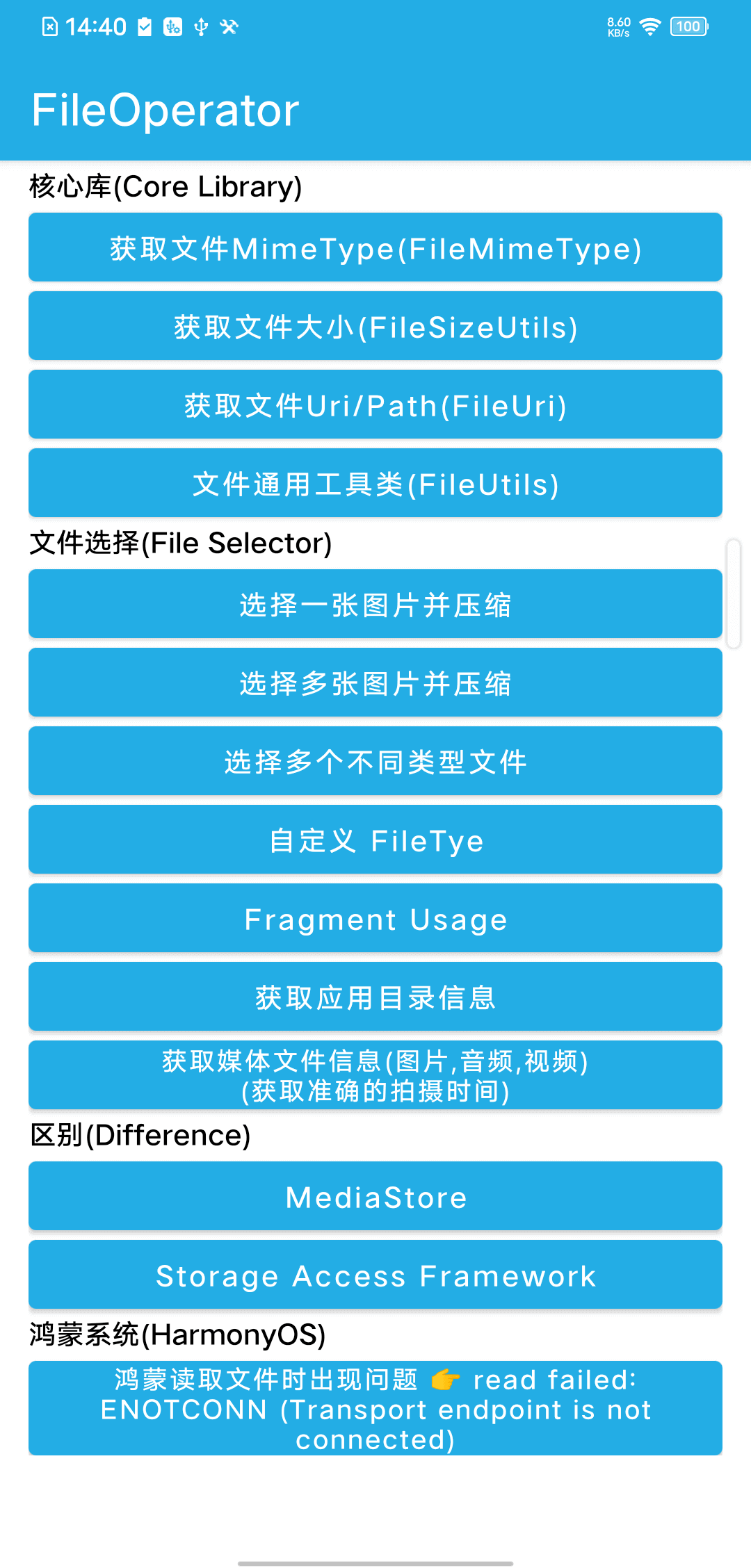 | 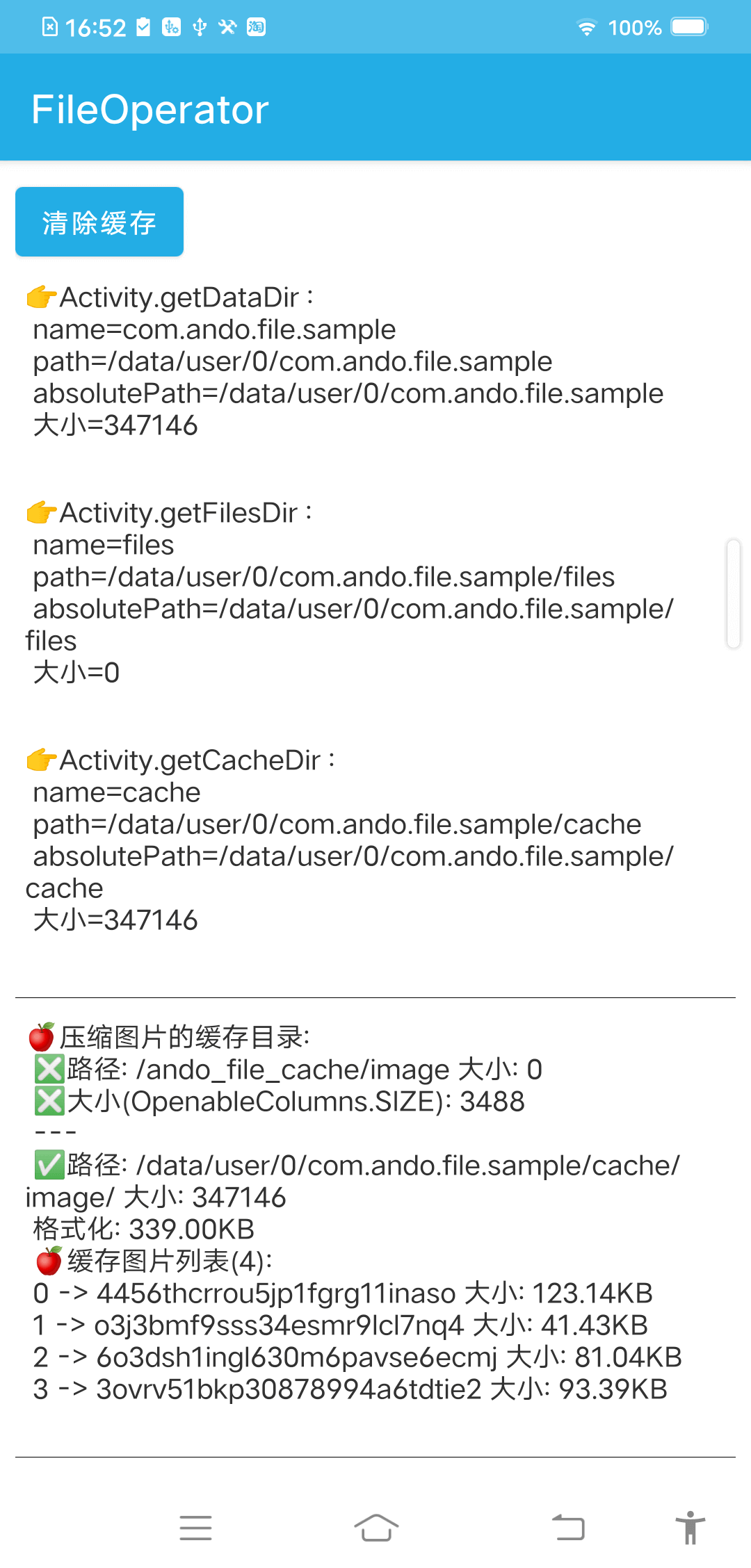 |
文件选择(File selection)
| 单图+压缩(Single Image+Compress) | 多图+压缩(Multiple images+Compress) | 多文件+多类型(Multiple files+Multiple types) |
|---|---|---|
| [外链图片转存失败,源站可能有防盗链机制,建议将图片保存下来直接上传(img-Ea1lNmng-1615774263638)(https://raw.githubusercontent.com/javakam/FileOperator/master/screenshot/pick1.png)] | [外链图片转存失败,源站可能有防盗链机制,建议将图片保存下来直接上传(img-FD2qhkGC-1615774263639)(https://raw.githubusercontent.com/javakam/FileOperator/master/screenshot/pick2.png)] | [外链图片转存失败,源站可能有防盗链机制,建议将图片保存下来直接上传(img-F8kEZuez-1615774263641)(https://raw.githubusercontent.com/javakam/FileOperator/master/screenshot/pick3.png)] |
用法(Usage)
1. 单选图片(Single selection picture)
val optionsImage = FileSelectOptions().apply {
    fileType = FileType.IMAGE
    fileTypeMismatchTip = "文件类型不匹配 !" //File type mismatch
    singleFileMaxSize = 5242880
    singleFileMaxSizeTip = "图片最大不超过5M !" //The largest picture does not exceed 5M
    allFilesMaxSize = 10485760
    allFilesMaxSizeTip = "总图片大小不超过10M !"//The total picture size does not exceed 10M  注:单选条件下无效,只做单个图片大小判断
    fileCondition = object : FileSelectCondition {
        override fun accept(fileType: IFileType, uri: Uri?): Boolean {
            return (fileType == FileType.IMAGE && uri != null && !uri.path.isNullOrBlank() && !FileUtils.isGif(uri))
        }
    }
}
mFileSelector = FileSelector
    .with(this)
    .setRequestCode(REQUEST_CHOOSE_FILE)
    .setTypeMismatchTip("文件类型不匹配 !") //File type mismatch
    .setMinCount(1, "至少选择一个文件 !") //Choose at least one file
    .setMaxCount(10, "最多选择十个文件 !") //Choose up to ten files  注:单选条件下无效, 只做最少数量判断
    .setOverLimitStrategy(OVER_LIMIT_EXCEPT_OVERFLOW)
    .setSingleFileMaxSize(1048576, "大小不能超过1M !") //The size cannot exceed 1M  注:单选条件下无效, FileSelectOptions.singleFileMaxSize
    .setAllFilesMaxSize(10485760, "总大小不能超过10M !") //The total size cannot exceed 10M 注:单选条件下无效,只做单个图片大小判断 setSingleFileMaxSize
    .setMimeTypes("image/*") //默认不做文件类型约束为"*/*",不同类型系统提供的选择UI不一样 eg:"video/*","audio/*","image/*"
    .applyOptions(optionsImage)
    .filter(object : FileSelectCondition {
        override fun accept(fileType: IFileType, uri: Uri?): Boolean {
            return when (fileType) {
                FileType.IMAGE -> (uri != null && !uri.path.isNullOrBlank() && !FileUtils.isGif(uri))
                FileType.VIDEO -> false
                FileType.AUDIO -> false
                else -> false
            }
        }
    })
    .callback(object : FileSelectCallBack {
        override fun onSuccess(results: List<FileSelectResult>?) {
            ResultUtils.resetUI(mTvResult)
            if (results.isNullOrEmpty()) {
                toastLong("没有选取文件") //No file selected
                return
            }
            showSelectResult(results)
        }
        override fun onError(e: Throwable?) {
            FileLogger.e("FileSelectCallBack onError ${e?.message}")
            ResultUtils.setErrorText(mTvError, e)
        }
    })
    .choose()
2. 多选图片(多选+单一类型)
Multiple selection pictures (multiple selection + single type)
val optionsImage = FileSelectOptions().apply {
    fileType = FileType.IMAGE
    fileTypeMismatchTip = "文件类型不匹配 !" //File type mismatch
    singleFileMaxSize = 5242880
    singleFileMaxSizeTip = "单张图片大小不超过5M !" //The size of a single picture does not exceed 5M
    allFilesMaxSize = 10485760
    allFilesMaxSizeTip = "图片总大小不超过10M !" //The total size of the picture does not exceed 10M
    fileCondition = object : FileSelectCondition {
        override fun accept(fileType: IFileType, uri: Uri?): Boolean {
            return (fileType == FileType.IMAGE && uri != null && !uri.path.isNullOrBlank() && !FileUtils.isGif(uri))
        }
    }
}
mFileSelector = FileSelector
    .with(this)
    .setRequestCode(REQUEST_CHOOSE_FILE)
    .setMultiSelect()
    .setMinCount(1, "至少选择一个文件 !") //Choose at least one file
    .setMaxCount(2, "最多选两个文件!") //Choose up to two files
    .setSingleFileMaxSize(3145728, "单个大小不能超过3M !") //Single size cannot exceed 3M
    .setAllFilesMaxSize(20971520, "总文件大小不能超过20M !") //The total file size cannot exceed 20M
    .setOverLimitStrategy(this.mOverLimitStrategy)
    .setMimeTypes("image/*")
    .applyOptions(optionsImage)
    .filter(object : FileSelectCondition {
        override fun accept(fileType: IFileType, uri: Uri?): Boolean {
            return (fileType == FileType.IMAGE) && (uri != null && !uri.path.isNullOrBlank() && !FileUtils.isGif(uri))
        }
    })
    .callback(object : FileSelectCallBack {
        override fun onSuccess(results: List<FileSelectResult>?) {
            FileLogger.w("FileSelectCallBack onSuccess ${results?.size}")
            mAdapter.setData(null)
            if (results.isNullOrEmpty()) {
                toastLong("没有选取文件") //No file selected
                return
            }
            showSelectResult(results)
        }
        override fun onError(e: Throwable?) {
            FileLogger.e("FileSelectCallBack onError ${e?.message}")
            ResultUtils.setErrorText(mTvError, e)
            mAdapter.setData(null)
            mBtSelect.text = "$mShowText (0)"
        }
    })
    .choose()
3. 多选文件(多选+多种类型)
Multiple files (multi-select multiple types)
🌴适用于处理复杂文件选择情形, 如: 选取图片、音频文件、文本文件, 其中
图片至少选择一张, 最多选择两张, 每张图片大小不超过5M, 全部图片大小不超过10M;
音频文件至少选择两个, 最多选择三个, 每个音频大小不超过20M, 全部音频大小不超过30M;
文本文件至少选择一个, 最多选择两个, 每个文本文件大小不超过5M, 全部文本文件大小不超过10M
🌴It is suitable for processing complex file selection situations, such as: select pictures, audio files, text files, among which, select at least one picture and two at most. The size of each picture does not exceed 5M, and the size of all pictures does not exceed 10M;
audio FileChoose at least two and a maximum of three, each audio size does not exceed 20M, all audio size does not exceed 30M;text fileselect at least one, select at most two, each text file size does not exceed 5M, all The text file size does not exceed 10M
//图片 Image
val optionsImage = FileSelectOptions().apply {
    fileType = FileType.IMAGE
    minCount = 1
    maxCount = 2
    minCountTip = "至少选择一张图片" //Select at least one picture
    maxCountTip = "最多选择两张图片" //Select up to two pictures
    singleFileMaxSize = 5242880
    singleFileMaxSizeTip = "单张图片最大不超过5M !" //A single picture does not exceed 5M !
    allFilesMaxSize = 10485760
    allFilesMaxSizeTip = "图片总大小不超过10M !" //The total size of the picture does not exceed 10M !
    fileCondition = object : FileSelectCondition {
        override fun accept(fileType: IFileType, uri: Uri?): Boolean {
            return (fileType == FileType.IMAGE && uri != null && !uri.path.isNullOrBlank() && !FileUtils.isGif(uri))
        }
    }
}
//音频 Audio
val optionsAudio = FileSelectOptions().apply {
    fileType = FileType.AUDIO
    minCount = 2
    maxCount = 3
    minCountTip = "至少选择两个音频文件" //Select at least two audio files
    maxCountTip = "最多选择三个音频文件" //Select up to three audio files
    singleFileMaxSize = 20971520
    singleFileMaxSizeTip = "单音频最大不超过20M !" //Maximum single audio does not exceed 20M !
    allFilesMaxSize = 31457280
    allFilesMaxSizeTip = "音频总大小不超过30M !" //The total audio size does not exceed 30M !
    fileCondition = object : FileSelectCondition {
        override fun accept(fileType: IFileType, uri: Uri?): Boolean {
            return (uri != null)
        }
    }
}
//文本文件 txt
val optionsTxt = FileSelectOptions().apply {
    fileType = FileType.TXT
    minCount = 1
    maxCount = 2
    minCountTip = "至少选择一个文本文件" //Select at least one text file
    maxCountTip = "最多选择两个文本文件" //Select at most two text files
    singleFileMaxSize = 5242880
    singleFileMaxSizeTip = "单文本文件最大不超过5M !" //The single biggest text file no more than 5M
    allFilesMaxSize = 10485760
    allFilesMaxSizeTip = "文本文件总大小不超过10M !" //Total size not more than 10M text file
    fileCondition = object : FileSelectCondition {
        override fun accept(fileType: IFileType, uri: Uri?): Boolean {
            return (uri != null)
        }
    }
}
/*
 注:如果某个FileSelectOptions没通过限定条件, 则该FileSelectOptions不会返回
 eg: 采用上面的限制条件下,图片、音频、文本文件各选一个, 因为音频最小数量设定为`2`不满足设定条件则去除所有音频选择结果
    , 所以返回结果中只有图片和文本文件(限于OVER_LIMIT_EXCEPT_OVERFLOW)

 EN:
 Note: if a FileSelectOptions failed the qualification, then the FileSelectOptions will not return,
 Eg: using the restriction conditions, images, audio, text files, each choose a, because audio set the minimum amount as ` 2 ` set does not meet the conditions the choice of the results to remove all audio
    , Only pictures and text files, so return result (limited to OVER_LIMIT_EXCEPT_OVERFLOW);
 */
mFileSelector = FileSelector
    .with(this)
    .setRequestCode(REQUEST_CHOOSE_FILE)
    .setMultiSelect() //默认是单选false (The default is radio false)

    /*
    实际最少数量限制为 setMinCount 和 (optionsImage.minCount + optionsAudio.minCount +...) 中的最小值
    实际最大数量限制为 setMaxCount 和 (optionsImage.maxCount + optionsAudio.maxCount +...) 中的最大值, 所以此处的最大值限制是无效的
    EN:
    Actual minimum limit for setMinCount and (optionsImage minCount optionsAudio. MinCount... The lowest value of),
    Actual maximum limit for setMaxCount and (optionsImage maxCount optionsAudio. MaxCount... ) the maximum, so the maximum limit here is invalid;
     */
    .setMinCount(1, "设定类型文件至少选择一个!") //Select at least one set type file
    .setMaxCount(4, "最多选四个文件!") //Most alternative four files

    /*
    实际单文件大小限制为 setSingleFileMaxSize 和 (optionsImage.singleFileMaxSize + optionsAudio.singleFileMaxSize +...) 中的最小值
    实际总大小限制为 setAllFilesMaxSize 和 (optionsImage.allFilesMaxSize + optionsAudio.allFilesMaxSize +...) 中的最大值
    EN:
    Actual single file size limit for setSingleFileMaxSize and (optionsImage. SingleFileMaxSize optionsAudio. SingleFileMaxSize... The lowest value of),
    Actual total size limit for setAllFilesMaxSize and (optionsImage allFilesMaxSize optionsAudio. AllFilesMaxSize... The highest value in);
     */
    //优先使用 `自定义FileSelectOptions` 中设置的单文件大小限制, 如果没有设置则采用该值
    //EN:Prefer using ` custom FileSelectOptions ` set in single file size limit, if the value is not set is used
    .setSingleFileMaxSize(2097152, "单文件大小不能超过2M !") //The size of a single file cannot exceed 2M !
    .setAllFilesMaxSize(52428800, "总文件大小不能超过50M !") //The total file size cannot exceed 50M !

    //1. 文件超过数量限制或大小限制
    //2. 单一类型: 保留未超限制的文件并返回, 去掉后面溢出的部分; 多种类型: 保留正确的文件, 去掉错误类型的所有文件
    //EN:
    //1. Documents more than limit or size limit
    //2. Single type: keep not ultra limit file and return, get rid of the overflow part; Multiple types: keep the right file, get rid of the wrong type of all documents
    .setOverLimitStrategy(this.mOverLimitStrategy)

    //eg: ando.file.core.FileMimeType
    //默认不做文件类型约束为"*/*", 不同类型系统提供的选择UI不一样 eg: "video/*","audio/*","image/*"
    //EN:Default do not file type constraints for "/", is not the same as the choice of different types of the system to provide the UI eg: "video/"," audio/", "image/"
    .setMimeTypes("audio/*", "image/*", "text/plain")

    //如果setMimeTypes和applyOptions没对应上会出现`文件类型不匹配问题`
    //EN:If setMimeTypes and applyOptions no corresponding will appear `file type mismatch problems`
    .applyOptions(optionsImage, optionsAudio, optionsTxt)

    //优先使用 FileSelectOptions 中设置的 FileSelectCondition
    //EN:Priority in use FileSelectOptions FileSelectCondition Settings
    .filter(object : FileSelectCondition {
        override fun accept(fileType: IFileType, uri: Uri?): Boolean {
            return when (fileType) {
                FileType.IMAGE -> (uri != null && !uri.path.isNullOrBlank() && !FileUtils.isGif(uri))
                FileType.AUDIO -> true
                FileType.TXT -> true
                else -> false
            }
        }
    })
    .callback(object : FileSelectCallBack {
        override fun onSuccess(results: List<FileSelectResult>?) {
            FileLogger.w("FileSelectCallBack onSuccess ${results?.size}")
            mAdapter.setData(null)
            if (results.isNullOrEmpty()) {
                toastLong("没有选取文件") //No files selected
                return
            }
            showSelectResult(results)
        }
        override fun onError(e: Throwable?) {
            FileLogger.e("FileSelectCallBack onError ${e?.message}")
            ResultUtils.setErrorText(mTvError, e)
            mAdapter.setData(null)
            mBtSelect.text = "$mShowText (0)"
        }
    })
    .choose()
4. 自定义FileType(Custom FileType)
①扩展已有的FileType
Extend existing FileType
eg:
内置(built in): TXT(mutableListOf("txt", "conf", "iml", "ini", "log", "prop", "rc"))

增加(increase): FileType.TXT.supplement("gradle","kt")
结果(result): TXT(mutableListOf("txt", "conf", "iml", "ini", "log", "prop", "rc","gradle","kt"))

移除(remove): FileType.TXT.remove("txt","ini")
结果(result): TXT(mutableListOf("conf", "iml", log", "prop", "rc"))

替换(replace): FileType.XML.replace("xxx")
调试(debugging): FileType.TXT.dump()
②通过IFileType自定义文件类型
Through IFileType custom file type
🍎下面提供了两种实现的方式 (The following provides two ways):
//1.方式一
object FileTypePhp : IFileType {
    override fun fromUri(uri: Uri?): IFileType {
        return if (parseSuffix(uri).equals("php", true)) FileTypePhp else FileType.UNKNOWN
    }
}
//2.推荐方式 (Recommended way)
enum class FileTypeJson : IFileType {
    JSON;
    override fun fromUri(uri: Uri?): IFileType {
        return resolveFileMatch(uri, "json", JSON)
    }
}
用法(Usage) :
val optionsJsonFile = FileSelectOptions().apply {
    fileType = FileTypeJson.JSON
    minCount = 1
    maxCount = 2
    minCountTip = "至少选择一个JSON文件" //Choose at least one JSON file
    maxCountTip = "最多选择两个JSON文件" //Choose up to two JSON files
}

FileSelector.with(this)
    ...
    .setMimeTypes("audio/*", "image/*", "text/*", "application/json")
    .applyOptions(optionsImage, optionsAudio, optionsTxt, optionsJsonFile)
    .filter(object : FileSelectCondition {
        override fun accept(fileType: IFileType, uri: Uri?): Boolean {
            return when (fileType) {
                FileType.IMAGE -> (uri != null && !uri.path.isNullOrBlank() && !FileUtils.isGif(uri))
                FileType.AUDIO -> true
                FileType.TXT -> true
                FileTypeJson.JSON -> true
                else -> false
            }
        }
    })
    .choose()
注意:
json文件无法用text/*打开, 对应的mimeType为application/json
5. 压缩图片 ImageCompressor.kt
方式一 直接压缩不缓存(Direct compression without caching)
val bitmap:Bitmap=ImageCompressEngine.compressPure(uri)
方式二 压缩图片并缓存(Compress pictures and cache)
/**
 * 压缩图片 1.Luban算法; 2.直接压缩 -> val bitmap:Bitmap=ImageCompressEngine.compressPure(uri)
 *
 * T : String.filePath / Uri / File
 */
fun <T> compressImage(context: Context, photos: List<T>, success: (index: Int, uri: Uri?) -> Unit) {
    ImageCompressor
        .with(context)
        .load(photos)
        .ignoreBy(100)//Byte
        .setTargetDir(getCompressedImageCacheDir())
        .setFocusAlpha(false)
        .enableCache(true)
        .filter(object : ImageCompressPredicate {
            override fun apply(uri: Uri?): Boolean {
                //FileLogger.i("compressImage predicate $uri  ${FileUri.getFilePathByUri(uri)}")
                return if (uri != null) !FileUtils.getExtension(uri).endsWith("gif") else false
            }
        })
        .setRenameListener(object : OnImageRenameListener {
            override fun rename(uri: Uri?): String {
                try {
                    val filePath = FileUri.getFilePathByUri(uri)
                    val md = MessageDigest.getInstance("MD5")
                    md.update(filePath?.toByteArray() ?: return "")
                    return BigInteger(1, md.digest()).toString(32)
                } catch (e: NoSuchAlgorithmException) {
                    e.printStackTrace()
                }
                return ""
            }
        })
        .setImageCompressListener(object : OnImageCompressListener {
            override fun onStart() {}
            override fun onSuccess(index: Int, uri: Uri?) {
                success.invoke(index, uri)
            }

            override fun onError(e: Throwable?) {
                FileLogger.e("OnImageCompressListener onError ${e?.message}")
            }
        }).launch()
}
文件操作工具类(File operation tools)
☘
FileOperator提供了Android开发常用的一些文件操作工具类,使用方式大多以静态方法为主,需要的同学可以直接CV需要的文件
1. 获取文件MimeType类型👉FileMimeType.kt
根据File Name/Path/Url获取相应MimeType
fun getMimeType(str: String?): String {...}

fun getMimeType(uri: Uri?): String {...}

//MimeTypeMap.getSingleton().getMimeTypeFromExtension(...) 的补充
fun getMimeTypeSupplement(fileName: String): String {...}
2. 计算文件或文件夹的大小👉FileSizeUtils.kt
获取指定文件/文件夹大小(Get the size of the specified file folder)
@Throws(Exception::class)
fun getFolderSize(file: File?): Long {
    var size = 0L
    if (file == null || !file.exists()) return size
    val files = file.listFiles()
    if (files.isNullOrEmpty()) return size
    for (i in files.indices) {
        size += if (files[i].isDirectory) getFolderSize(files[i]) else getFileSize(files[i])
    }
    return size
}
获取文件大小(Get file size)
fun getFileSize(file: File?): Long{...}

fun getFileSize(uri: Uri?): Long{...}
自动计算指定文件/文件夹大小(Automatically calculate the size of the specified file folder)
自动计算指定文件或指定文件夹的大小 , 返回值带 B、KB、M、GB、TB 单位的字符串
fun getFileOrDirSizeFormatted(path: String?): String {}...}
格式化大小(BigDecimal实现)
Format size (implemented by Big Decimal)
/**
 * @param scale 精确到小数点以后几位 (Accurate to a few decimal places)
 */
fun formatFileSize(size: Long, scale: Int, withUnit: Boolean = false): String {
    val divisor = 1024L
    //ROUND_DOWN 1023 -> 1023B ; ROUND_HALF_UP  1023 -> 1KB
    val kiloByte: BigDecimal = formatSizeByTypeWithDivisor(BigDecimal.valueOf(size), scale, SIZE_TYPE_B, divisor)
    if (kiloByte.toDouble() < 1) {
        return "${kiloByte.toPlainString()}${if (withUnit) SIZE_TYPE_B.unit else ""}"
    }
    //KB
    val megaByte = formatSizeByTypeWithDivisor(kiloByte, scale, SIZE_TYPE_KB, divisor)
    if (megaByte.toDouble() < 1) {
        return "${kiloByte.toPlainString()}${if (withUnit) SIZE_TYPE_KB.unit else ""}"
    }
    //M
    val gigaByte = formatSizeByTypeWithDivisor(megaByte, scale, SIZE_TYPE_MB, divisor)
    if (gigaByte.toDouble() < 1) {
        return "${megaByte.toPlainString()}${if (withUnit) SIZE_TYPE_MB.unit else ""}"
    }
    //GB
    val teraBytes = formatSizeByTypeWithDivisor(gigaByte, scale, SIZE_TYPE_GB, divisor)
    if (teraBytes.toDouble() < 1) {
        return "${gigaByte.toPlainString()}${if (withUnit) SIZE_TYPE_GB.unit else ""}"
    }
    //TB
    return "${teraBytes.toPlainString()}${if (withUnit) SIZE_TYPE_TB.unit else ""}"
}
转换文件大小,指定转换的类型(Convert file size, specify the type of conversion):
//scale 精确到小数点以后几位
fun formatSizeByTypeWithoutUnit(size: BigDecimal, scale: Int, sizeType: FileSizeType): BigDecimal =
    size.divide(
        BigDecimal.valueOf(when (sizeType) {
            SIZE_TYPE_B -> 1L
            SIZE_TYPE_KB -> 1024L
            SIZE_TYPE_MB -> 1024L * 1024L
            SIZE_TYPE_GB -> 1024L * 1024L * 1024L
            SIZE_TYPE_TB -> 1024L * 1024L * 1024L * 1024L
        }),
        scale,
        //ROUND_DOWN 1023 -> 1023B ; ROUND_HALF_UP  1023 -> 1KB
        if (sizeType == SIZE_TYPE_B) BigDecimal.ROUND_DOWN else BigDecimal.ROUND_HALF_UP
    )
转换文件大小带单位(Convert file size with unit):
fun formatSizeByTypeWithUnit(size: Long, scale: Int, sizeType: FileSizeType): String {
    return "${formatSizeByTypeWithoutUnit(size.toBigDecimal(), scale, sizeType).toPlainString()}${sizeType.unit}"
}
3. 直接打开Url/Uri(远程or本地)👉FileOpener.kt
打开系统分享弹窗(Open the system sharing popup)
fun openShare(context: Context, uri: Uri, title: String = "分享文件") {
    val intent = Intent(Intent.ACTION_SEND)
    intent.putExtra(Intent.EXTRA_STREAM, uri)
    intent.addFlags(Intent.FLAG_GRANT_READ_URI_PERMISSION or Intent.FLAG_GRANT_WRITE_URI_PERMISSION)
    // Put the Uri and MIME type in the result Intent
    intent.setDataAndType(uri, getMimeType(uri))
    context.startActivity(Intent.createChooser(intent, title))
}
打开浏览器(Open browser)
@SuppressLint("QueryPermissionsNeeded")
fun openBrowser(
    context: Context, url: String, title: String = "请选择浏览器", newTask: Boolean = false,
    block: ((result: Boolean, msg: String?) -> Unit)? = null,
) {
    try {
        val intent = Intent(Intent.ACTION_VIEW)
        intent.data = Uri.parse(url)
        if (newTask) {
            intent.addFlags(Intent.FLAG_ACTIVITY_NEW_TASK)
        }
        //startActivity(intent)
        //https://developer.android.com/about/versions/11/privacy/package-visibility
        if (intent.resolveActivity(context.packageManager) != null) {
            context.startActivity(Intent.createChooser(intent, title))
            block?.invoke(true, null)
        } else {
            block?.invoke(true, "没有可用浏览器")
        }
    } catch (e: ActivityNotFoundException) {
        e.printStackTrace()
        block?.invoke(true, e.toString())
    }
}
直接打开Url对应的系统应用
Directly open the system application corresponding to Url
eg: 如果url是视频地址,则直接用系统的播放器打开
fun openUrl(activity: Activity, url: String?) {
    try {
        val intent = Intent(Intent.ACTION_VIEW)
        intent.setDataAndType(Uri.parse(url), getMimeType(url))
        activity.startActivity(intent)
    } catch (e: Exception) {
        FileLogger.e("openUrl error : " + e.message)
    }
}
根据文件路径和类型(后缀判断)显示支持该格式的程序
According to file path and type (judgment by suffix) show programs that support the format
fun openFile(context: Any, uri: Uri?, mimeType: String? = null) =
    uri?.let { u ->
        Intent.createChooser(createOpenFileIntent(u, mimeType), "选择程序")?.let {
            startActivity(context, it)
        }
    }
选择文件【使用系统的文件管理】
Select file [Use system file management]
/**
 * ### 选择文件【调用系统的文件管理】 (Select file [call system file management])
 *
 * 注:
 *
 * #### 1. Intent.setType 不能为空(Can not be empty) !
 * ```
 * android.content.ActivityNotFoundException: No Activity found to handle Intent { act=android.intent.action.OPEN_DOCUMENT cat=[android.intent.category.OPENABLE] (has extras) }
 * at android.app.Instrumentation.checkStartActivityResult(Instrumentation.java:2105)
 * ```
 *
 * #### 2. mimeTypes 会覆盖 mimeType (mimeTypes will override mimeType)
 * ```
 * eg:
 *      Intent.setType("image / *")
 *      Intent.putExtra(Intent.EXTRA_MIME_TYPES, arrayOf("audio / *"))
 * 🍎 最终可选文件类型变为音频
 * ```
 *
 * #### 3. ACTION_GET_CONTENT, ACTION_OPEN_DOCUMENT 效果相同, Android Q 上使用 `ACTION_GET_CONTENT` 会出现:
 * ```
 *      java.lang.SecurityException: UID 10483 does not have permission to content://com.android.providers.media.documents/document/image%3A16012 [user 0];
 *      you could obtain access using ACTION_OPEN_DOCUMENT or related APIs
 * ```
 *
 * #### 4. 开启多选(Open multiple selection) resultCode = -1
 *
 * #### 5. 无论是`ACTION_OPEN_DOCUMENT`还是`ACTION_GET_CONTENT`都只是负责打开和选择,
 * 具体的文件操作如查看文件内容,删除,分享,复制,重命名等操作需要在`onActivityResult(requestCode: Int, resultCode: Int, data: Intent?)`中的`data:Intent`中提取
 *
 */
fun createChooseIntent(@NonNull mimeType: String?, @Nullable mimeTypes: Array<String>?, multiSelect: Boolean): Intent =
    Intent(Intent.ACTION_OPEN_DOCUMENT).apply {
        putExtra(Intent.EXTRA_ALLOW_MULTIPLE, multiSelect)
        type = if (mimeType.isNullOrBlank()) "*/*" else mimeType
        if (!mimeTypes.isNullOrEmpty()) {
            putExtra(Intent.EXTRA_MIME_TYPES, mimeTypes)
        }
        addCategory(Intent.CATEGORY_OPENABLE)
    }
4. 获取文件Uri/Path👉FileUri.kt
从File路径中获取Uri
Obtain Uri from File path
fun getUriByPath(path: String?): Uri? = if (path.isNullOrBlank()) null else getUriByFile(File(path))

fun getUriByFile(file: File?): Uri? =
    file?.let {
        if (Build.VERSION.SDK_INT >= Build.VERSION_CODES.N) {
            val authority = FileOperator.getContext().packageName + PATH_SUFFIX
            FileProvider.getUriForFile(FileOperator.getContext(), authority, file)
        } else Uri.fromFile(file)
    }
获取Uri对应的文件路径,兼容API 26
Get the file path corresponding to Uri, compatible with API 26
fun getFilePathByUri(context: Context?, uri: Uri?): String? {
    if (context == null || uri == null) return null
    val scheme = uri.scheme
    // 以 file:// 开头的使用第三方应用打开
    if (ContentResolver.SCHEME_FILE.equals(scheme, ignoreCase = true)) return uri.path
    return if (Build.VERSION.SDK_INT >= Build.VERSION_CODES.KITKAT) getPath(context, uri) else getPathKitkat(context, uri)
}
5. 通用文件工具类👉FileUtils.kt
| Method | Remark |
|---|---|
getExtension | 获取文件后缀jpg |
getExtensionFull | 获取文件完整后缀.jpg |
splitFilePath() | 拆分文件路径 eg: /xxx/xxx/note.txt 👉 path: /xxx/xxx(注:尾部没有/) name: note suffix: txt |
getFileNameFromPath(path: String?) | 通过FilePath获取文件名 |
getFileNameFromUri(uri: Uri?) | 通过Uri获取文件名 |
createFile(filePath: String?, fileName: String?, overwrite: Boolean = false):File? | 创建文件, 同名文件创建多次会跳过已有创建新的文件,如:note.txt已存在,则再次创建会生成note(1).txt |
createDirectory(filePath: String?): Boolean | 创建目录 |
deleteFile | 删除文件或目录 |
deleteFileWithoutExcludeNames(file: File?, vararg excludeDirs: String?) | 删除文件或目录, excludeDirs 指定名称的一些文件/文件夹不做删除 |
deleteFilesNotDir | 只删除文件,不删除文件夹 |
readFileText(InputStream/Uri): String? | 读取文本文件中的内容 |
readFileBytes(InputStream/Uri): ByteArray? | 读取文件中的内容并返回ByteArray |
copyFile | 根据文件路径拷贝文件 java.nio |
write2File(bitmap:Bitmap, file:File?, overwrite:Boolean=false) | 把Bitmap写到文件中,可通过BitmapFactory.decodeStream()读取出来 |
write2File(input:InputStream?, file:File?, overwrite:Boolean=false) | 向文件中写入数据 |
isLocal | 检验是否为本地URI |
isGif() | 检验是否为 gif |
copyFile效率和kotlin-stdlib-1.4.21.jar中的kotlin.io.FilesKt__UtilsKt.copyTo基本相当 :
fun File.copyTo(target: File, overwrite: Boolean = false,bufferSize: Int = DEFAULT_BUFFER_SIZE): File
Usage:
boolean copyResult = FileUtils.copyFile(fileOld, getExternalFilesDir(null).getPath(), "test.txt");
File targetFile = new File(getExternalFilesDir(null).getPath() + "/" + "test.txt");
总结(Summary)
onActivityResult中要把选择文件的结果交给FileSelector处理 :
override fun onActivityResult(requestCode: Int, resultCode: Int, data: Intent?) {
    super.onActivityResult(requestCode, resultCode, data)

    //选择结果交给 FileSelector 处理, 可通过`requestCode -> REQUEST_CHOOSE_FILE`进行区分
    mFileSelector?.obtainResult(requestCode, resultCode, data)
}
-
选择文件不满足预设条件时,有两种策略 :
-
OVER_LIMIT_EXCEPT_ALL 文件超过
数量或大小限制直接返回失败, 回调 onError -
OVER_LIMIT_EXCEPT_OVERFLOW ① 文件超过数量限制或大小限制;
② 单一类型: 保留未超限制的文件并返回, 去掉后面溢出的部分; 多种类型: 保留正确的文件, 去掉错误类型的所有文件;
③ 回调 onSuccess
-
-
选择文件数据:单选 Intent.getData ; 多选 Intent.getClipData
-
Android 系统问题 : Intent.putExtra(Intent.EXTRA_ALLOW_MULTIPLE, true)
开启多选条件下只选择一个文件时,系统是按照单选逻辑走的… Σ( ° △ °|||)︴ -
Activity中执行getExternalFilesDirs(Environment.DIRECTORY_XXX)和其它获取目录地址的方法时,都会自动创建相应的目录
[外链图片转存失败,源站可能有防盗链机制,建议将图片保存下来直接上传(img-QioPeGxM-1615774263647)(https://raw.githubusercontent.com/javakam/FileOperator/master/screenshot/img1.png)]
-
Uri.fromFile(file)生成的file:///...是不能分享的,所以需要使用FileProvider将App Specific目录下的文件分享给其他APP读写,
需要通过FileProvider解析出的可用于分享的路径:ando.file.core.FileUri.getUriByFile(file)
更新日志 (Update log)
README_VERSIONS.md https://github.com/javakam/FileOperator/blob/master/README_VERSIONS.md
Fixed Bug
1.Invalid image: ExifInterface got an unsupported image format
W/ExifInterface: Invalid image: ExifInterface got an unsupported image format
    file(ExifInterface supports JPEG and some RAW image formats only) or a corrupted JPEG file to ExifInterface.
     java.io.IOException: Invalid byte order: 0
         at android.media.ExifInterface.readByteOrder(ExifInterface.java:3134)
         at android.media.ExifInterface.isOrfFormat(ExifInterface.java:2449)
         at android.media.ExifInterface.getMimeType(ExifInterface.java:2327)
         at android.media.ExifInterface.loadAttributes(ExifInterface.java:1755)
         at android.media.ExifInterface.<init>(ExifInterface.java:1449)
      ...

Fixed :
    dependencies {
        compileOnly "androidx.exifinterface:exifinterface:1.3.2"
        ...
    }

    Then replace `android.media.ExifInterface` with `androidx.exifinterface.media.ExifInterface`
2.ImageDecoder$DecodeException: Failed to create image decoder with message
Caused by: android.graphics.ImageDecoder$DecodeException:
Failed to create image decoder with message 'unimplemented'Input contained an error.
What is new in Android P — ImageDecoder & AnimatedImageDrawable
3.SecurityException… you could obtain access using ACTION_OPEN_DOCUMENT or related APIs
java.lang.SecurityException: UID 10483 does not have permission to
    content://com.android.providers.media.documents/document/image%3A16012 [user 0];
    you could obtain access using ACTION_OPEN_DOCUMENT or related APIs
Fixed:
ando.file.core.FileOpener.createChooseIntent
把 Intent(Intent.ACTION_GET_CONTENT) 改为 Intent(Intent.ACTION_OPEN_DOCUMENT)
4.IllegalArgumentException: column ‘_data’ does not exist
https://stackoverflow.com/questions/42508383/illegalargumentexception-column-data-does-not-exist
5.ActivityNotFoundException: No Activity found to handle Intent
android.content.ActivityNotFoundException: No Activity found to handle Intent { act=android.intent.action.OPEN_DOCUMENT cat=[android.intent.category.OPENABLE] (has extras) }
at android.app.Instrumentation.checkStartActivityResult(Instrumentation.java:2105)
Fixed:
ando.file.core.FileOpener.createChooseIntent:
Intent.setType("image / *")
Intent.putExtra(Intent.EXTRA_MIME_TYPES, arrayOf("audio / *"))
6.android.os.FileUriExposedException: file:///storage/emulated/0/Android/data/com.ando.file.sample/cache exposed beyond app through Intent.getData()
Fixed:
AndroidManifest.xml没配置FileProvider
7.Calling startActivity() from outside of an Activity
Fixed:
Intent.createChooser要添加两次FLAG_ACTIVITY_NEW_TASK:
val intent = Intent(Intent.ACTION_SEND)
intent.putExtra(Intent.EXTRA_STREAM, uri)
intent.addFlags(Intent.FLAG_ACTIVITY_NEW_TASK)

val chooserIntent: Intent = Intent.createChooser(intent, title)
chooserIntent.addFlags(Intent.FLAG_ACTIVITY_NEW_TASK)
context.startActivity(chooserIntent)
感谢(Thanks)
管理分区外部存储访问 - 如何从原生代码访问媒体文件 & MediaStore增删该查API
Blog
许可(LICENSE)
Copyright 2019 javakam, FileOperator Open Source Project

Licensed under the Apache License, Version 2.0 (the "License");
you may not use this file except in compliance with the License.
You may obtain a copy of the License at

    http://www.apache.org/licenses/LICENSE-2.0

Unless required by applicable law or agreed to in writing, software
distributed under the License is distributed on an "AS IS" BASIS,
WITHOUT WARRANTIES OR CONDITIONS OF ANY KIND, either express or implied.
See the License for the specific language governing permissions and
limitations under the License.


 8562


 扫一扫


 被折叠的 条评论
为什么被折叠?
 到【灌水乐园】发言


