



 本文介绍了一个使用Qt的程序实例,通过滑动条控制一个笑脸图形的大小,并实现鼠标悬停时眼睛跟随鼠标移动的效果。
此工程在上个例子之上加上了信号和槽,通过下面的滑动条控制笑脸的大小
依据此图而作:

程序代码如下:
//main.cpp
#include <QtGui/QApplication>
#include <QGraphicsView>
#include <QGraphicsScene>
#include <QLayout>
#include <QSlider>
#include "smileyitem.h"
int main(int argc, char *argv[])
{
QApplication a(argc, argv);
QWidget w;
QGraphicsView *view = new QGraphicsView;
QGraphicsScene scene;
view->setScene(&scene);
SmileyItem *item = new SmileyItem;
scene.addItem(item);
item->setFlag(QGraphicsItem::ItemIsMovable);
QSlider *slider = new QSlider(Qt::Horizontal);
slider->setRange(0,100);
slider->setValue(item->smileSize());
QObject::connect(slider, SIGNAL(valueChanged(int)), item, SLOT(setSmileSize(int)));
QObject::connect(item, SIGNAL(smileSizeChanged(int)), slider, SLOT(setValue(int)));
QVBoxLayout *l = new QVBoxLayout(&w);
l->addWidget(view);
l->addWidget(slider);
view->setRenderHint(QPainter::Antialiasing);
w.show();
w.resize(600,400);
return a.exec();
}
//smileyitem.h
#ifndef SMILEYITEM_H
#define SMILEYITEM_H
#include <QGraphicsItem>
class SmileyItem : public QGraphicsObject
{
Q_OBJECT
public:
SmileyItem();
QRectF boundingRect() const;
QPainterPath shape() const;
void paint(QPainter * painter, const QStyleOptionGraphicsItem * option, QWidget * widget = 0);
int smileSize() const;
signals:
void smileSizeChanged(int);
public slots:
void setSmileSize(int);
protected:
void paintEye(QPainter *painter, const QPointF &pt, const QPointF &focus, bool bigEye);
void paintSmile(QPainter *painter, const QRectF &rect, int angle);
void hoverEnterEvent(QGraphicsSceneHoverEvent *event);
void hoverMoveEvent(QGraphicsSceneHoverEvent *event);
void hoverLeaveEvent(QGraphicsSceneHoverEvent *event);
void mousePressEvent(QGraphicsSceneMouseEvent *event);
void mouseReleaseEvent(QGraphicsSceneMouseEvent *event);
private:
QPointF m_focus;
bool m_bigEyes;
int m_smileSize;
};
#endif // SMILEYITEM_H
//smileyitem.cpp
#include "smileyitem.h"
#include <QPainter>
#include <QGraphicsSceneHoverEvent>
#include <cmath>
QPoint computePupil (const QPoint ¢er, const QPoint &focus, int eyeWidth, int eyeHeight)
{
QPointF dPoint = focus-center;
if (dPoint.x() == 0 && dPoint.y() == 0) {
return center;
} else {
double angle = atan2 (dPoint.y(), dPoint.x());
double cosa = cos (angle);
double sina = sin (angle);
double h = hypot (eyeHeight * cosa, eyeWidth * sina);
double x = (eyeWidth * eyeHeight) * cosa / h;
double y = (eyeWidth * eyeHeight) * sina / h;
double dist = hypot (x*0.7, y*0.7); //?
if (dist > hypot (dPoint.x(), dPoint.y())) {
return dPoint.toPoint()+center;
} else {
return QPoint(dist*cosa+center.x(), dist*sina+center.y());
}
}
}
SmileyItem::SmileyItem()
{
setAcceptHoverEvents(true);
m_bigEyes = false;
m_smileSize = 100;
}
QRectF SmileyItem::boundingRect() const {
return QRectF(-50, -50, 100, 100);
}
QPainterPath SmileyItem::shape() const {
QPainterPath path;
path.addEllipse(boundingRect());
return path;
}
void SmileyItem::paint(QPainter * painter, const QStyleOptionGraphicsItem * option, QWidget *widget ) {
painter->setPen(Qt::NoPen);
painter->setBrush(Qt::yellow);
painter->drawEllipse(boundingRect());
paintEye(painter, QPointF(-15,-25), m_focus, m_bigEyes);
paintEye(painter, QPointF(15, -25), m_focus, m_bigEyes);
paintSmile(painter, QRectF(-33, -12, 66, 50), 0.9*m_smileSize);
}
void SmileyItem::paintEye(QPainter *painter, const QPointF &pt, const QPointF &focus, bool bigEye){
QPen pen(Qt::black);
pen.setWidthF(1.5);
painter->setPen(pen);
painter->setBrush(Qt::white);
QSize eyeSize(6,12);
if(bigEye)
eyeSize+=QSize(2,4);
painter->drawEllipse(pt, eyeSize.width(), eyeSize.height());
painter->setPen(Qt::NoPen);
painter->setBrush(Qt::black);
QPoint pupilPoint = focus.isNull() ? pt.toPoint() : computePupil(pt.toPoint(),focus.toPoint(),
eyeSize.width(),eyeSize.height());
painter->drawEllipse(pupilPoint, 2, 2);
}
void SmileyItem::paintSmile(QPainter *painter, const QRectF &rect, int angle) {
QPen pen(Qt::black);
pen.setWidthF(1.5);
painter->setPen(pen);
painter->drawArc(rect, -(90-angle)*16, -2*angle*16);
}
void SmileyItem::hoverEnterEvent(QGraphicsSceneHoverEvent *event) {
m_focus = event->pos();
update();
}
void SmileyItem::hoverMoveEvent(QGraphicsSceneHoverEvent *event) {
m_focus = event->pos();
update();
}
void SmileyItem::hoverLeaveEvent(QGraphicsSceneHoverEvent *event) {
m_focus = QPointF();
update();
}
void SmileyItem::mousePressEvent(QGraphicsSceneMouseEvent *event) {
m_bigEyes = true;
update();
QGraphicsItem::mousePressEvent(event);
}
void SmileyItem::mouseReleaseEvent(QGraphicsSceneMouseEvent *event) {
m_bigEyes = false;
update();
QGraphicsItem::mouseReleaseEvent(event);
}
int SmileyItem::smileSize() const {
return m_smileSize;
}
void SmileyItem::setSmileSize(int size) {
if(size==m_smileSize)
return;
m_smileSize=size;
update();
emit smileSizeChanged(size);
}
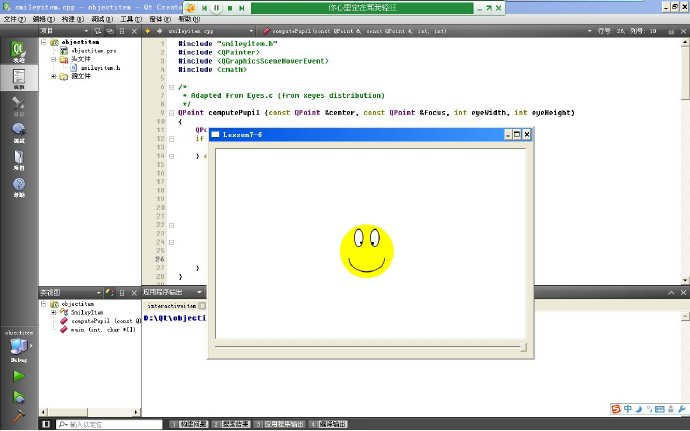
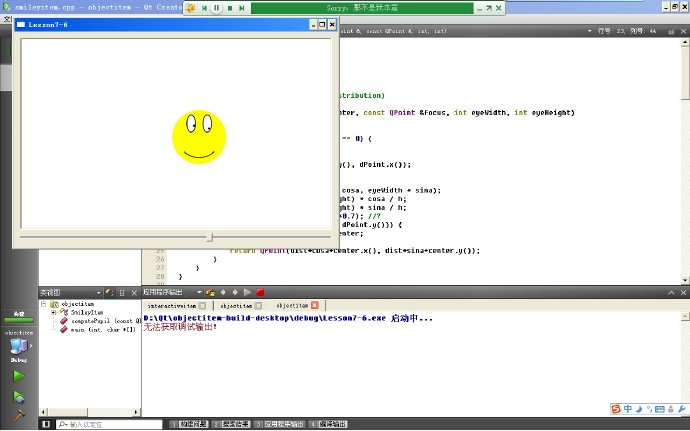
程序效果图如下:





 扫一扫
扫一扫


 1752
1752

 被折叠的 条评论
为什么被折叠?
被折叠的 条评论
为什么被折叠?
 到【灌水乐园】发言





