



 文章介绍了JetpackCompose中用于用户交互的关键功能,如Modifier.clickable用于点击检测,Modifier.pointerInput用于更复杂的手势识别,包括点击、拖动和滚动。同时,文中展示了如何实现滚动效果,如垂直和水平滚动,以及嵌套滚动的行为。此外,还提到了拖动(draggable)和滑动(swipeable)功能,以及多点触控的transformable特性。
一、点按
1.1 简单点击 clickable()
允许应用检测对该元素的点击。
| 单击 | fun Modifier.clickable( 简单使用。 |
| .clickable( 将 indication = null, 并将 val interactionSource = remember { MutableInteractionSource() } 传入可去除涟漪效果。通过 val isPressed by interactionSource.collectIsPressedAsState() 可以拿到按压/释放状态。 | |
| 长按、双击 | fun Modifier.combinedClickable( 单击的回调是必须的。 |

@Composable
fun ClickableSample() {
    val count = remember { mutableStateOf(0) }
    Text(
        text = count.value.toString(),
        modifier = Modifier.clickable { count.value += 1 }
    )
}
1.1.1 去除点击涟漪(封装)
fun Modifier.clickableNoRipple(onClick: () -> Unit) = composed {
    this.then(
        Modifier.clickable(
            onClick = onClick,
            interactionSource = remember { MutableInteractionSource() },
            indication = null
        )
    )
}
1.1.2 双击防抖(封装)
fun Modifier.clickableSafety(
    duration: Long = 1000L,
    onClick: () -> Unit
) = composed {
    var lastClick by remember { mutableLongStateOf(0L) }
    this.then(
        Modifier.clickable(
            onClick = {
                val currentTime = System.currentTimeMillis()
                if (currentTime - lastClick >= duration) {
                    onClick()
                    lastClick = currentTime
                }
            },
            interactionSource = remember { MutableInteractionSource() },
            indication = null
        )
    )
}
1.1.3 双击&长按防抖(封装)
提供单击回调是必须的。
fun Modifier.clickableWithDoubleClick(
    onSingleClick: () -> Unit,
    onDoubleClick: () -> Unit
) = then(
    Modifier.combinedClickable(
        onClick = onSingleClick,
        onDoubleClick = onDoubleClick
    )
)

fun Modifier.clickableWithLongClick(
    onSingleClick: () -> Unit,
    onLongClick: () -> Unit
) = then(
    Modifier.combinedClickable(
        onClick = onSingleClick,
        onLongClick = onLongClick
    )
)
1.1.4 自带点击回调组件的双击防抖(封装)
针对 Button 这种自带点击回调的可组合项。
@Composable
inline fun onClickSafety (
    duration: Long = 1000L,
    crossinline onClick: () -> Unit
): () -> Unit {
    var lastClick by remember { mutableLongStateOf(0L) }
    val currentTime = System.currentTimeMillis()

    return if (currentTime - lastClick >= duration) {
        lastClick = currentTime
        { onClick() }
    } else {
        {}
    }
}
1.1.5 拿到 按压/释放 状态
val interactionSource = remember { MutableInteractionSource() }
val isPressed by interactionSource.collectIsPressedAsState()

Box(
    modifier = Modifier.clickable {
        interactionSource = interactionSource,
        indication = null
    }
) {}
二、滚动
FlingBehavior 定义释放后的惯性滑动。
2.1 偏移滚动 verticalScroll()、horizontalScroll()
类似与 ScrollView,可以让内容大于尺寸时滑动里面的内容。借助 ScrollState 还可以更改滚动位置或获取当前状态。
| verticalScroll() 纵向滚动 | fun Modifier.verticalScroll( state: ScrollState, //滚动状态 enabled: Boolean = true, //是否启用 flingBehavior: FlingBehavior? = null, reverseScrolling: Boolean = false, //翻转滚动 ) |
| horizontalScroll() 横向滚动 | fun Modifier.horizontalScroll( state: ScrollState, //滚动状态 enabled: Boolean = true, //是否启用 flingBehavior: FlingBehavior? = null, reverseScrolling: Boolean = false, //翻转滚动 ) |

@Composable
fun ScrollBoxes() {
    val scrollState = rememberScrollState()
    //一显示就会自动滚动100px
    LaunchedEffect(Unit) { scrollState.animateScrollTo(100) }
    Column(
        modifier = Modifier
            .background(Color.LightGray)
            .size(100.dp)
            .verticalScroll(scrollState)
    ) {
        repeat(10) {
            Text("Item $it", modifier = Modifier.padding(2.dp))
        }
    }
}
2.2 线性可滚动(一维) scrollable()
只检测手势不偏移内容。构造时需要提供一个 consumeScrollDelta() 函数,该函数在每个滚动步骤都会调用,以像素为单位,必须返回所消耗的距离来确保在嵌套滚动时可以正确传播事件。
| fun Modifier.scrollable( state: ScrollableState, orientation: Orientation, enabled: Boolean = true, reverseDirection: Boolean = false, flingBehavior: FlingBehavior? = null, interactionSource: MutableInteractionSource? = null, ): Modifier |

var offset by remember { mutableStateOf(0f) }
val scrollableState = rememberScrollableState { delta ->
    //拿到每次滑动的偏移量delta
    offset += delta
    delta    //必须返回所消耗的距离
}
Box(
    Modifier
        .size(150.dp)
        .background(Color.LightGray)
        .scrollable(
            orientation = Orientation.Vertical,
            state =scrollableState
        ),
    contentAlignment = Alignment.Center
) {
    Text(offset.toString())
}
2.3 平面可滚动(二维)scrollable2D()
| fun Modifier.scrollable2D( state: Scrollable2DState, enabled: Boolean = true, overscrollEffect: OverscrollEffect? = null, flingBehavior: FlingBehavior? = null, interactionSource: MutableInteractionSource? = null, ) |
var offset by remember { mutableStateOf(Offset.Zero) }
val scrollableState = rememberScrollable2DState { delta ->
    offset = delta
    delta
}
Box(
    modifier = Modifier
        .size(150.dp)
        .background(Color.LightGray)
        .scrollable2D(scrollableState)
) {
    Text(offset.toString())
}
2.4 嵌套滚动
2.4.1 自动嵌套滚动
对于可滚动组件(如 verticalScroll()、horizontalScroll()、scrollable()、Lazy API、TextField),简单的嵌套滚动无需额外操作,当子元素无法进一步滚动时手势会由父元素处理,滚动增量会自动从子元素传播到父容器。

//父Box嵌套10个子Box,子Box滚动到边界会滚动父Box
@Composable
fun ScrollableSample() {
    //设置渐变色方便观察子Box滚动(蓝→黄1000级)
    val gradient = Brush.verticalGradient(0f to Color.Blue, 1000f to Color.Yellow)
    Box(
        modifier = Modifier
            .background(Color.LightGray)
            .verticalScroll(rememberScrollState())
            .padding(32.dp)
    ) {
        Column {
            repeat(10) {
                Box(
                    modifier = Modifier
                        .height(128.dp)
                        .verticalScroll(rememberScrollState())
                ) {
                    Text(
                        text = "Scroll here",
                        color = Color.Red,
                        modifier = Modifier
                            .border(12.dp, Color.DarkGray)
                            .background(brush = gradient)
                            .padding(24.dp)
                            .height(150.dp)
                    )
                }
            }
        }
    }
}
2.4.2 nestedScroll()
对于不可滚动组件(如 Box 或自定义组件),滚动增量不会在嵌套滚动中传播,可使用该修饰符向其它组件提供支持。
2.4.3 嵌套滚动互操作性
三、拖拽
只检测手势不偏移内容(需要自行将检测值设置到需要偏移的内容上),以像素为单位。
3.1 线性拖拽(一维)draggable()
| fun Modifier..draggable( |
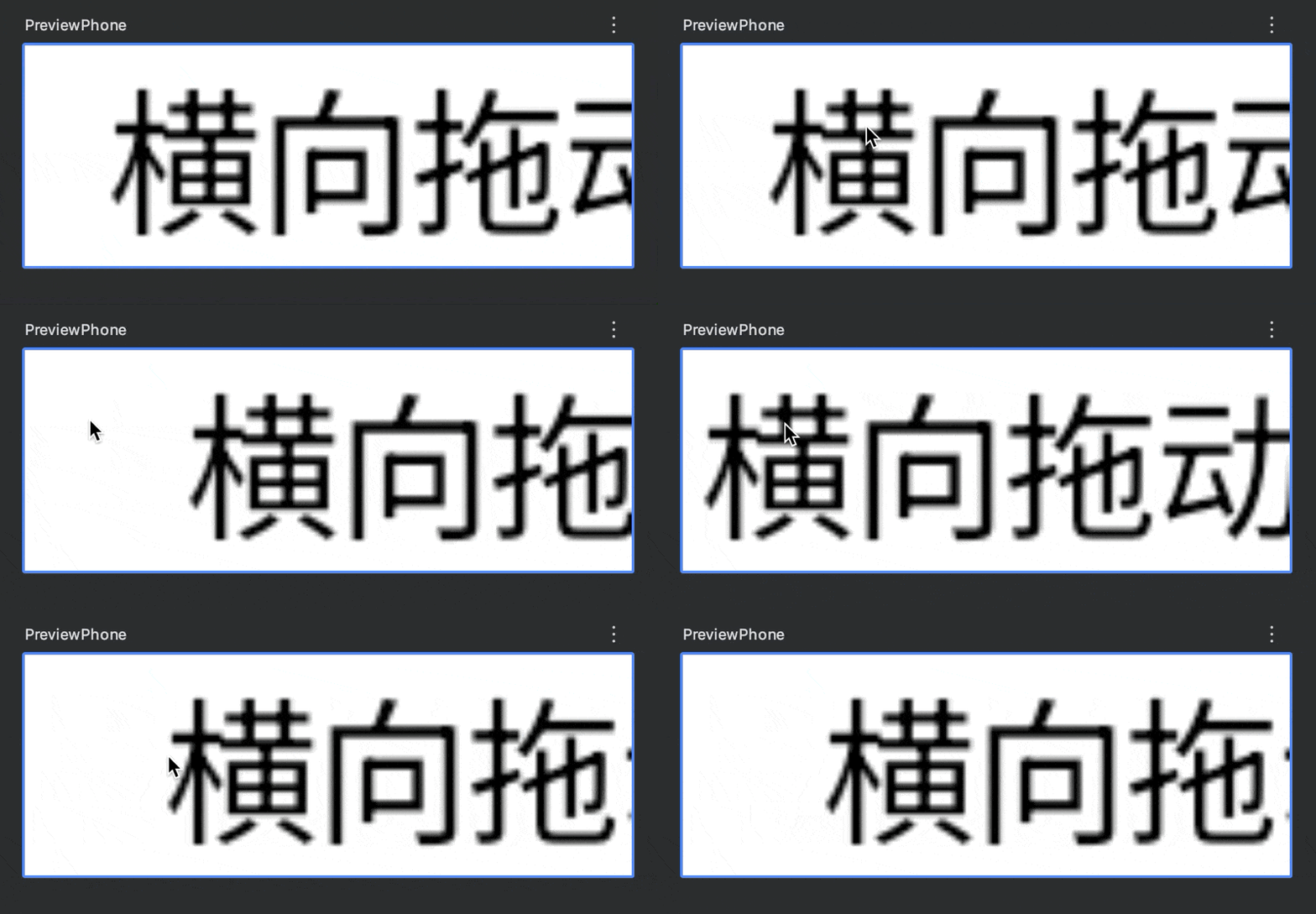
//文字横向拖动
var offsetX by remember { mutableFloatStateOf(0f) }
val dragState = rememberDraggableState { delta ->
    offsetX += delta
}
Text(
    modifier = Modifier
        .background(Color.White)
        .offset { x = IntOffset(offsetX.roundToInt(), y = 0) }
        .draggable(
            orientation = Orientation.Horizontal,
            state = dragState
        ),
    text = "横向拖动"
)
3.2 平面拖拽(二维)draggable2D()
| fun Modifier.draggable2D( state: Draggable2DState, enabled: Boolean = true, //是否启用 interactionSource: MutableInteractionSource? = null, startDragImmediately: Boolean = false, onDragStarted: (startedPosition: Offset) -> Unit = NoOpOnDragStart, //拖拽开始时的回调 onDragStopped: (velocity: Velocity) -> Unit = NoOpOnDragStop, //拖拽结束时的回调 reverseDirection: Boolean = false, //反转方向 ): Modifier |
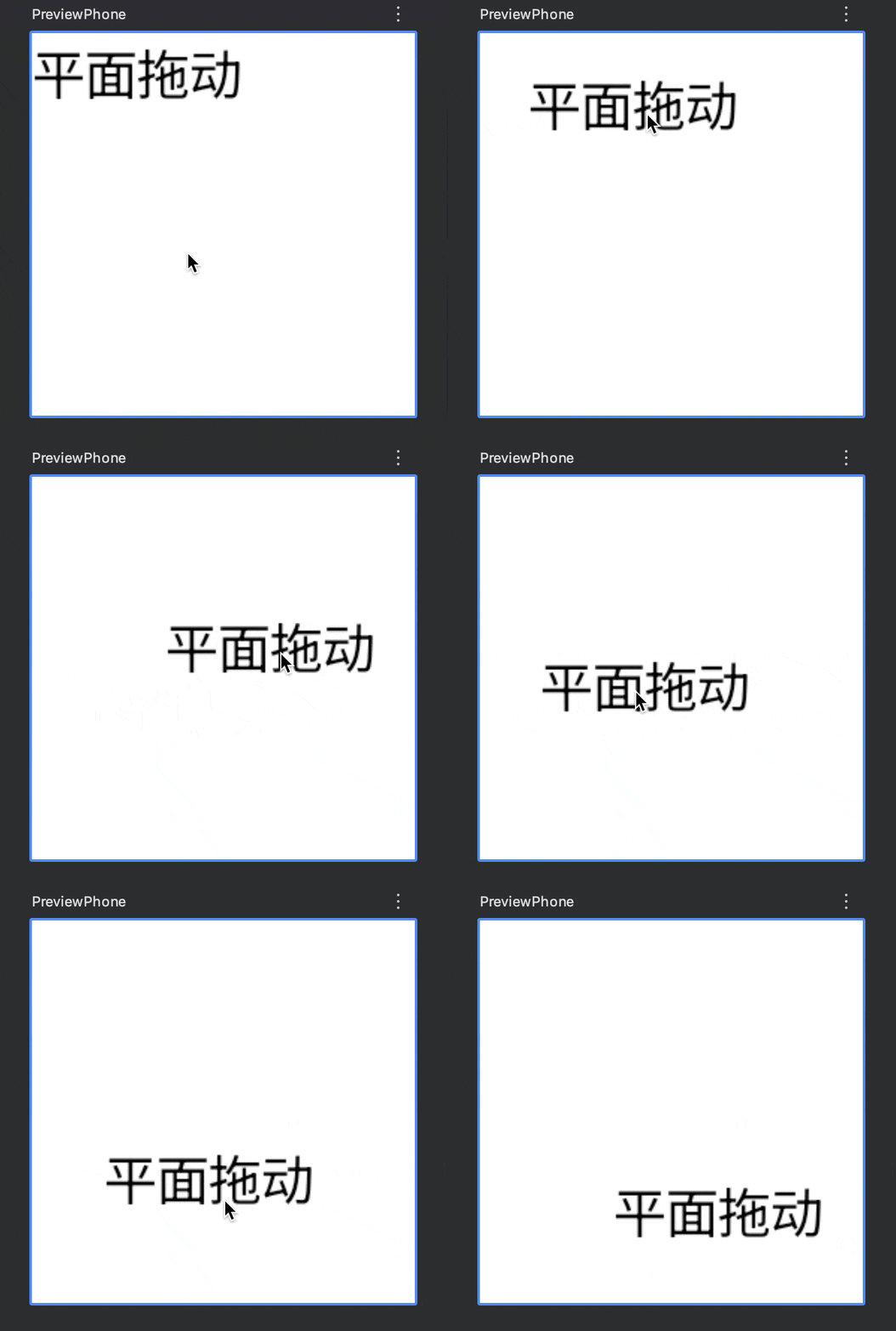
var offset by remember { mutableStateOf(Offset.Zero) }
val dragState = rememberDraggable2DState { delta ->
    //delta可以分别拿到xy轴偏移
    offset = delta
}
Text(
    modifier = Modifier
        .size(100.dp)
        .background(Color.White)
        .offset { IntOffset(x = offset.x.roundToInt(), y = offset.y.roundToInt()) }
        .draggable2D(
            state = dragState
        ),
    text = "平面拖动"
)
四、拖拽(锚点吸附)
4.1 swipeable() 已过时
是一个 Material API,在 Compose v1.6-alpha01 中已被 Foundation 的 anchoreDraggable() 取代。
只检测手势不偏移内容(需要自行将检测值设置到需要偏移的内容上)。具有惯性,释放后会朝着锚点呈现动画效果,常见用途是滑动关闭。

@OptIn(ExperimentalMaterialApi::class)
@Composable
fun SwipeableSample() {
    val swipeableState = rememberSwipeableState(0)
    val sizePx = with(LocalDensity.current) { squareSize.toPx() }   //DP转PX
    //设置锚点(key是像素,value是索引)
    val anchors = mapOf(0f to 0, sizePx to 1)
    Box(
        modifier = Modifier
            .width(96.dp)
            .swipeable(
                state = swipeableState,
                anchors = anchors,
                //阈值(超过就会自己滑到底,达不到就会滑回来)
                thresholds = { _, _ -> FractionalThreshold(0.3f) },
                orientation = Orientation.Horizontal
            )
            .background(Color.LightGray)
    ) {
        Box(
            Modifier
                .offset { IntOffset(swipeableState.offset.value.roundToInt(), 0) }
                .size(48.dp)
                .background(Color.DarkGray)
        )
    }
}
4.2 anchoredDraggable()
五、多点触控 transformable()
只检测手势不转换元素。平移、缩放、旋转。

@Composable
fun TransformableSample() {
    var scale by remember { mutableStateOf(1f) }    //缩放
    var rotation by remember { mutableStateOf(0f) }    //旋转
    var offset by remember { mutableStateOf(Offset.Zero) }    //平移
    val state = rememberTransformableState { zoomChange, offsetChange, rotationChange ->
        scale *= zoomChange
        rotation += rotationChange
        offset += offsetChange
    }
    Box(
        Modifier
            .graphicsLayer(
                scaleX = scale,    //等比缩放
                scaleY = scale,    //等比缩放
                rotationZ = rotation,
                translationX = offset.x,
                translationY = offset.y
            )
            .transformable(state = state)
            .background(Color.Blue)
            .fillMaxSize()
    )
}
六、下拉刷新 pullRefresh()
详见:修饰符 pullRefresh() 可组合项 PullToRefreshBox()
七、手势监听 pointerInput()
手势检测会挂起协程,因此在 .pointerInput() 中只能使用一个手势检测,第二个是无法执行到的。如果要使用两个,再添加一个 .pointerInput()。
| .pointerInput( key1: Any?, //kay变化会中断处理(不需要就传Unit)。 block: suspend PointerInputScope.() -> Unit //手势处理都发生在协程中 ) |
//错误示范
modifier = Modifier
    .pointerInput(Unit) {
        detectTapGestures {}
        //后面代码永远不会执行到
        detectDragGestures {}
    }
//正确使用
modifier = Modifier
    .pointerInput(Unit) {
        detectTapGestures {}
    }.pointerInput(Unit) {
        detectDragGestures {}
    }
7.1 点击检测
| detectTapGestures() 单击、双击、长按 | suspend fun PointerInputScope.detectTapGestures( |
Box(
    modifier = Modifier.size(200.dp).background(Color.Blue)
        .pointerInput(Unit) {
            detectTapGestures(
                onTap = {},
                onDoubleTap = {},
                onPress = {},
                onLongPress = {}
            )
        }
)
7.2 变换检测
| detectTransformGestures() 平移、旋转、缩放 | suspend fun PointerInputScope.detectTransformGestures( 参数 panZoomLock :为true时触发阈值才开始旋转,为false更灵敏。 参数 onGesture:手势回调,参数值均为当前手势与上一次回调之间的差值变化量。centroid:所有按下触点的质心坐标。pan:平移,单位像素。zoom:缩放,单位比例因子。rotation:旋转,单位度。 |
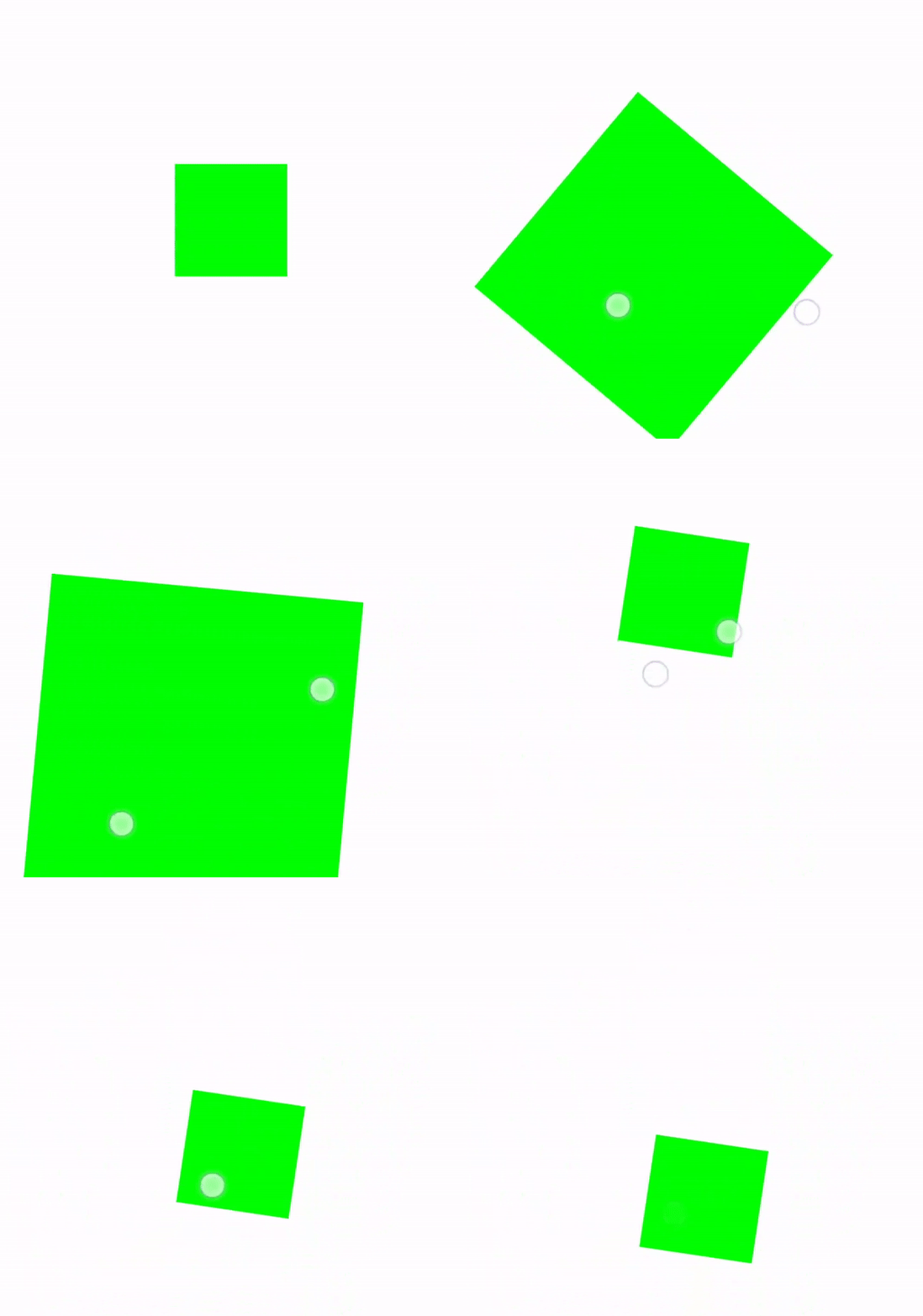
var offset by remember { mutableStateOf(Offset.Zero) }
var rotate by remember { mutableFloatStateOf(0f) }
var scale by remember { mutableFloatStateOf(1f) }
Box(
    modifier = Modifier.size(300.dp).background(Color.White),
    contentAlignment = Alignment.Center
) {
    Box(
        modifier = Modifier.size(100.dp).background(Color.Blue)
            .rotate(rotate)
            .scale(scale)
            .offset { IntOffset(offset.x.roundToInt(), offset.y.roundToInt()) }
            .pointerInput(Unit) {
                detectTransformGestures(false) { centroid, pan, zoom, rotation ->
                    offset += pan
                    scale *= zoom
                    rotate += rotation
                }
            }
    )
}
7.3 拖拽检测
参数onDragCancel:触发时机多发生于滑动冲突的场景,子组件可能最开始是可以获取到拖动事件的,当拖动手势事件达到莫个指定条件时可能会被父组件劫持消费,这种场景下便会执行该回调。
| detectDragGestures() 拖动 | suspend fun PointerInputScope.detectDragGestures( |
| detectHorizontalDragGestures() 水平拖动 | suspend fun PointerInputScope.detectHorizontalDragGestures( onDragStart: (Offset) -> Unit = {}, onDragEnd: () -> Unit = {}, onDragCancel: () -> Unit = {}, onHorizontalDrag: (change: PointerInputChange, dragAmount: Float) -> Unit ) |
| detectVerticalDragGestures 垂直拖动 | suspend fun PointerInputScope.detectVerticalDragGestures( onDragStart: (Offset) -> Unit = {}, onDragEnd: () -> Unit = {}, onDragCancel: () -> Unit = {}, onVerticalDrag: (change: PointerInputChange, dragAmount: Float) -> Unit ) |
| detectDragGesturesAfterLongPress 长按后拖动 | suspend fun PointerInputScope.detectDragGesturesAfterLongPress( onDragStart: (Offset) -> Unit = {}, onDragEnd: () -> Unit = {}, onDragCancel: () -> Unit = {}, onDrag: (change: PointerInputChange, dragAmount: Offset) -> Unit, ) |

//父Box中拖动蓝色子Box
Box(
    modifier = Modifier.fillMaxSize(),
    contentAlignment = Alignment.Center
) {
    var offset by remember { mutableStateOf(Offset.Zero) }
    Box(Modifier
        .offset { IntOffset(offset.x.roundToInt(), offset.y.roundToInt()) }
        .background(Color.Blue)
        .size(50.dp)
        .pointerInput(Unit) {
            detectDragGestures { change, dragAmount ->
                offset += dragAmount
            }
        }
    )
}
7.4 awaitEachGesture()
| suspend fun PointerInputScope.awaitEachGesture( block: suspend AwaitPointerEventScope.() -> Unit ) 持续处理点击事件,确保不同手势周期之间的事件传递不会丢失。 |
八、手势作用域
写法过于底层,基本没有太多场景我们需要使用。
| awaitPointerEventScope() | suspend fun <R> awaitPointerEventScope( block: suspend AwaitPointerEventScope.() -> R ): R 创建协程作用域,用于等待点击事件。 |
| awaitPointerEvent() | suspend fun awaitPointerEvent( ): PointerEvent 会挂起协程,等待发生下一次点击事件。 |
| awaitFirstDown() 第一次按下 | suspend fun AwaitPointerEventScope.awaitFirstDown( |
| 拖拽事件 | suspend fun AwaitPointerEventScope.drag( pointerId: PointerId, onDrag: (PointerInputChange) -> Unit, ): Boolean |
| suspend fun AwaitPointerEventScope.horizontalDrag( 水平 | |
| suspend fun AwaitPointerEventScope.verticalDrag( 垂直 | |
| 单次拖拽事件 | suspend fun AwaitPointerEventScope.awaitDragOrCancellation( pointerId: PointerId ): PointerInputChange? |
| suspend fun AwaitPointerEventScope.awaitHorizontalDragOrCancellation( 水平 | |
| suspend fun AwaitPointerEventScope.awaitVerticalDragOrCancellation( 垂直 | |
| 有效拖拽事件 | suspend fun AwaitPointerEventScope.awaitTouchSlopOrCancellation( pointerId: PointerId, onTouchSlopReached: (change: PointerInputChange, overSlop: Offset) -> Unit, ): PointerInputChange? |
| suspend fun AwaitPointerEventScope.awaitHorizontalTouchSlopOrCancellation( 水平 | |
| suspend fun AwaitPointerEventScope.awaitVerticalTouchSlopOrCancellation( 垂直 |






 扫一扫
扫一扫


 140
140

 被折叠的 条评论
为什么被折叠?
被折叠的 条评论
为什么被折叠?
 到【灌水乐园】发言





