CSS- 4.2 相对定位(position: relative)

本系列可作为前端学习系列的笔记,代码的运行环境是在HBuilder中,小编会将代码复制下来,大家复制下来就可以练习了,方便大家学习。

HTML系列文章 已经收录在前端专栏,有需要的宝宝们可以点击前端专栏查看!

点赞关注不迷路!您的点赞、关注和收藏是对小编最大的支持和鼓励!

系列文章目录

CSS- 1.1 css选择器

CSS- 2.1 实战之图文混排、表格、表单、学校官网一级导航栏

CSS- 3.1 盒子模型-块级元素、行内元素、行内块级元素和display属性

CSS- 4.1 浮动(Float)

CSS- 4.2 相对定位(position: relative)

CSS- 4.3 绝对定位(position: absolute)&学校官网导航栏实例

CSS- 4.4 固定定位(fixed)& 咖啡售卖官网实例

CSS- 4.5 css + div 布局 & 简易网易云音乐 官网布置实例 

CSS- 4.6 radiu、shadow、animation动画

CSS- 5.1 Transition 过渡  


目录

系列文章目录

前言

一、理论部分

1.基本概念

2.语法

3.特点详解

4.实际应用场景

(1) 微调元素位置

(2)作为绝对定位的参考点

(3)创建视觉效果而不破坏布局

5.与其他定位方式的比较

6.注意事项

7.最佳实践

二、代码实例

总结


前言

小编作为新晋码农一枚,会定期整理一些写的比较好的代码,作为自己的学习笔记,会试着做一下批注和补充,如转载或者参考他人文献会标明出处,非商用,如有侵权会删改!欢迎大家斧正和讨论!

一、理论部分

相对定位(position: relative是CSS定位属性中的一种,它允许元素相对于其正常文档流中的位置进行偏移,同时保留其在文档流中的原始空间。

1.基本概念

相对定位的元素会:

  1. 保留原始空间:元素在文档流中仍然占据原来的位置
  2. 相对于自身偏移:通过toprightbottomleft属性相对于其正常位置进行偏移
  3. 不影响其他元素:其他元素会像该元素仍在原位置一样进行布局

2.语法

css

.element {
  position: relative;
  top: 10px;    /* 向下偏移10像素 */
  left: 20px;   /* 向右偏移20像素 */
  /* 或使用其他方向 */
  /* right: 10px; */
  /* bottom: 10px; */
}

3.特点详解

  1. 空间保留
    相对定位的元素在文档流中仍然占据其原始位置,只是视觉上看起来移动了。其他元素不会填补它"离开"的空间。

  2. 偏移基准
    偏移是相对于元素在正常文档流中的位置计算的,而不是相对于父元素或其他元素。

  3. 层级提升
    相对定位的元素会创建一个新的层叠上下文(stacking context),但不会脱离文档流。

4.实际应用场景

(1) 微调元素位置

<!DOCTYPE html>
<html>
	<head>
		<meta charset="utf-8">
		<title></title>
		<style type="text/css">
		.box {
		  width: 100px;
		  height: 100px;
		  background: lightblue;
		  margin: 10px;
		}
		.relative-box {
		  position: relative;
		  top: 20px;
		  left: 30px;
		  background: lightcoral;
		}
		</style>
	</head>
	<body>
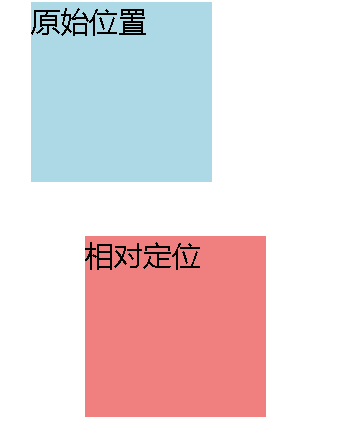
		<div class="box">原始位置</div>
		<div class="box relative-box">相对定位</div>


	</body>
</html>

效果:第二个div会向下偏移20px,向右偏移30px,但第一个div不会移动填补这个空间。

(2)作为绝对定位的参考点

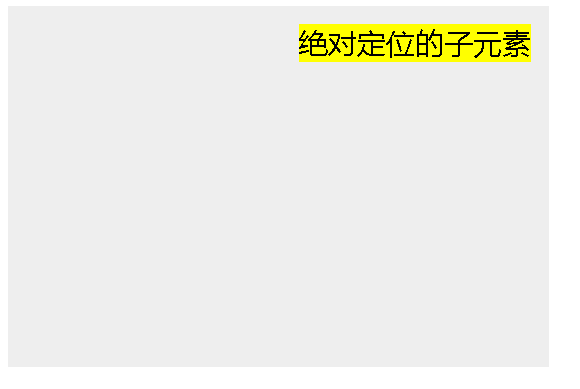
相对定位常被用作绝对定位子元素的参考容器:

<!DOCTYPE html>
<html>
	<head>
		<meta charset="utf-8">
		<title></title>
		<style type="text/css">
		.parent {
		  position: relative;
		  width: 300px;
		  height: 200px;
		  background: #eee;
		}
		.child {
		  position: absolute;
		  top: 10px;
		  right: 10px;
		  background: #ff0;
		}
		</style>
	</head>
	<body>
		<div class="parent">
		  <div class="child">绝对定位的子元素</div>
		</div>
		
		
	</body>
</html>

在这个例子中,子元素的绝对定位是相对于其相对定位的父元素计算的。

(3)创建视觉效果而不破坏布局

相对定位可以用于创建悬停效果、工具提示等,而不影响页面其他部分的布局。

5.与其他定位方式的比较

定位方式是否脱离文档流偏移基准是否影响其他元素
静态定位(static)
相对定位(relative)元素自身原始位置
绝对定位(absolute)最近的已定位祖先元素
固定定位(fixed)视口
粘性定位(sticky)混合视口或最近的滚动祖先否(通常)

6.注意事项

  1. 性能考虑:相对定位的元素仍然参与文档流计算,大量使用可能影响渲染性能
  2. 层叠顺序:相对定位的元素会覆盖静态定位的元素(除非设置z-index)
  3. 响应式设计:在响应式布局中,相对定位可能需要配合媒体查询调整偏移值
  4. 可访问性:过度使用定位可能影响屏幕阅读器的用户体验

7.最佳实践

  1. 用于微调元素位置而非主要布局
  2. 作为绝对定位元素的定位上下文容器
  3. 避免在需要精确控制的响应式布局中过度使用
  4. 结合transform属性(如translate())可能比使用top/left更高效

相对定位是CSS定位系统中一个灵活而强大的工具,特别适合需要微调元素位置而不破坏整体布局的场景。

二、代码实例

代码实例如下:

<!DOCTYPE html>
<html>
	<head>
		<meta charset="utf-8">
		<title>定位-相对定位relative</title>
		<style type="text/css">
			.div1 {
				width: 100px;
				height: 100px;
				background-color: red;
			}
			.div2 {
				width: 100px;
				height: 100px;
				background-color: blue;
				position: relative;
				/* 以原来的位置为基准发生偏移 */
				left: 100px;
				top: -50px;
			}
			.div3 {
				width: 100px;
				height: 100px;
				background-color: green;
			}
			#btn {
				
				position: relative;
				top: 2px;
			}
		</style>
	</head>
	<body>
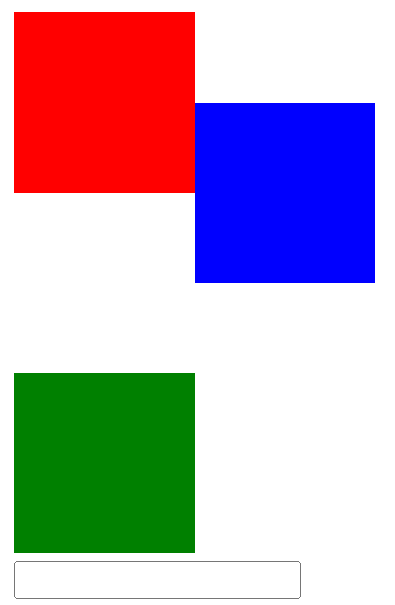
		<div class="father">
			<div class="div1"></div>
			<div class="div2"></div>
			<div class="div3"></div>
			<input type="" name="" id="btn" value="" />
		</div>
			<a href="../个人主题网站/index.html"><h3 align="center">返回首页</h3></a>
	</body>
</html>

代码运行:


总结

以上就是今天要讲的内容,本文简单记录了CSS之相对定位,仅作为一份简单的笔记使用,大家根据注释理解

用c#帮我实现 <!DOCTYPE html> <html lang="en"> <head> <meta charset="UTF-8"> <meta name="viewport" content="width=device-width, initial-scale=1.0"> <title>Code Clock</title> <style> :root { --font-size: 25.2px; --gap: 56px; --clock-size: 140px; --hand-width: 2.8px; --switch-size: 84px; --switch-height: 42px; } body { margin: 0; padding: 0; display: flex; justify-content: center; align-items: center; height: 100vh; background: #1e1e1e; color: #d4d4d4; font-family: 'Courier New', Courier, monospace; font-size: var(--font-size); line-height: 1.5; transition: background 0.5s, color 0.5s; } pre { margin: 0; white-space: pre-wrap; } .container { display: flex; align-items: center; gap: var(--gap); } .code { color: #569cd6; } .number { color: #dcdcaa; } .string { color: #ce9178; } @keyframes gradientShift { 0% { background-position: 0% 50%; } 50% { background-position: 100% 50%; } 100% { background-position: 0% 50%; } } .animated-background-dark { background: linear-gradient(135deg, #2c3e50, #34495e, #1e1e1e); background-size: 200% 200%; animation: gradientShift 10s ease infinite; } .animated-background-light { background: linear-gradient(135deg, #f0f0f0, #d3d3d3, #ffffff); background-size: 200% 200%; animation: gradientShift 10s ease infinite; } .analog-clock { width: var(--clock-size); height: var(--clock-size); border: var(--hand-width) solid; border-radius: 50%; position: relative; box-shadow: 0 0 20px rgba(206, 145, 120, 0.8); transition: box-shadow 0.5s; } .hand { position: absolute; background: currentColor; transform-origin: bottom center; } .hour-hand { width: 5.6px; height: 42px; top: 28px; left: 67.2px; } .minute-hand { width: 4.2px; height: 56px; top: 14px; left: 67.9px; } .second-hand { width: 2.8px; height: 63px; top: 7px; left: 68.6px; background: #ce9178; } /* Центральная точка */ .center-dot { position: absolute; width: 10px; height: 10px; background: #fff; /* Белая точка по умолчанию для тёмной темы */ border-radius: 50%; top: 50%; left: 50%; transform: translate(-50%, -50%); z-index: 2; transition: background 0.5s; } /* Для светлой темы точка становится чёрной */ .animated-background-light .center-dot { background: #000; } .theme-switch { position: absolute; top: 28px; right: 28px; display: flex; align-items: center; gap: 14px; } .theme-switch label { font-size: var(--font-size); color: inherit; } .theme-switch input[type="checkbox"] { appearance: none; width: var(--switch-size); height: var(--switch-height); background: #569cd6; border-radius: 21px; position: relative; cursor: pointer; transition: background 0.3s; } .theme-switch input[type="checkbox"]::before { content: '🌙'; position: absolute; width: 38px; height: 38px; background: #1e1e1e; border-radius: 50%; top: 2px; left: 2px; transition: transform 0.3s, content 0.3s; display: flex; align-items: center; justify-content: center; font-size: 20px; } .theme-switch input[type="checkbox"]:checked::before { content: '☀️'; transform: translateX(42px); background: #f0f0f0; } .theme-switch input[type="checkbox"]:checked { background: #dcdcaa; } </style> </head> <body class="animated-background-dark"> <div class="container"> <pre id="code"></pre> <div class="analog-clock"> <div class="hand hour-hand"></div> <div class="hand minute-hand"></div> <div class="hand second-hand"></div> <!-- Центральная точка --> <div class="center-dot"></div> </div> </div> <!-- Переключатель темы --> <div class="theme-switch"> <label for="theme-toggle"></label> <input type="checkbox" id="theme-toggle" onclick="toggleTheme()"> </div> <script> // Функция для обновления времени function updateTime() { const now = new Date(); const hours = String(now.getHours()).padStart(2, '0'); const minutes = String(now.getMinutes()).padStart(2, '0'); const seconds = String(now.getSeconds()).padStart(2, '0'); const year = now.getFullYear(); const month = String(now.getMonth() + 1).padStart(2, '0'); const day = String(now.getDate()).padStart(2, '0'); const dayOfWeek = now.toLocaleString('en', { weekday: 'long' }); // Прогресс дня в процентах const startOfDay = new Date(now); startOfDay.setHours(0, 0, 0, 0); const progress = ((now - startOfDay) / 86400000) * 100; // Определяем цвет чисел в зависимости от темы const isDarkTheme = document.body.classList.contains('animated-background-dark'); const numberColor = isDarkTheme ? '#dcdcaa' : '#1e3a8a'; // Форматируем текст как код const codeString = ` <span class="code">const</span> currentTime = { <span class="code">year</span>: <span class="number" style="color: ${numberColor}">${year}</span>, <span class="code">month</span>: <span class="number" style="color: ${numberColor}">${month}</span>, <span class="code">day</span>: <span class="number" style="color: ${numberColor}">${day}</span>, <span class="code">dayOfWeek</span>: <span class="string">"${dayOfWeek}"</span>, <span class="code">hour</span>: <span class="number" style="color: ${numberColor}">${hours}</span>, <span class="code">minute</span>: <span class="number" style="color: ${numberColor}">${minutes}</span>, <span class="code">second</span>: <span class="number" style="color: ${numberColor}">${seconds}</span>, <span class="code">dayProgress</span>: <span class="number" style="color: ${numberColor}">${progress.toFixed(2)}%</span> }; `; document.getElementById('code').innerHTML = codeString; // Анимация аналоговых часов const hourHand = document.querySelector('.hour-hand'); const minuteHand = document.querySelector('.minute-hand'); const secondHand = document.querySelector('.second-hand'); const hourDeg = (now.getHours() % 12) * 30 + (now.getMinutes() * 0.5); const minuteDeg = now.getMinutes() * 6 + (now.getSeconds() * 0.1); const secondDeg = now.getSeconds() * 6; hourHand.style.transform = `rotate(${hourDeg}deg)`; minuteHand.style.transform = `rotate(${minuteDeg}deg)`; secondHand.style.transform = `rotate(${secondDeg}deg)`; } // Смена темы function toggleTheme() { const body = document.body; const isDark = body.classList.contains('animated-background-dark'); if (isDark) { body.classList.remove('animated-background-dark'); body.classList.add('animated-background-light'); body.style.color = '#1e1e1e'; } else { body.classList.remove('animated-background-light'); body.classList.add('animated-background-dark'); body.style.color = '#d4d4d4'; } // Обновляем время, чтобы применить новый цвет чисел updateTime(); } // Обновляем время каждую секунду setInterval(updateTime, 1000); updateTime(); // Инициализация сразу </script> </body> </html>
07-11
现在我给你提供页面代码:/** @Date: 2023-12-20 09:59:06 @LastEditTime: 2024-01-09 18:22:35 @FilePath: \工作\xinsheng-chasiwu-legacy-front\src\h5\components\Detail\modules\VideoSummaryH5\index.js @Description: 智能视频摘要 @ @Copyright © 2023 by ${git_name_email}, All Rights Reserved. */ import { useState, useRef } from ‘react’; import PropTypes from ‘prop-types’; import SvgIcon from ‘@src/components/SvgIcon’; import css from ‘./style.m.css’; import eventBus from ‘@src/utils/eventBus’; import { useLocalStorage } from ‘@src/components/Detail/modules/VideoPlayer/modules/VideoSummary/summaryHooks’; import { getNls, locale } from ‘@src/utils/i18n’; import { useEffect } from ‘react’; const dict = getNls(‘components_LiveDetail_modules_Content_modules_Summary’); import { useTypeWriterHooks } from ‘@src/components/Detail/modules/VideoPlayer/modules/VideoSummary/summaryHooks.js’; import { DownOutlined, UpOutlined } from ‘@ant-design/icons’; import Panel, { PanelItem } from ‘@hui/react-mobile/Panel’; const isEn = locale === ‘en’; /** @description: 添加回放视频下方的评论组件的class @param {number} type 0 添加 1 删除 @return {*} */ const addCommentsClass = ({ seth5VideoHeight, h5VideoHeight, type = 0 }) => { const commentDom = document.querySelector(‘#content-main .ev_tab_container’); if (!commentDom) return; if (type === 1) { commentDom.classList.remove(‘live-comments-top’); } else if (!commentDom.classList.contains(‘live-comments-top’)) { commentDom.classList.add(‘live-comments-top’); if (seth5VideoHeight) seth5VideoHeight(h5VideoHeight + 56); // 兼容包含视频字幕的场景 } }; const renderExpandTitle = (item) => { return ( {item.time.split(‘~’)[0]} {item.title} ); }; function renderContent(props) { const { showAll, aiSummaryTitle, aiSummaryContent, aiSummaryContentEn, keyWordsTitle, keyWordsContent, keyList, keyListEn, selectedIndex, setSelectedIndex, } = props; const keyListContent = isEn ? keyListEn : keyList; return ( <div className={${css.summaryContent} h5ap-font-14}> <div className={${css.label} h5ap-font-14}>{aiSummaryTitle} {isEn ? aiSummaryContentEn : aiSummaryContent} {keyWordsContent && ( <> <div className={`${css.label} ${css.keywordsLabel}`}>{keyWordsTitle}</div> <p className={css.keywords}>{keyWordsContent}</p> </> )} {showAll && ( <Panel enableMultiExpand={true} selectedIndex={selectedIndex} onExpand={(index, event, isExpand) => { if (!isExpand) { setSelectedIndex([...selectedIndex, index]); } }} onClose={(index, event, isExpand) => { const indexArr = selectedIndex.filter((f) => f !== index); if (isExpand) { setSelectedIndex(indexArr); } }} > {keyListContent.map((item, index) => { return ( <PanelItem titlePosition="left" key={index} closable={false} expandTitle={renderExpandTitle(item)} shrinkTitle={renderExpandTitle(item)} > {item.content} </PanelItem> ); })} </Panel> )} </div> </div> ); } function VideoSummaryH5(props) { const { videoId, videoUuids, columnType, seth5VideoHeight, h5VideoHeight } = props; const [isNotFirstClosed, setIsNotFirstClosed] = useLocalStorage(videoUuids, ‘isNotFirstClosed’); const [isFirstClosed, setIsFirstClosed] = useState(isNotFirstClosed); // 首次是否关闭 const [visible, setVisible] = useState(false); const [showAll, setShowAll] = useState(false); // 展示全部 const [selectedIndex, setSelectedIndex] = useState([0]); const [isOverflow, setIsOverflow] = useState(false); // 是否超出三行 const contentRef = useRef(null); // 获取ai摘要的相关内容 const { aiSummaryTitle, aiSummaryContent, aiSummaryContentEn, keyWordsTitle, keyWordsContent, isShowGenerateBtn, keyList, keyListEn, } = useTypeWriterHooks(props); let params = { aiSummaryContent, aiSummaryContentEn, keyWordsTitle, keyWordsContent, showAll, setShowAll }; params = { …params, aiSummaryTitle, isShowGenerateBtn, keyList, keyListEn, selectedIndex, setSelectedIndex }; useEffect(() => { const el = contentRef.current; if (!el) return; const checkOverflow = () => { const isOverflowing = el.scrollHeight > el.clientHeight; setIsOverflow(isOverflowing); }; const timer = setTimeout(checkOverflow, 50); const resizeObserver = new ResizeObserver(checkOverflow); resizeObserver.observe(el); return () => { clearTimeout(timer); resizeObserver.unobserve(el); }; }, [showAll]); const click = () => { eventBus.emit(showFloatWindow${videoId}, true); setIsFirstClosed(true); setIsNotFirstClosed(true); if (columnType !== ‘live’) return; addCommentsClass({ seth5VideoHeight, h5VideoHeight, type: 1 }); }; useEffect(() => { eventBus.removeAllListeners(evt_showSummaryH5); eventBus.on(evt_showSummaryH5, (value) => { setVisible(value); if (columnType !== ‘live’) return; if (!isFirstClosed && value) { addCommentsClass({ seth5VideoHeight, h5VideoHeight }); } else { addCommentsClass({ seth5VideoHeight, h5VideoHeight, type: 1 }); } }); return () => { eventBus.removeAllListeners(evt_showSummaryH5); }; }, []); if (isFirstClosed || !visible) return null; return ( <div className={${css.videoSummaryH5} video-summary-h5 ${locale === 'en' ? css.summaryH5En : ''}}> {dict.aiSummary} <SvgIcon iconClass=“close” {…{ click }} /> {/* 主体:带展开功能的内容区 */} <div className={css.summaryH5Container}> {/* 文本容器 */} <div ref={contentRef} className={showAll ? css.summaryH5Expanded : css.summaryH5Clamp}> {renderContent({ ...params, showAll })} </div> {/* 条件渲染:只有在折叠状态下且内容溢出时才显示展开按钮 */} {!showAll && isOverflow && ( <span className={css.expandIcon} onClick={(e) => { e.stopPropagation(); setShowAll(true); }} > <DownOutlined /> </span> )} {/* 收起按钮:始终显示上拉箭头(可选) */} {showAll && ( <span className={css.expandIcon} onClick={(e) => { e.stopPropagation(); setShowAll(false); }} > <UpOutlined /> </span> )} </div> </div> ); } VideoSummaryH5.propTypes = { videoId: PropTypes.string, videoUuids: PropTypes.string, columnType: PropTypes.string, seth5VideoHeight: PropTypes.func, h5VideoHeight: PropTypes.number, }; export default VideoSummaryH5; 以及对应的样式文件:.videoSummaryH5 { /* height: 40px; */ background: rgba(0, 65, 211, 0.05); padding: 8px 24px; line-height: 1.5; } .svg { font-size: 16px; margin-right: 4px; } .summaryH5Notice { display: flex; justify-content: space-between; align-items: center; } .summaryH5Right, .summaryH5Left { display: flex; align-items: center; } .summaryH5Left { color: #0041d3; } /* 三行截断 / .summaryH5Clamp { white-space: normal; overflow: hidden; text-overflow: ellipsis; display: -webkit-box; -webkit-line-clamp: 3 !important; -webkit-box-orient: vertical; word-break: break-all; box-sizing: border-box; font-size: 14px; line-height: 1.4em; max-height: 6.2em; / 关键!强制最多三行高 */ } /* 展开后全文显示 */ .summaryH5Expanded { white-space: pre-wrap; overflow: visible; text-overflow: unset; display: block; } /* 平滑过渡动画 */ .summaryH5Clamp, .summaryH5Expanded { line-height: 1.4em; transition: max-height 0.3s ease; } /* 新增:容器用于定位图标 / .summaryH5Container { position: relative; padding-right: 20px; / 给图标留位置 */ } /* 新增:展开图标 */ .expandIcon { position: absolute; right: 0; bottom: 0; width: 20px; height: 20px; display: flex; align-items: center; justify-content: center; z-index: 1; cursor: pointer; color: #0041d3; font-size: 12px; } .summaryContent { overflow-y: auto; border-radius: 0.8rem; padding-bottom: 1.6rem; width: 32rem; font-size: 1.4rem; line-height: 2.4rem; position: relative; } .summaryContentWidth { width: 28.8rem; } .label { color: #666666; margin-bottom: 4px; } .description, .keywords { color: #000000; text-align: justify; } .keywordsLabel { margin-top: 16px; } .summaryContent :global .ev_Panel { margin-top: 24px; } .summaryContent :global .ev_Panel .ev_PanelItem:not(:first-child) { margin-top: 16px; } .summaryContent :global .ev_Panel .ev_PanelItem_title { flex-direction: row-reverse; justify-content: space-between; height: auto; } .summaryContent :global .ev_Panel .ev_PanelItem_title .ev_PanelItem_title_titleInfo { flex: 1; font-size: 14px; color: #666666; line-height: 24px; word-break: break-all; } .summaryContent :global .ev_Panel .ev_PanelItem .ev_PanelItem_title .ev_PanelItem_title_showChange { margin-right: 0; align-self: flex-start; margin-left: 4px; width: 24px !important; height: 24px !important; line-height: 24px !important; display: flex; align-items: center; justify-content: center; } .summaryContent :global .ev_Panel .ev_PanelItem .ev_PanelItem_title .panelHide { justify-content: flex-start; } .summaryContent :global .ev_Panel .ev_PanelItem .ev_PanelItem_title .panelShow { justify-content: flex-end; } .summaryContent :global .ev_Panel .ev_PanelItem .ev_PanelItem_title .ev_PanelItem_title_showChange > .ev_icon { display: flex; align-items: center; justify-content: center; } .summaryContent :global .ev_Panel .ev_PanelItem .ev_PanelItem_title .ev_PanelItem_title_showChange svg { width: 12px; height: 12px; } .summaryContent :global .ev_Panel .ev_PanelItem_container { padding: 0; margin-top: 6px; font-size: 14px; color: #000000; text-align: justify; line-height: 24px; } .summaryTitleBox { display: flex; } .summaryTimeItem { text-wrap: nowrap; margin-right: 8px; max-width: 60px; } .summaryTitleItem { flex: 1; word-break: break-all; } .test { background: #ffffff; border-radius: 4px; padding: 6px 10px; font-size: 16px; height: 24px; transform: scale(0.5) translateX(10%); color: #0041d3; line-height: 12px; position: absolute; top: -12px; text-wrap: nowrap; } .button { background: #0041d3; border-radius: 12px; font-size: 11px; color: #ffffff; text-align: center; height: 24px; padding: 0 16px; line-height: 24px; margin-right: 24px; position: relative; } .summaryH5En .title { font-size: 12px; } .summaryH5En .button { padding: 0 8px; margin-right: 20px; } .summaryH5En .test { transform: scale(0.5) translateX(100%); } :global .video-summary-h5 .summaryTest { width: max-content !important; white-space: nowrap !important; max-width: max-content !important; } 你需要实现下面的几个需求:展开交互说明: 1)展开时:摘要总结内容和段落摘要都显示,段落摘要默认按段落折叠(如图示)。 2)一屏显示全时,摘要全部显示,收起按钮浮动显示在屏幕的最下方,分享、点赞、收藏操作栏隐藏。 3)一屏显示不全时,收起按钮显示在摘要下方(紧挨着),分享、点赞、收藏等操作栏显示。 4)点击收起按钮,回到初始状态。5)AI摘要默认显示3行,单词不折行显示。 6) 点击向下箭头展开全部,请将修改后的两个文件完整的发给我
最新发布
11-01
评论 3
成就一亿技术人!
拼手气红包6.0元
还能输入1000个字符
 
红包 添加红包
表情包 插入表情
 条评论被折叠 查看
添加红包

请填写红包祝福语或标题

红包个数最小为10个

红包金额最低5元

当前余额3.43前往充值 >
需支付:10.00
成就一亿技术人!
领取后你会自动成为博主和红包主的粉丝 规则
hope_wisdom
发出的红包

打赏作者

Yvonne爱编码

你的鼓励将是我创作的最大动力

¥1 ¥2 ¥4 ¥6 ¥10 ¥20
扫码支付:¥1
获取中
扫码支付

您的余额不足,请更换扫码支付或充值

打赏作者

实付
使用余额支付
点击重新获取
扫码支付
钱包余额 0

抵扣说明:

1.余额是钱包充值的虚拟货币,按照1:1的比例进行支付金额的抵扣。
2.余额无法直接购买下载,可以购买VIP、付费专栏及课程。

余额充值