仿QQ会员右下角提示框c#实现

C#实现仿QQ消息窗口 右下角渐变的弹出一个提示框出来,有点类似于QQ或MSN那消息提示功能. 下面是主要的代码:(主要是调用了系统的API函数实现渐变效果)。其实就是调用了这个函数产生了渐变效果,从下往上显示Code highlighting produced by Actipro CodeHighlighter (freeware)http://www.CodeHighlighter.com/ 阅读详情
为了不让大家再误会,我在这里声明,我做的是在登录后的提示,只要大家用过QQ,Q会员开通过就知道 的,
先看一下效果吧
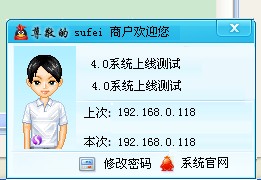

说一下实现 吧,

第一步是先把QQ会员 便当 的框给截图下来,然后放到Ps里P一下,需要做到这样就行了,看图片


第二步,可以在上面加一 些Lable就行了,关闭按钮是两个图片,切换的方法是这样的 

private void pictureBox1_MouseLeave( object sender, EventArgs e)
{
     pictureBox1.BackgroundImage = ClientSystem.Properties.Resources.lgintop;
}
 
//图片进入事件
private void pictureBox1_MouseEnter( object sender, EventArgs e)
{
     pictureBox1.BackgroundImage = ClientSystem.Properties.Resources.lgintop1;
}

第三步,IP的取法我就不说了有很多,还有上面的4.0的测试这些都 是加上的新闻,只要启动浏览器就行了,
启动的方法是

//系统官网
         private void label7_Click( object sender, EventArgs e)
         {
             Process.Start( "http//www.cckan.net/" );
         }[/code]
 
第四步,说一下渐变显示 的效果的处理方法
[mw_shl_code=csharp, true ]代码
//界面加载
         private void Messages_Load( object sender, EventArgs e)
         {
             try
             {
                 //让窗体加载时显示到右下角
                 int x = System.Windows.Forms.Screen.PrimaryScreen.WorkingArea.Size.Width - 255;
                 int y = System.Windows.Forms.Screen.PrimaryScreen.WorkingArea.Size.Height - 161;
                 this .SetDesktopLocation(x, y);
 
                 //加载显示信息
                 ShowComptureInfo();
 
                 //渐变显示这里表示加载
                 caozuo = "load" ;
                 this .Opacity = 0;
             }
             catch (Exception)
             {
 
             }
         }
caozuo有两个值一个是  load 表示要向不透明方向增加量,也就是说会慢慢看清楚,还有一个close 表示要向透明方向增加量,这样会慢慢的看不到窗体,我是用一个Timer来处理的

//定时处理渐变的效果
         private void timer2_Tick( object sender, EventArgs e)
         {
             if (caozuo == "load" )
             {
                 this .Opacity += 0.09;
             }
             else if (caozuo == "close" )
             {
                 this .Opacity = this .Opacity - 0.09;
                 if ( this .Opacity == 0)
                     this .Close();
             }
         }
这样只要caozuo的值发生变化的时候 就会向某个方向开始增加渐变显示 的量
当鼠标进入的时候我是这样处理的

//进入窗体事件
         private void Messages_MouseEnter( object sender, EventArgs e)
         {
             //停止定时关闭
             timer1.Enabled = false ;
             //开始渐变加载
             caozuo = "load" ;
         }
这样的话就会在原来的基础上加量,也就是说如果快不显示了,当 鼠标 移动进入窗体时就双会慢慢的显示,当移开的时候我是这样处理的

//窗体离开事件
         private void Messages_MouseLeave( object sender, EventArgs e)
         {
             timer1.Enabled = true ;
         }
 
   //定时关闭窗体
         private void timer1_Tick( object sender, EventArgs e)
         {
             timer2.Enabled = true ;
             caozuo = "close" ; //关闭窗体
         }
这样就双会启动定时关闭窗体,我的定时是6秒大家可以随便改的效果就是这样实现的
因为我的窗体 是没有标题栏的这样就不能拖动了, 很不方便,拖动窗体的方法有很多,我是这样实现 的,

private bool isMouseDown = false ;
         private Point FormLocation;     //form的location
         private Point mouseOffset;      //鼠标的按下位置
 
         //鼠标安下
         private void Messages_MouseDown( object sender, MouseEventArgs e)
         {
             try
             {
                 if (e.Button == MouseButtons.Left)
                 {
                     isMouseDown = true ;
                     FormLocation = this .Location;
                     mouseOffset = Control.MousePosition;
                 }
             }
             catch (Exception)
             {
 
             }
         }
 
         //鼠标移动
         private void Messages_MouseMove( object sender, MouseEventArgs e)
         {
             try
             {
                 int _x = 0;
                 int _y = 0;
                 if (isMouseDown)
                 {
                     Point pt = Control.MousePosition;
                     _x = mouseOffset.X - pt.X;
                     _y = mouseOffset.Y - pt.Y;
 
                     this .Location = new Point(FormLocation.X - _x, FormLocation.Y - _y);
                 }
             }
             catch (Exception)
             {
 
             }
         }
 
         //鼠标松开
         private void Messages_MouseUp( object sender, MouseEventArgs e)
         {
             try
             {
                 isMouseDown = false ;
             }
             catch (Exception)
             {
 
             }
         }
关于这个内容 可以参考 我的文章
拖动无标题窗体的方法
http://www.cckan.net/forum.php?mod=viewthread&tid=68
using  System;
using System.Collections.Generic;
using System.ComponentModel;
using System.Data;
using System.Drawing;
using System.Linq;
using System.Text;
using System.Windows.Forms;
using ClientSystem.ClientSystemServices;
using BaseFunction;
using System.Diagnostics;
 
namespace ClientSystem
{
     /// <summary>
     /// 提示窗体  苏飞
     /// </summary>
     public partial class Messages : Form
     {
         public Messages()
         {
             InitializeComponent();
         }
         //营业厅完整信息
         public OfficeInfo OfficeInfo { get ; set ; }
 
         #region //私有变量和方法
 
         private ClientSystemServices.Service1SoapClient user = new Service1SoapClient();
 
         //显示登录用户的计算机信息
         public void ShowComptureInfo()
         {
             //CUP
             //label9.Text = ComputerInfo.GetCpuID();
 
             //硬盘
             //label26.Text = ComputerInfo.GetDiskID();
 
             //IP
             lblIP.Text = ComputerInfo.GetIPAddress();
 
             //上次登录IP
             lbloldIP.Text = ComputerInfo.GetIPAddress();
 
             //用户名
             lblUser.Text = OfficeInfo.ofLogin + " 商户欢迎您" ;
 
             //计算机名称
             //label21.Text = ComputerInfo.GetComputerName();
 
             //操作系统
             //label23.Text = ComputerInfo.GetSystemType();
 
             //当前用户
             //label25.Text = ComputerInfo.GetUserName();
         }
 
         #endregion
 
         //界面加载
         private void Messages_Load( object sender, EventArgs e)
         {
             try
             {
                 //让窗体加载时显示到右下角
                 int x = System.Windows.Forms.Screen.PrimaryScreen.WorkingArea.Size.Width - 255;
                 int y = System.Windows.Forms.Screen.PrimaryScreen.WorkingArea.Size.Height - 161;
                 this .SetDesktopLocation(x, y);
 
                 //加载显示信息
                 ShowComptureInfo();
 
                 //渐变显示这里表示加载
                 caozuo = "load" ;
                 this .Opacity = 0;
             }
             catch (Exception)
             {
 
             }
         }
 
         //关闭按钮
         private void pictureBox1_Click( object sender, EventArgs e)
         {
             this .Close();
         }
 
         //图片离开事件
         private void pictureBox1_MouseLeave( object sender, EventArgs e)
         {
             pictureBox1.BackgroundImage = ClientSystem.Properties.Resources.lgintop;
         }
 
         //图片进入事件
         private void pictureBox1_MouseEnter( object sender, EventArgs e)
         {
             pictureBox1.BackgroundImage = ClientSystem.Properties.Resources.lgintop1;
         }
 
         //修改密码
         private void label6_Click( object sender, EventArgs e)
         {
             ChangePwd frm = new ChangePwd();
             frm.OfficeInfo = this .OfficeInfo;
             frm.Show();
         }
 
         //系统官网
         private void label7_Click( object sender, EventArgs e)
         {
             Process.Start( "http://www.smxzc.com/" );
         }
 
         #region//拖动无标题窗体
 
         private bool isMouseDown = false ;
         private Point FormLocation;     //form的location
         private Point mouseOffset;      //鼠标的按下位置
 
         //鼠标安下
         private void Messages_MouseDown( object sender, MouseEventArgs e)
         {
             try
             {
                 if (e.Button == MouseButtons.Left)
                 {
                     isMouseDown = true ;
                     FormLocation = this .Location;
                     mouseOffset = Control.MousePosition;
                 }
             }
             catch (Exception)
             {
 
             }
         }
 
         //鼠标移动
         private void Messages_MouseMove( object sender, MouseEventArgs e)
         {
             try
             {
                 int _x = 0;
                 int _y = 0;
                 if (isMouseDown)
                 {
                     Point pt = Control.MousePosition;
                     _x = mouseOffset.X - pt.X;
                     _y = mouseOffset.Y - pt.Y;
 
                     this .Location = new Point(FormLocation.X - _x, FormLocation.Y - _y);
                 }
             }
             catch (Exception)
             {
 
             }
         }
 
         //鼠标松开
         private void Messages_MouseUp( object sender, MouseEventArgs e)
         {
             try
             {
                 isMouseDown = false ;
             }
             catch (Exception)
             {
 
             }
         }
         #endregion
 
         //定时关闭窗体
         private void timer1_Tick( object sender, EventArgs e)
         {
             timer2.Enabled = true ;
             caozuo = "close" ; //关闭窗体
         }
 
         //进入窗体事件
         private void Messages_MouseEnter( object sender, EventArgs e)
         {
             //停止定时关闭
             timer1.Enabled = false ;
             //开始渐变加载
             caozuo = "load" ;
         }
 
         //窗体离开事件
         private void Messages_MouseLeave( object sender, EventArgs e)
         {
             timer1.Enabled = true ;
         }
 
         string caozuo = "" ;
 
         //定时处理渐变的效果
         private void timer2_Tick( object sender, EventArgs e)
         {
             if (caozuo == "load" )
             {
                 this .Opacity += 0.09;
             }
             else if (caozuo == "close" )
             {
                 this .Opacity = this .Opacity - 0.09;
                 if ( this .Opacity == 0)
                     this .Close();
             }
         }
     }
}

[精]C#仿QQ右下角弹出提示框(附源码) 项目名称:C#仿QQ右下角弹出提示框 下载文件内容: c# 仿qq窗体自动伸缩与右下角提示框源码, 源码实现功能: 1.仿QQ的窗体伸缩功能。 2.获得鼠标在窗口内的X,Y值。 3.右下角提示框。 小编留言:更多仿QQ界面经典程序,请关注右下脚的上传者其他资源 立即下载

相关推荐

C#弹窗控件,仿QQ右下角弹出窗体

C#弹窗控件,仿QQ右下角弹出窗体 可自行再次开发

C#利用API制作类似QQ一样的右下角弹出窗体

C#利用API制作类似QQ一样的右下角弹出窗体 (2009-03-21 15:02:49) 转载▼ 标签: 杂谈 分类:.NET using System;using System.Collections.Generic;using System.ComponentModel;using System.Data;using Syst...

weixin_30674525的博客 125

C#右下角弹出框,有动态效果的,类似QQ右下角弹出新闻框

RbCornerDialog.cs是一个C#右下角弹出框组件,有动态效果的,类似QQ右下角弹出新闻框,你只要将这个组件添加到你的项目当中,实例化后直接调用其Show()方法就行了,非常易用

用HTML5+CSS3实现qq会员页面的仿制

取自本人大一小学期认识实习作业。 一 选题说明 为了做出一个好看的网站,我参考了许多制作精美的网站,但这些网站几乎都用到了JS技术,最后我找到了qq会员网站,里面虽然也应用了不少JS技术,但大部分都可以用CSS重做实现。于是,我决定对qq会员网站进行仿制。 以下是原网站链接: https://vip.qq.com/ 也可以打开我仿制的网页,点击左上方的logo进入官网。 二 功能说明 最上方是半透明导航条,固定于上方。 中间是一个轮播图,qq会员官网使用了JS代码,但我用CSS代码实现了,思路是用anima

r643064456的博客 4724

最新版仿QQ会员首页—前端练习.zip

前端练习之仿QQ会员首页,静态页面,基于html+css,之前做练习写的,对数据的严格把控,使其更接近于原页面。

C#定时提醒并且会有右下角弹出框

用C#做的定时提醒功能,精确到秒,并且有弹出框出现

仿QQ会员

<!DOCTYPE html> <html lang="en"> <head> <meta charset="UTF-8" /> <meta http-equiv="X-UA-Compatible" content="IE=edge" /> <meta name="viewport" content="width=device-width, initial-scale=1.0" /> <lin.

z2759922095的博客 378

仿QQ抽会员引流_manufacturing36x_简易授权系统_twelvec5v_

Simple authorization system

如何用c#实现仿QQ会员右下角提示框

先看一下效果吧 说一下实现 吧, 第一步是先把QQ会员 便当 的框给截图下来,然后放到Ps里P一下,需要做到这样就行了,看图片 第二步,可以在上面加一 些Lable就行了,关闭按钮是两个图片,切换的方法是这样的 //图片离开事件         private void pictureBox1_MouseLeave(object sender, EventAr

冷月宫主的专栏 1094

C# winform实现右下角弹出窗口结果的方法

本文实例讲述了C# winform实现右下角弹出窗口结果的方法。分享给大家供大家参考,具体如下: using System.Runtime.InteropServices; [DllImport(user32)] private static extern bool AnimateWindow(IntPtr hwnd, int dwTime, int dwFlags); //下面是可用的常量,按照不合的动画结果声明本身须要的 private const int AW_HOR_POSITIVE = 0 x0001;//自左向右显示窗口,该标记可以在迁移转变动画和滑动动画中应用。应用AW_C

怎么在豆包里做生成式引擎优化(GEO)

本文系统介绍了豆包平台生成式引擎优化(GEO)的全套方法体系。文章首先解析了豆包与传统搜索引擎的核心差异,强调其多模态理解和上下文感知特性,并指出GEO需从关键词匹配转向用户意图动态解析。随后详细阐述了GEO优化的三大核心策略:用户意图解析技术、实时内容适配框架和权威信号强化方法,配以技术实现路径和案例说明。最后提出GEO与SEO融合的未来趋势,建议企业构建统一知识库,实现全渠道声誉管理。全文包含大量实操代码和工具链指导,为企业在AI时代的内容优化提供系统解决方案。

解锁AI流量新红利!🚀 GEO优化(生成引擎优化)助您掌控AI搜索,让AI成为您的品牌最佳代言人! 2379

仿QQ会员右下角提示框c#实现,提示窗体不获得焦点

先看下苏飞先生的这个http://www.cnblogs.com/sufei/archive/2010/02/04/1663889.html#commentform看完之后有一个感觉,QQ说仿也容易,可是细节问题人家处理的太好了.言归正转,这里面只写了出现和关闭等.我就不再写了虽说有不获得焦点的窗体的例子,可是我并不知道怎么实现,所以还是让自己的这样 "不获得焦点的窗体"先获得,然

qqq122281069的专栏 2220

79.ScottPlot的MVVM实现 C#例子 WPF例子

在你的 WPF 窗口的 XAML 文件中,定义一个,并将其Content属性绑定到 ViewModel 中的属性。这样可以将WpfPlot控件动态绑定到 ViewModel。

S13461120713的博客 2571

WPF C#截图功能 仿qq截图

先上效果图 源码下载地址:http://download.youkuaiyun.com/detail/candyvoice/9788099 描述:启动程序,点击窗口button,开始截图,鼠标左键按下拖动,选中任意区域,拖动过程中,左上角实时显示选中区域大小,拖动结束,鼠标左键抬起,出现右下角保存、取消、ok三个button。右键点击,取消当前选中,可以继续拖动鼠标左键进行截图。双

candyvoice的专栏 1万+

数仓项目6.0(一)

数据同步工具种类繁多,大致可分为两类,一类是以DataX、Sqoop为代表的基于Select查询的离线、批量同步工具,另一类是以Maxwell、Canal为代表的基于数据库数据变更日志(例如MySQL的binlog,其会实时记录所有的insert、update以及delete操作)的实时流式同步工具。DataX的使用,用户只需根据数据的数据源和目的地选择相应的Reader和Writer,并将Reader和Writer的信息配置在一个json文件中,然后执行如下命令提交数据同步任务即可。

qq_58551342的博客 2848

【FPGA】定点数运算中的位宽优化与截取策略

本文深入探讨了FPGA定点数运算中的核心挑战——数据位宽优化与截取策略。针对定点数在加法、乘法等运算中位宽膨胀的问题,文章详细分析了位宽变化规律,并对比了直接截断、四舍五入和收敛舍入三大截取策略的优缺点及硬件实现方法。通过实战指南与避坑经验,旨在帮助开发者在保证计算精度的同时,高效利用FPGA资源,实现性能与面积的平衡。

weixin_29181861的博客 117

仿QQ抽屉式窗体及右下角快速启动图标

<br />来源:C#编程宝典 16.03<br />using System;<br />using System.Collections.Generic;<br />using System.ComponentModel;<br />using System.Data;<br />using System.Drawing;<br />using System.Text;<br />using System.Windows.Forms;<br />using System.Runtime.InteropS

sam1012的专栏 1370

多算法数据预测——BP、ELM、LSTM、BiLSTM和SAELSTM,附Matlab源码

本文将为大家介绍基于BP、ELM、LSTM、BiLSTM和SAELSTM多种算法的数据预测,并提供相应的Matlab源码。SAELSTM算法是一种结合自动编码器和LSTM神经网络的深度学习方法,用于时间序列数据预测。ELM算法是一种单层前向神经网络,在单次训练过程中直接产生输出权重,从而具有快速学习和良好推广性能。多算法数据预测——BP、ELM、LSTM、BiLSTM和SAELSTM,附Matlab源码。总体来看,采用多种算法进行数据预测可以提高预测准确率,并可根据不同场景选择适合的算法。

qq_39605374的博客 864
上一篇: NET安装windows服务批处理代码
下一篇: C#.NET 实现右下角弹出窗口
NET专家
博客等级 码龄15年 12粉丝 7原创
评论
成就一亿技术人!
拼手气红包6.0元
还能输入1000个字符
 
 条评论被折叠 查看
添加红包

请填写红包祝福语或标题

个

红包个数最小为10个

元

红包金额最低5元

当前余额3.43元 前往充值 >
需支付:10.00元
成就一亿技术人!
领取后你会自动成为博主和红包主的粉丝 规则
hope_wisdom
发出的红包
实付元
使用余额支付
点击重新获取
扫码支付
钱包余额 0

抵扣说明:

1.余额是钱包充值的虚拟货币,按照1:1的比例进行支付金额的抵扣。
2.余额无法直接购买下载,可以购买VIP、付费专栏及课程。

余额充值