





最近在接触一个简单的图形编辑器,要求是要实现web页面加载图标元素并可以通过上下左右中间八个点鼠标控制元素大小。拖拽功能比较简单,一般都比较容易实现,主要是旋转和八个点控制元素的大小,旋转是相对难理解一点,需要到一些数学问题,关于坐标系的知识。
整个demo源码下载地址: 点击下载源码
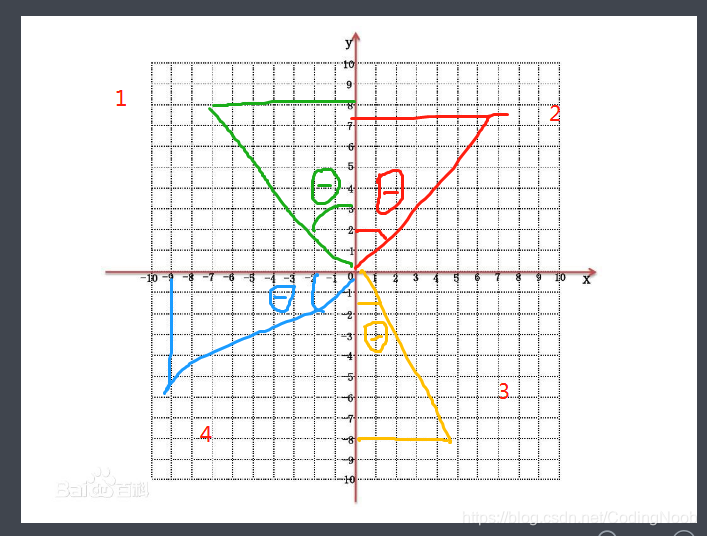
通过 Math.atan可以计算出反正切的值,从而推算出鼠标移动到哪个象限的时候的角度。四个点的拖拉也这个比较容易实现,自己想一下就可以了
运行结果如下:
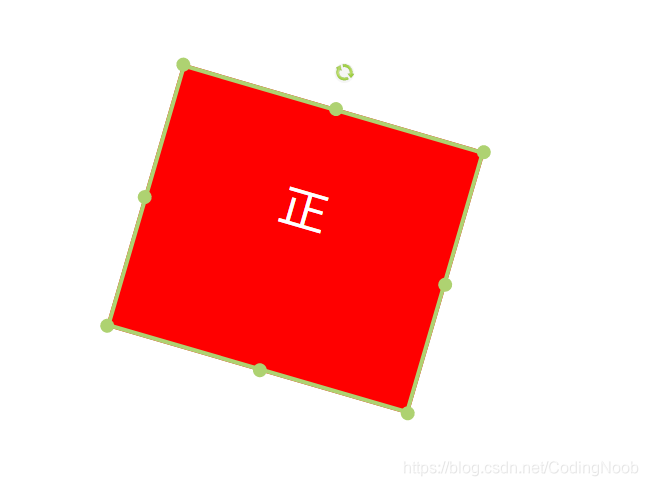
部分主要代码如下:
Rotate.js代码
const $ = (str) => {
  return document.querySelector(str);
};
const setRotate = (dom, rotate) => {
  dom.style.webkitTransform = 'rotate(' + rotate + 'deg)';
};
let roateBox = $('#rotateBox');

// 旋转按钮代码
// 获取方形中心坐标点即坐标轴原点
let centerPointX = roateBox.getBoundingClientRect().left + roateBox.getBoundingClientRect().width / 2;
let centerPointY = roateBox.getBoundingClientRect().top + roateBox.getBoundingClientRect().height / 2;
// 鼠标移动事件
const moveEvent = (e) => {
  let X = e.clientX;
  let Y = e.clientY;
  e.stopPropagation();
  let oY = Math.abs(Y - centerPointY);
  let oX = Math.abs(X - centerPointX);
  // 避免水平和垂直位置的就相当于和坐标轴相交的时候设置除数为0或者不知道为360度还是180度
  (oY === 0) && (oY = 0.01);
  (oX === 0) && (oX = 0.01);
  let degEnd = Math.atan(oX / oY) / (2 * Math.PI) * 360;

  // 第一象限
  if (X > centerPointX && Y < centerPointY) {
    console.log('第一象限');
    setRotate(roateBox, degEnd);
  }
  // 第二象限
  if (X > centerPointX && Y > centerPointY) {
    console.log('第二象限');
    setRotate(roateBox, (180 - degEnd));
  }
  // 第三象限
  if (X < centerPointX && Y > centerPointY) {
    console.log('第三象限');
    setRotate(roateBox, (degEnd + 180));
  }
  // 第四象限
  if (X < centerPointX && Y < centerPointY) {
    console.log('第四象限');
    setRotate(roateBox, (360 - degEnd));
  }
};

$('#rotateBox .point').addEventListener('mousedown', function (e) {
  e.stopPropagation();
  document.addEventListener('mousemove', moveEvent, false);
}, false);

document.addEventListener('mouseup', function () {
  document.removeEventListener('mousemove', moveEvent);
}, false);

// 释放文档按下事件
document.onmouseup = function () {
  document.onmousemove = null;
};

// 右下角拉伸点
let startX, startY, owidth, oheight, oleft, otop;
const MAXWIDTH = 50;  // 限制最大宽度
const MAXHEIGHT = 50; // 限制最大高度
$('#rotateBox .rb-point').addEventListener('mousedown', function (e) {
  let that = this;
  startX = e.clientX;
  startY = e.clientY;
  oleft = this.parentNode.getBoundingClientRect().left
  owidth = this.parentNode.getBoundingClientRect().width;
  oheight = this.parentNode.getBoundingClientRect().height;
  e.stopPropagation();
  document.onmousemove = function (e) {
    let moveX = e.clientX;
    let moveY = e.clientY;
    let mWidth = moveX - startX;
    let mHeight = moveY - startY;
    console.log(mWidth, mHeight);
    that.parentNode.style.left = oleft + 'px';
    that.parentNode.style.width = (((owidth + mWidth) > MAXWIDTH) ? (owidth + mWidth) : MAXWIDTH) + 'px';
    that.parentNode.style.height = ((oheight + mHeight) > MAXHEIGHT ? (oheight + mHeight) : MAXHEIGHT) + 'px';
  };
}, false);

// 左下角拉伸点
$('#rotateBox .lb-point').addEventListener('mousedown', function (e) {
  let that = this;
  startX = e.clientX;
  startY = e.clientY;
  oleft = this.parentNode.getBoundingClientRect().left
  owidth = this.parentNode.getBoundingClientRect().width;
  oheight = this.parentNode.getBoundingClientRect().height;
  e.stopPropagation();
  document.onmousemove = function (e) {
    let moveX = e.clientX;
    let moveY = e.clientY;
    let mWidth = startX - moveX;
    let mHeight = moveY - startY;
    console.log(mWidth, mHeight);
    that.parentNode.style.left = moveX + 'px';
    that.parentNode.style.width = (((owidth + mWidth) > MAXWIDTH) ? (owidth + mWidth) : MAXWIDTH) + 'px';
    that.parentNode.style.height = ((oheight + mHeight) > MAXHEIGHT ? (oheight + mHeight) : MAXHEIGHT) + 'px';
  };
}, false);

// 左上角拉伸点
$('#rotateBox .lt-point').addEventListener('mousedown', function (e) {
  let that = this;
  startX = e.clientX;
  startY = e.clientY;
  oleft = this.parentNode.getBoundingClientRect().left
  otop = this.parentNode.getBoundingClientRect().top
  owidth = this.parentNode.getBoundingClientRect().width;
  oheight = this.parentNode.getBoundingClientRect().height;
  e.stopPropagation();
  document.onmousemove = function (e) {
    let moveX = e.clientX;
    let moveY = e.clientY;
    let mWidth = startX - moveX;
    let mHeight = startY - moveY;
    console.log(mWidth, mHeight);
    that.parentNode.style.left = moveX + 'px';
    that.parentNode.style.top = moveY + 'px';
    that.parentNode.style.width = (((owidth + mWidth) > MAXWIDTH) ? (owidth + mWidth) : MAXWIDTH) + 'px';
    that.parentNode.style.height = ((oheight + mHeight) > MAXHEIGHT ? (oheight + mHeight) : MAXHEIGHT) + 'px';
  };
}, false);


// 右上角拉伸点
$('#rotateBox .rt-point').addEventListener('mousedown', function (e) {
  let that = this;
  startX = e.clientX;
  startY = e.clientY;
  oleft = this.parentNode.getBoundingClientRect().left
  otop = this.parentNode.getBoundingClientRect().top
  owidth = this.parentNode.getBoundingClientRect().width;
  oheight = this.parentNode.getBoundingClientRect().height;
  e.stopPropagation();
  document.onmousemove = function (e) {
    let moveX = e.clientX;
    let moveY = e.clientY;
    let mWidth = moveX - startX;
    let mHeight = startY - moveY;
    console.log(mWidth, mHeight);
    that.parentNode.style.left = oleft + 'px';
    that.parentNode.style.top = moveY + 'px';
    that.parentNode.style.width = (((owidth + mWidth) > MAXWIDTH) ? (owidth + mWidth) : MAXWIDTH) + 'px';
    that.parentNode.style.height = ((oheight + mHeight) > MAXHEIGHT ? (oheight + mHeight) : MAXHEIGHT) + 'px';
  };
}, false);


// 中上拉伸点
$('#rotateBox .ct-point').addEventListener('mousedown', function (e) {
  let that = this;
  startX = e.clientX;
  startY = e.clientY;
  oleft = this.parentNode.getBoundingClientRect().left
  otop = this.parentNode.getBoundingClientRect().top
  owidth = this.parentNode.getBoundingClientRect().width;
  oheight = this.parentNode.getBoundingClientRect().height;
  e.stopPropagation();
  document.onmousemove = function (e) {
    let moveY = e.clientY;
    let mHeight = startY - moveY;
    that.parentNode.style.top = moveY + 'px';
    that.parentNode.style.height = ((oheight + mHeight) > MAXHEIGHT ? (oheight + mHeight) : MAXHEIGHT) + 'px';
  };
}, false);

// 中下拉伸点
$('#rotateBox .cb-point').addEventListener('mousedown', function (e) {
  let that = this;
  startX = e.clientX;
  startY = e.clientY;
  oleft = this.parentNode.getBoundingClientRect().left
  otop = this.parentNode.getBoundingClientRect().top
  owidth = this.parentNode.getBoundingClientRect().width;
  oheight = this.parentNode.getBoundingClientRect().height;
  e.stopPropagation();
  document.onmousemove = function (e) {
    let moveY = e.clientY;
    let mHeight = moveY - startY;
    that.parentNode.style.height = ((oheight + mHeight) > MAXHEIGHT ? (oheight + mHeight) : MAXHEIGHT) + 'px';
  };
}, false);

// 左中拉伸点
$('#rotateBox .cl-point').addEventListener('mousedown', function (e) {
  let that = this;
  startX = e.clientX;
  startY = e.clientY;
  oleft = this.parentNode.getBoundingClientRect().left
  otop = this.parentNode.getBoundingClientRect().top
  owidth = this.parentNode.getBoundingClientRect().width;
  oheight = this.parentNode.getBoundingClientRect().height;
  e.stopPropagation();
  document.onmousemove = function (e) {
    let moveY = e.clientY;
    let moveX = e.clientX;
    let mWidth = startX - moveX;
    that.parentNode.style.left = moveX + 'px';
    that.parentNode.style.width = (((owidth + mWidth) > MAXWIDTH) ? (owidth + mWidth) : MAXWIDTH) + 'px';
  };
}, false);

// 右中拉伸点
$('#rotateBox .cr-point').addEventListener('mousedown', function (e) {
  let that = this;
  startX = e.clientX;
  startY = e.clientY;
  oleft = this.parentNode.getBoundingClientRect().left
  otop = this.parentNode.getBoundingClientRect().top
  owidth = this.parentNode.getBoundingClientRect().width;
  oheight = this.parentNode.getBoundingClientRect().height;
  e.stopPropagation();
  document.onmousemove = function (e) {
    let moveY = e.clientY;
    let moveX = e.clientX;
    let mWidth = moveX - startX;
    that.parentNode.style.width = (((owidth + mWidth) > MAXWIDTH) ? (owidth + mWidth) : MAXWIDTH) + 'px';
  };
}, false);
Dragble.js负责拖动元素位置
const $Dragble = {
  dom: '',
  isMove: false,
  left: '',
  top: '',
  mouseStartX: '',
  mouseStartY: '',
  positionType: '',
  mousemove: function(maxleft, maxtop) {
    $Dragble.dom.style.top = $Dragble.top + (window.event.pageY - $Dragble.mouseStartY) + 'px';
    $Dragble.dom.style.left = $Dragble.left + (window.event.pageX - $Dragble.mouseStartX) + 'px';
    // 这两行必须要有,为了移动的时候重置中心点的坐标
    centerPointX = $Dragble.dom.getBoundingClientRect().left + $Dragble.dom.getBoundingClientRect().width / 2;
    centerPointY = $Dragble.dom.getBoundingClientRect().top + $Dragble.dom.getBoundingClientRect().height / 2;
  },
  mouseup: function() {
    document.removeEventListener('mousemove', this.mousemove);
  },
  // 初始化数据
  intData: function(dom, type, maxLeft, maxTop) {
    this.dom = dom;
    this.isMove = true;
    this.positionType = type;
    this.dom.style.position = type;
    this.mouseStartX = window.event.pageX;
    this.mouseStartY = window.event.pageY;
    this.left = Number.parseFloat(this.dom.style.left);
    this.top = Number.parseFloat(this.dom.style.top);
    this.dom.style.left ? this.dom.style.left : this.dom.style.left = 0;
    this.dom.style.top ? this.dom.style.top : this.dom.style.top = 0;
  },
  mousedown: function(dom, type, maxLeft, maxTop) {
    this.intData(dom, type, maxLeft, maxTop);
    document.addEventListener('mousemove', this.mousemove, false);
    document.removeEventListener('mouseup', this.mousemove);
  }
};
html部分:
<!DOCTYPE html>
<html>
  <head>
    <link href="./css/Roate.css" rel="stylesheet" />
  </head>
  <body>
    <div
      class="box"
      onmousedown="$Dragble.mousedown(this, 'relative')"
		  onmouseup="$Dragble.mouseup()"
      id="rotateBox"
      style="transform: rotate(0deg);left:0;top:0;"
    >
      正
      <!--img src="./img.png"/-->
      <div class="point" title="点击旋转"></div>
      <div class="lt-point" title="左上角"></div>
      <div class="rt-point" title="右上角"></div>
      <div class="rb-point" title="右下角"></div>
      <div class="lb-point" title="左下角"></div>
      <div class="ct-point" title="中上点"></div>
      <div class="cb-point" title="中下点"></div>
      <div class="cl-point" title="左中点"></div>
      <div class="cr-point" title="右中点"></div>
    </div>
    <script src="./js/Roate.js"></script>
    <script src="./js/Dragble.js"></script>
  </body>
</html>
CSS部分代码:
#rotateBox {
  position:relative;
  height: 200px;
  width: 200px;
  background:red;
  font-size:45px;
  color:#fff;
  line-height:200px;
  text-align:center;
  user-select: none;
  border:4px solid #AED271;
}
#rotateBox .point{
  position:absolute;
  left: 50%;
  top:-50px;
  margin-left:-10px;
  height:20px;
  width:20px;
  border-radius:20px;
  background: url('../img/rotate-icon.jpg') no-repeat center;
  background-size: 100%;
}
#rotateBox .rb-point,
.lb-point,
.lt-point,
.rt-point,
.ct-point,
.cb-point,
.cl-point,
.cr-point{
  height:14px;
  width:14px;
  background: #AED271;
  border-radius:20px;
  position:absolute;
  right: -10px;
  bottom:-10px;
  cursor: nw-resize;
}
#rotateBox .lb-point{
  left: -10px;
  bottom:-10px;
  cursor: sw-resize;
}
#rotateBox .lt-point{
  left: -10px;
  top:-10px;
  cursor: nw-resize;
}
#rotateBox .rt-point{
  right: -10px;
  top:-10px;
  cursor: sw-resize;
}
#rotateBox img {
  position:absolute;
  left: 0;
  height:100%;
  width:100%;
}
#rotateBox .ct-point {
  left: 50%;
  top: -10px;
  margin-left:-5px;
  cursor: s-resize;
}
#rotateBox .cb-point {
  left: 50%;
  bottom: -10px;
  margin-left:-5px;
  cursor: s-resize;
}
#rotateBox .cl-point {
  top: 50%;
  left: -10px;
  margin-top:-5px;
  cursor: w-resize;
}
#rotateBox .cr-point {
  top: 50%;
  right: -10px;
  margin-top:-5px;
  cursor: w-resize;
} 300


 扫一扫


 被折叠的 条评论
为什么被折叠?
 到【灌水乐园】发言


