






往期鸿蒙全套实战文章必看:(文中附带全栈鸿蒙学习资料)
鼠标事件
在鼠标的单个动作触发多个事件时,事件的顺序是固定的,鼠标事件默认透传。
说明
- 从API Version 8开始支持。后续版本如有新增内容,则采用上角标单独标记该内容的起始版本。
- 目前仅支持通过外接鼠标触发。
onMouse
onMouse(event: (event: MouseEvent) => void)
当前组件被鼠标按键点击时或者鼠标在组件上悬浮移动时,触发该回调。
元服务API: 从API version 11开始,该接口支持在元服务中使用。
系统能力: SystemCapability.ArkUI.ArkUI.Full
参数:
| 参数名 | 类型 | 必填 | 说明 |
|---|---|---|---|
| event | MouseEvent | 是 | 返回触发事件时的时间戳、鼠标按键、动作、鼠标位置在整个屏幕上的坐标和相对于当前组件的坐标。 |
MouseEvent对象说明
继承于BaseEvent。
系统能力: SystemCapability.ArkUI.ArkUI.Full
| 名称 | 属性类型 | 描述 |
|---|---|---|
| x | number | 鼠标位置相对于当前组件左上角的x轴坐标。 元服务API: 从API version 11开始,该接口支持在元服务中使用。 |
| y | number | 鼠标位置相对于当前组件左上角的y轴坐标。 元服务API: 从API version 11开始,该接口支持在元服务中使用。 |
| button | MouseButton | 鼠标按键。 元服务API: 从API version 11开始,该接口支持在元服务中使用。 |
| action | MouseAction | 鼠标动作。 元服务API: 从API version 11开始,该接口支持在元服务中使用。 |
| stopPropagation | () => void | 阻塞事件冒泡。 元服务API: 从API version 11开始,该接口支持在元服务中使用。 |
| target | EventTarget | 触发事件的元素对象显示区域。 元服务API: 从API version 11开始,该接口支持在元服务中使用。 |
| windowX10+ | number | 鼠标位置相对于应用窗口左上角的x轴坐标。 元服务API: 从API version 11开始,该接口支持在元服务中使用。 |
| windowY10+ | number | 鼠标位置相对于应用窗口左上角的y轴坐标。 元服务API: 从API version 11开始,该接口支持在元服务中使用。 |
| displayX10+ | number | 鼠标位置相对于应用屏幕左上角的x轴坐标。 元服务API: 从API version 11开始,该接口支持在元服务中使用。 |
| displayY10+ | number | 鼠标位置相对于应用屏幕左上角的y轴坐标。 元服务API: 从API version 11开始,该接口支持在元服务中使用。 |
| screenX(deprecated) | number | 鼠标位置相对于应用窗口左上角的x轴坐标。 从API Version 10开始不再维护,建议使用windowX代替。 |
| screenY(deprecated) | number | 鼠标位置相对于应用窗口左上角的y轴坐标。 从API Version 10开始不再维护,建议使用windowY代替。 |
示例
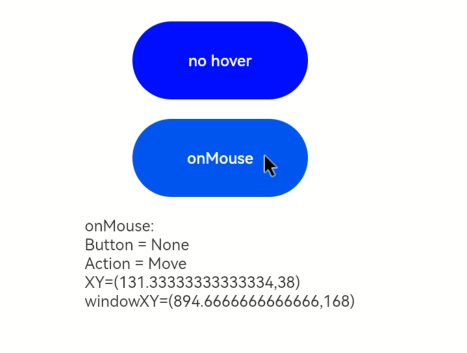
该示例通过按钮设置了鼠标事件,通过鼠标点击按钮可以触发onMouse事件,获取鼠标事件相关参数。
// xxx.ets
@Entry
@Component
struct MouseEventExample {
  @State hoverText: string = 'no hover';
  @State mouseText: string = '';
  @State action: string = '';
  @State mouseBtn: string = '';
  @State color: Color = Color.Blue;

  build() {
    Column({ space: 20 }) {
      Button(this.hoverText)
        .width(180).height(80)
        .backgroundColor(this.color)
        .onHover((isHover: boolean, event: HoverEvent) => {
          // 通过onHover事件动态修改按钮在是否有鼠标悬浮时的文本内容与背景颜色
          if (isHover) {
            this.hoverText = 'hover';
            this.color = Color.Pink;
          } else {
            this.hoverText = 'no hover';
            this.color = Color.Blue;
          }
        })
      Button('onMouse')
        .width(180).height(80)
        .onMouse((event: MouseEvent):void => {
          if(event){
            switch (event.button) {
              case MouseButton.None:
                this.mouseBtn = 'None';
                break;
              case MouseButton.Left:
                this.mouseBtn = 'Left';
                break;
              case MouseButton.Right:
                this.mouseBtn = 'Right';
                break;
              case MouseButton.Back:
                this.mouseBtn = 'Back';
                break;
              case MouseButton.Forward:
                this.mouseBtn = 'Forward';
                break;
              case MouseButton.Middle:
                this.mouseBtn = 'Middle';
                break;
            }
            switch (event.action) {
              case MouseAction.Hover:
                this.action = 'Hover';
                break;
              case MouseAction.Press:
                this.action = 'Press';
                break;
              case MouseAction.Move:
                this.action = 'Move';
                break;
              case MouseAction.Release:
                this.action = 'Release';
                break;
            }
            this.mouseText = 'onMouse:\nButton = ' + this.mouseBtn +
            '\nAction = ' + this.action + '\nXY=(' + event.x + ',' + event.y + ')' +
            '\nwindowXY=(' + event.windowX + ',' + event.windowY + ')';
          }
        })
      Text(this.mouseText)
    }.padding({ top: 30 }).width('100%')
  }
}
示意图:
鼠标点击时:





 扫一扫
扫一扫


 被折叠的 条评论
为什么被折叠?
被折叠的 条评论
为什么被折叠?
 到【灌水乐园】发言





